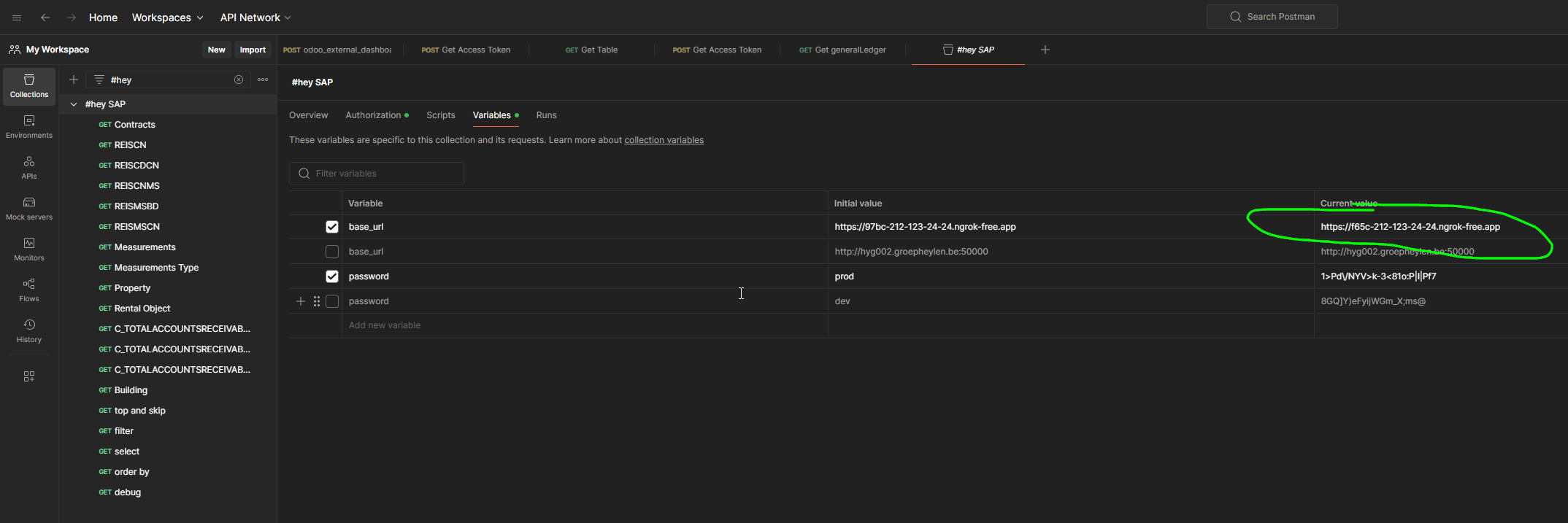
SAP Odata Views
URLs
| Environment | URL |
|---|---|
| PROD | hyg002.groepheylen.be:50000/sap/opu/odata/sap/ |
| DEV | hyg007.groepheylen.be:50000/sap/opu/odata/sap/ |
Authentication
Basic authentication, same user/password as SAP GUI.
SVC_POWERBI
Services
| ENTITY | Relative Path |
|---|---|
| BUSINESS ENTITY | ZZI_REBUSINESSENTITY_CDS/ZZI_REBUSINESSENTITY |
| COST CENTER | ZZC_CostCenter_CDS/ZZC_CostCenter |
| PROPERTY | ZZI_REPROPERTY_CDS/ZZI_REPROPERTY |
| RENTALOBJECT | ZZI_RERENTALOBJECT_CDS/ZZI_RERENTALOBJECT |
| CONTRACT | ZZI_RECONTRACT_CDS/ZZI_RECONTRACT |
| CONTRACT VALUATION | ZZC_RECONTRACTVALUATION_CDS/ZZC_RECONTRACTVALUATION |
| BUILDING | ZZI_REBUILDING_CDS/ZZI_REBUILDING |
| MEASUREMENT | ZZI_REMEASUREMENT_CDS/ZZI_REMEASUREMENT |
| MEASUREMENT TYPE | ZZI_REMEASUREMENTTYPE_CDS/ZZI_REMEASUREMENTTYPE |
| MEASUREMENT TYPE TEXT | ZZI_REMEASUREMENTTYPETEXT_CDS/ZZI_REMEASUREMENTTYPETEXT |
| INVOICE | ZZI_REINVOICEHEADER_CDS/ZZI_REINVOICEHEADER |
Format
The standard format is XML.
To get JSON, add $format=json to the URL.
Note, however, that the JSON format is not typed. Everything is returned as string, with the dates using the old Microsoft format (e.g. /Date(1598918400000)/).
SAP Documentation
Examples
-
http://hyg007.groepheylen.be:50000/sap/opu/odata/sap/ZZI_RERENTALOBJECT_CDS/ZZI_RERENTALOBJECT
-
http://hyg002.groepheylen.be:50001/sap/opu/odata/sap/ZZI_RECONTRACT_CDS/ZZI_RECONTRACT?$format=json
-
http://hyg007.groepheylen.be:50000/sap/opu/odata/sap/ZZI_REBUILDING_CDS/ZZI_REBUILDING/$count
How to add data to our DWH
The process is as follows:
-
identify a view that contains your data
-
ask the SAP Implementation partner to create a view on top of it
-
access the view
Identify the view
There are multiple ways to identify the view. You can ask GitHub Copilot, or you can query Fiori. But the one that works typically best for us is this:
-
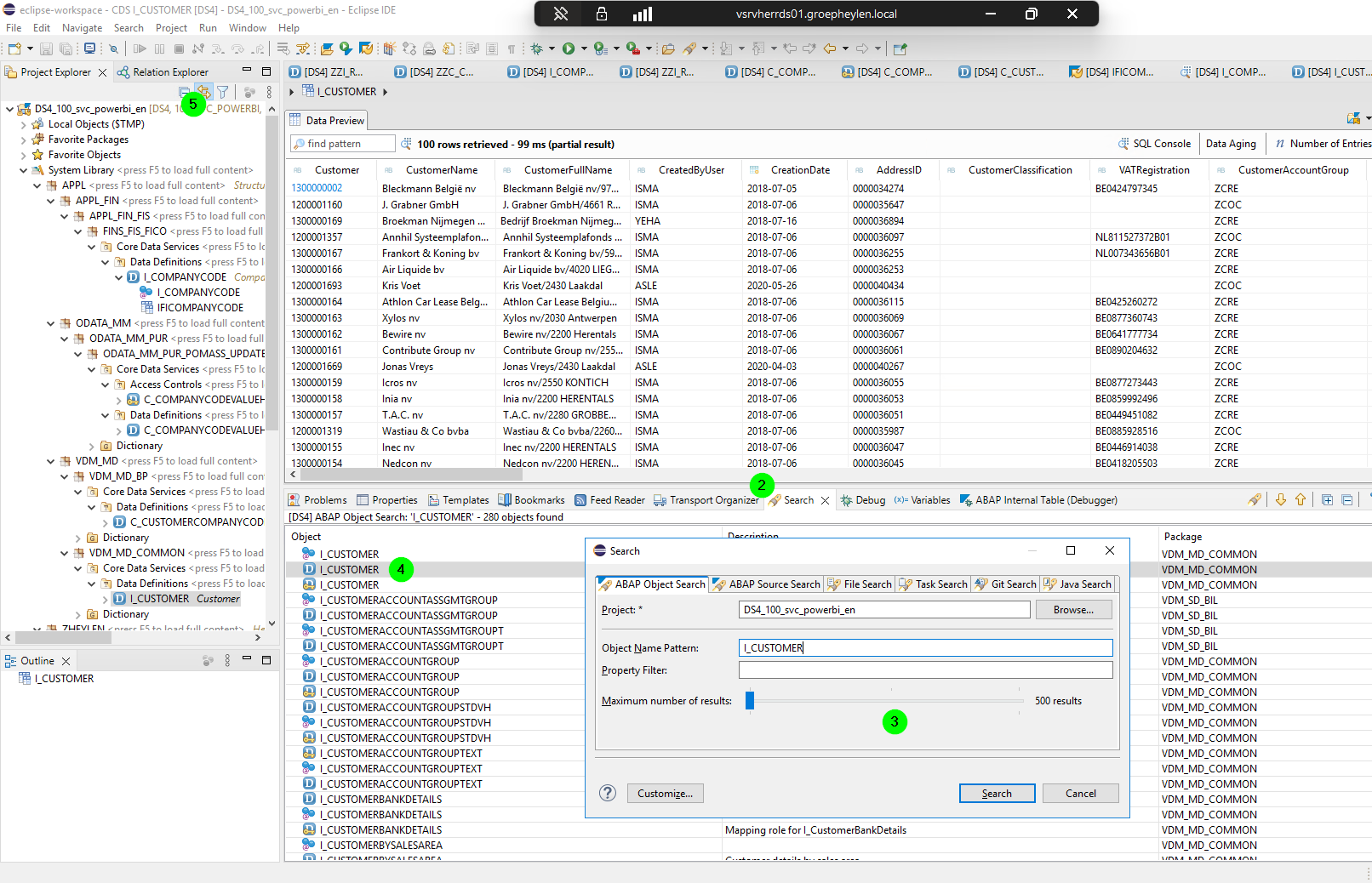
log into RDP for #hey
-
open Eclipse and go to the search tab
-
search for the object (you can use wildcards like * )
-
double-click the Object
-
make sure the tree is linked
-
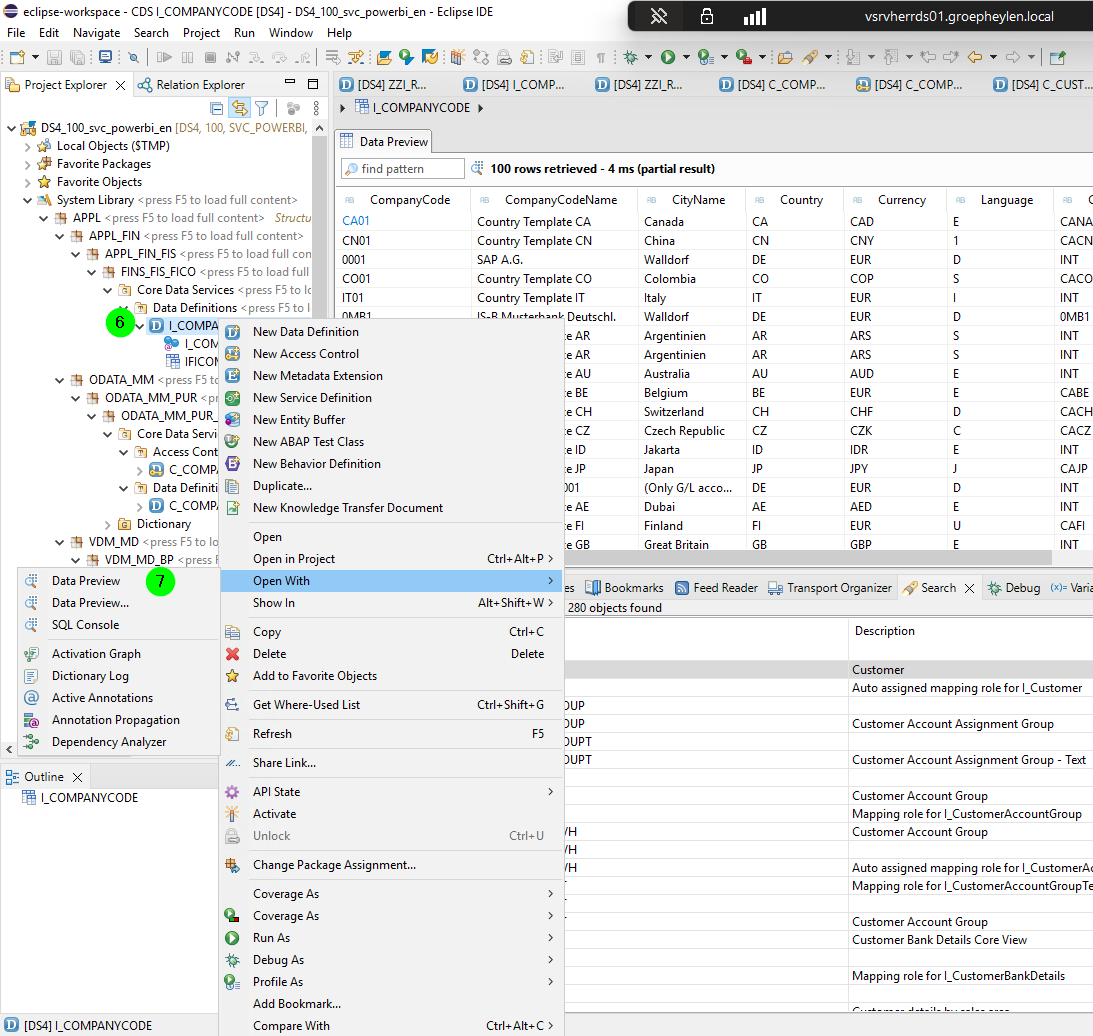
right-click the object
-
open with data preview
-
you can now inspect the data and decide if this is the right data
Ask SAP-Company for help
Typically, the C_ and I_ views by SAP are not published as OData views. So you need to ask an SAP Developer to publish the view.
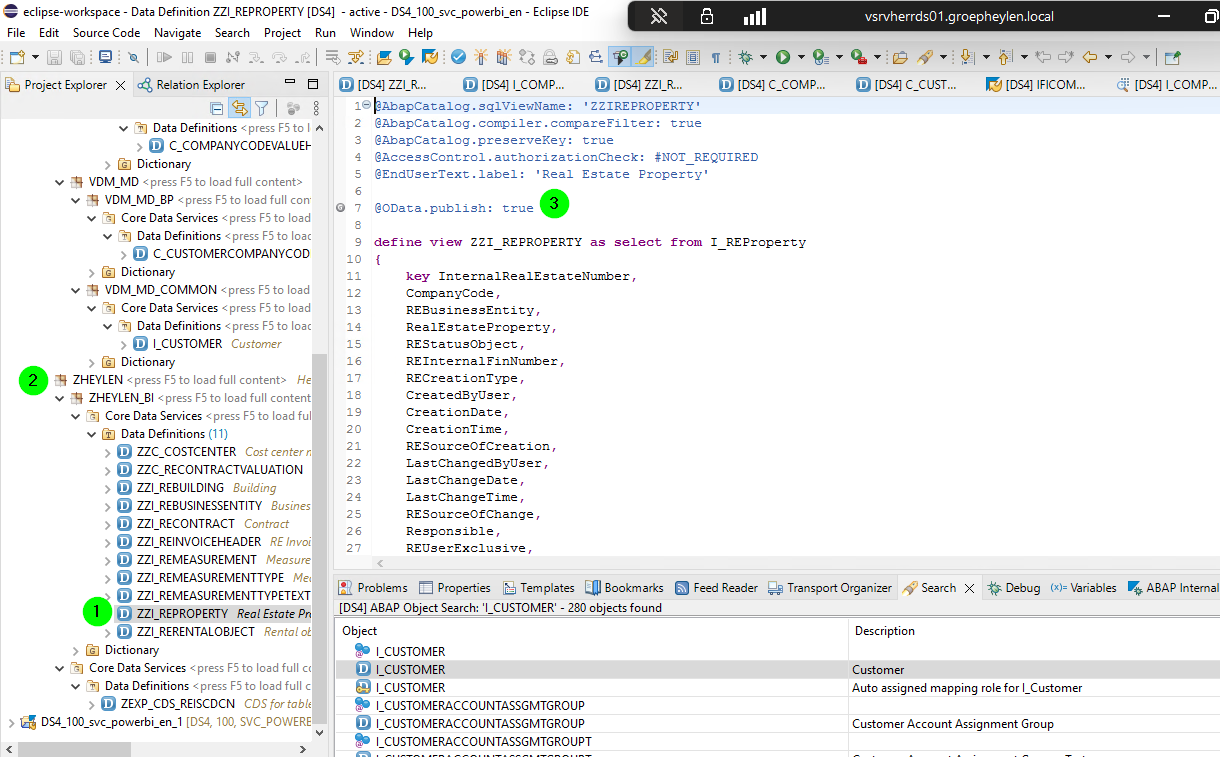
In SAP, it is common to create simple view on top of existing views.
-
typically, the view name is prefixed with Z or ZZ
-
it is stored in a package, whose name is typically also prefixed with Z
-
it is tagged with the OData tag, which will make sure it is automatically published
Access the view data
Once the SAP developer says he has published the view, you can test it. There are two ways:
-
in the browser, in RDP
-
in postman, using ngrok
Test the view in the browser in RDP
-
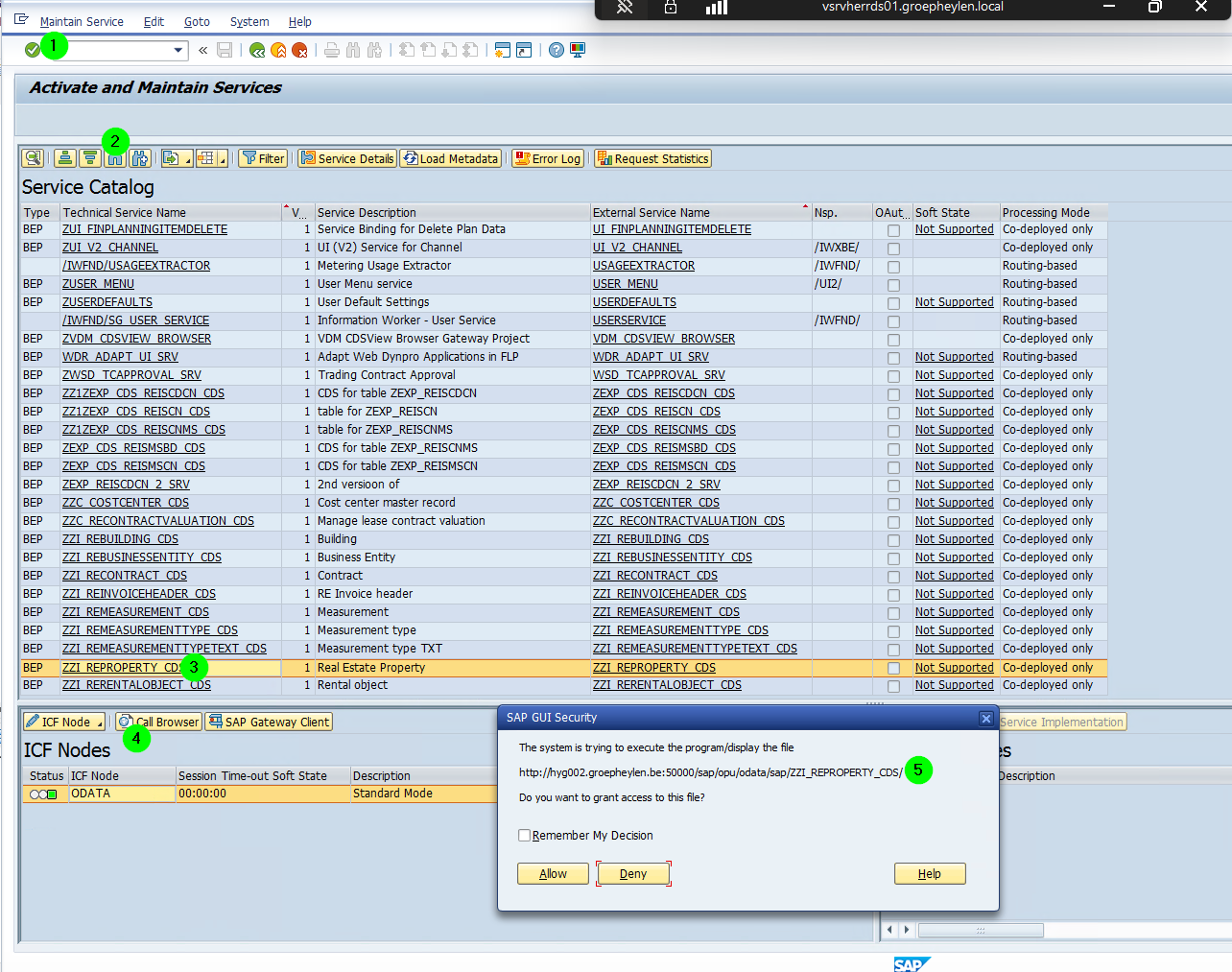
in SAP GUI, go to transaction
/iwfnd/maint_service -
search for the view
-
double-click
-
select 'Call Browser'
-
This will show the service. Copy it to the clipboard
-
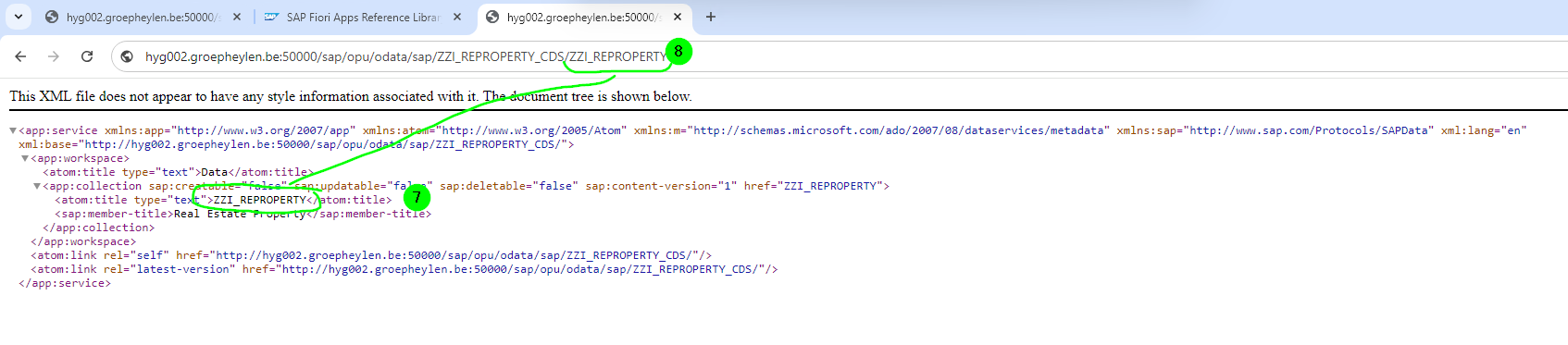
open Chrome and paste the service. This will show the endpoint
-
identify the endpoint and add it to the service, this will give you access to the data
Test the view in Postman
In the previous method, you identified the endpoint. You can now inspect the data in postman. Proceed like this:
-
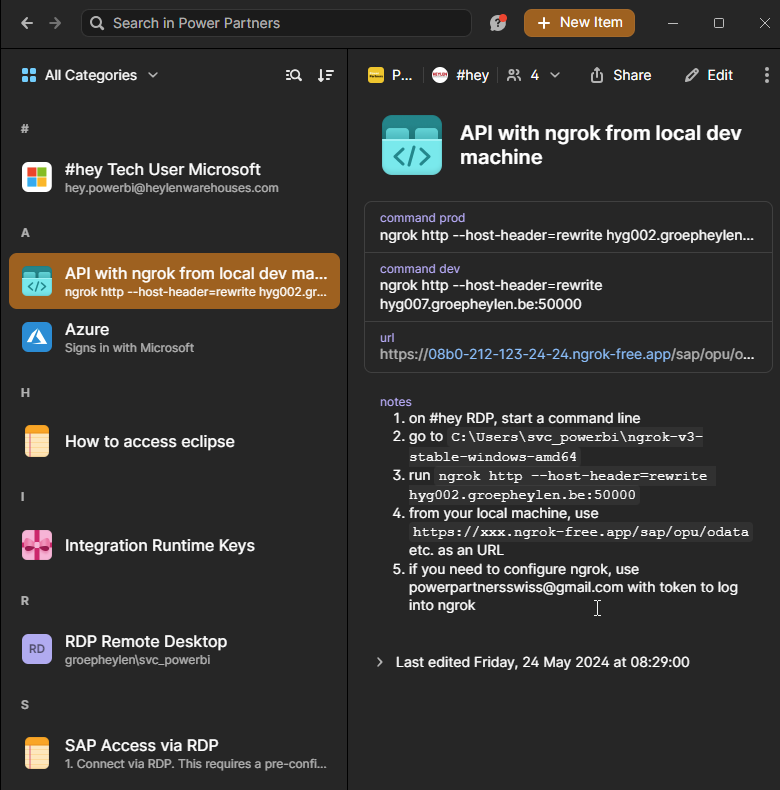
in RDP, start ngrok (see 1pw for details) on the right environment (hyg002 for prod, hyg007 for dev)
-
on your computer, start postman
-
change the base URL in postman