How to correctly setup the App for the PBI dataset refresh
This section covers the correct implementation of the setup process to include the automatic refresh of the power bi dataset in the ADF pipeline.
Prepare the App
-
Go to
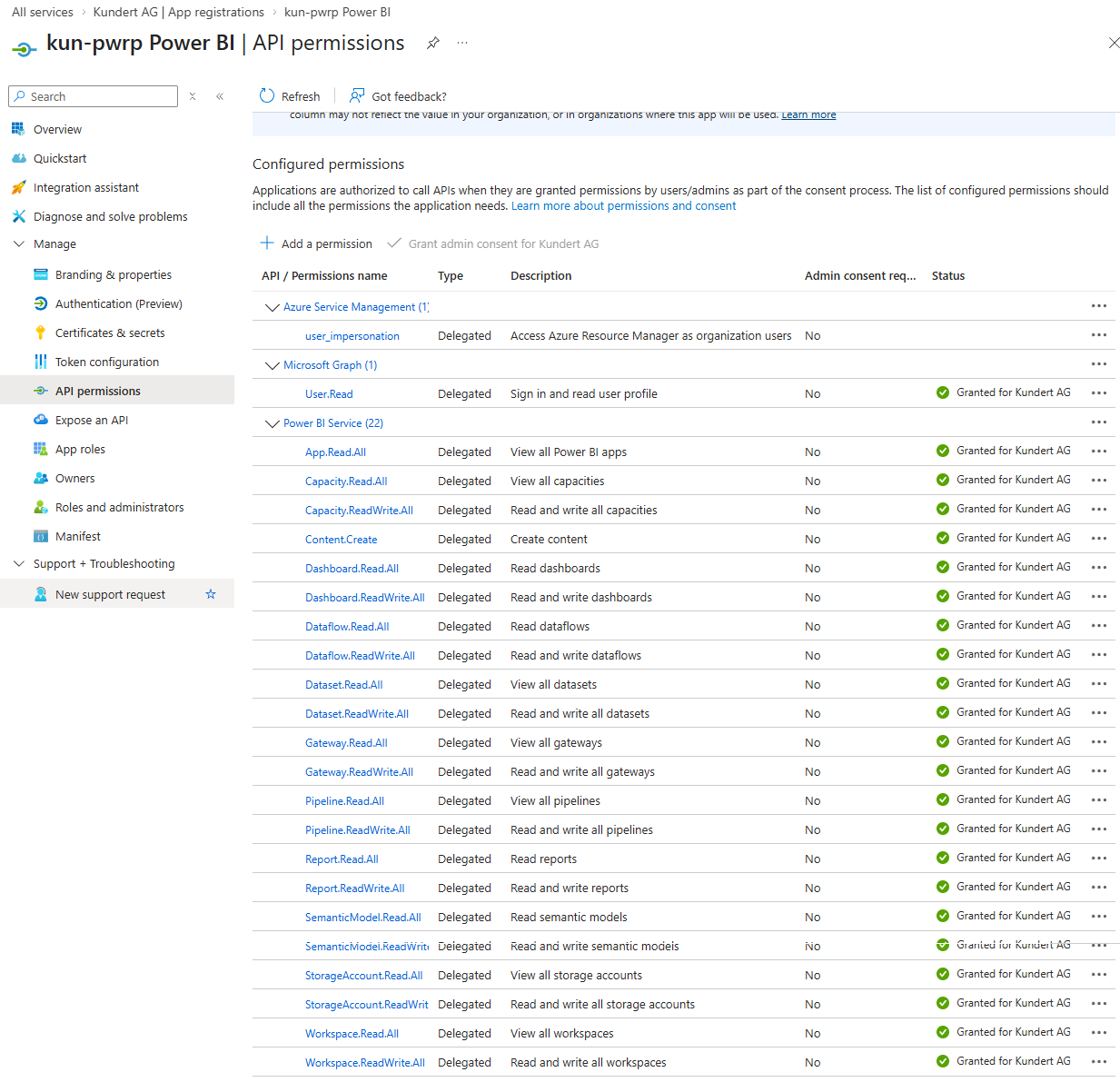
Azure -> App registrations -> Power BI App -> API Permissions -
If not already given add the below applicable permissions and grant the access in the partner center: Microsoft Partner Center - Home if the licence is purchased through us or request the grant from the customer
Get Access and Refresh Token
Once the App is prepared and set up with the right permissions we need to get an access and a refresh token with Postman
-
First get the following:
Application (client) IDof the Application which is theclient_id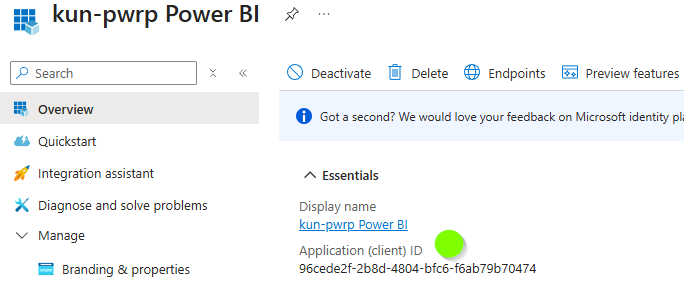
Afterwards get theclient_secretor to be more specific the client secret value from the secrets of the app. Usually if this is already done the value should be in 1password otherwise create a new secret and immediately copy the value and store it to 1password. It will not be applicable anymore afterwards. However this value is needed for theclient_secret
-
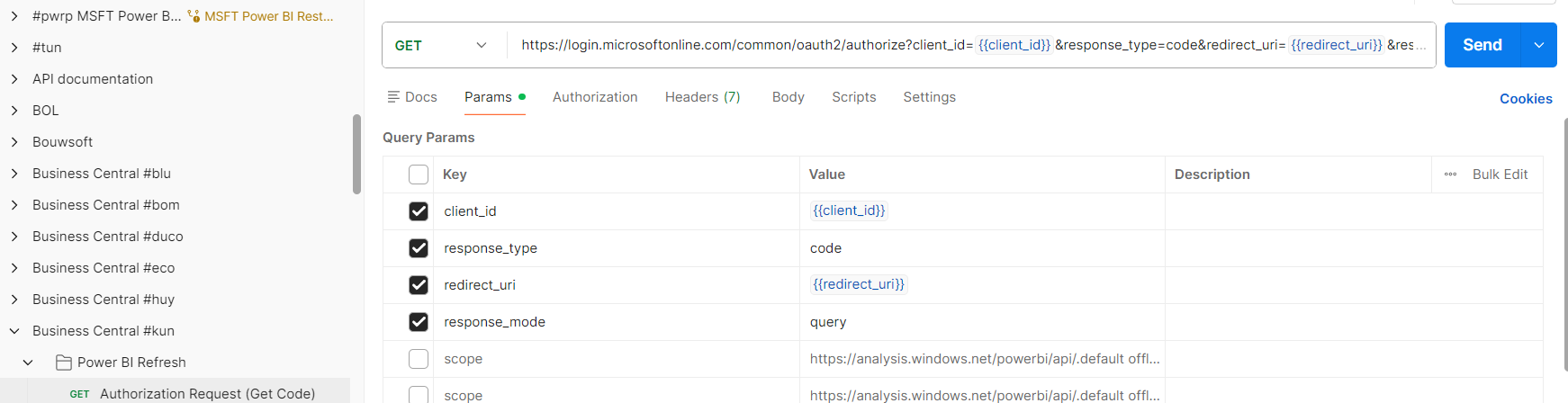
Prepare in Postman the URL to retrieve a code as in the following screenshot and example. If not created for the customer already check for #kun and use this url code as template:
https://login.microsoftonline.com/common/oauth2/authorize?client_id={{client_id}}&response_type=code&redirect_uri={{redirect_uri}}&response_mode=query
-
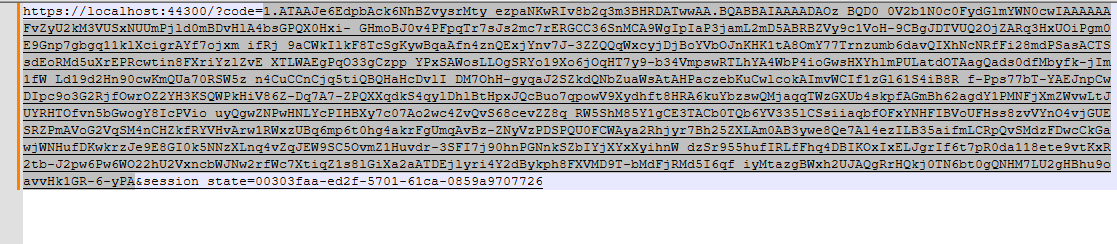
Paste the prepared code above into the browser and log in. You should get a response in the search bar with a code. Copy past the whole into Notepad++ and extract only the code part:
-
Paste the code in the POST request in Postman as seen below.
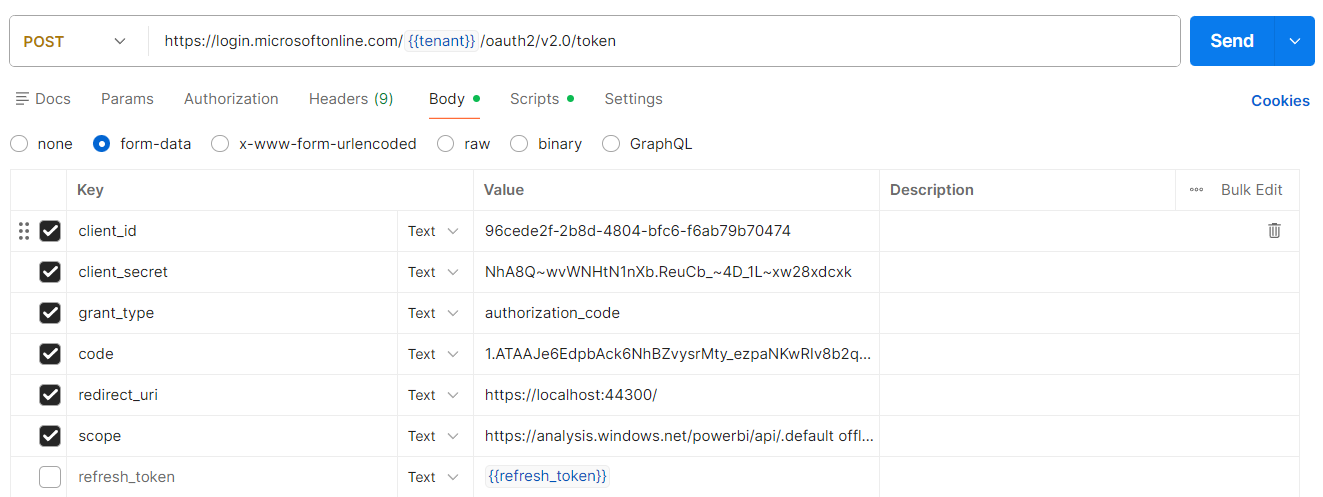
For more details to setup the whole POST request refer to the documentation about the whole oauth2 flow here: oauth-auth-code-flow -
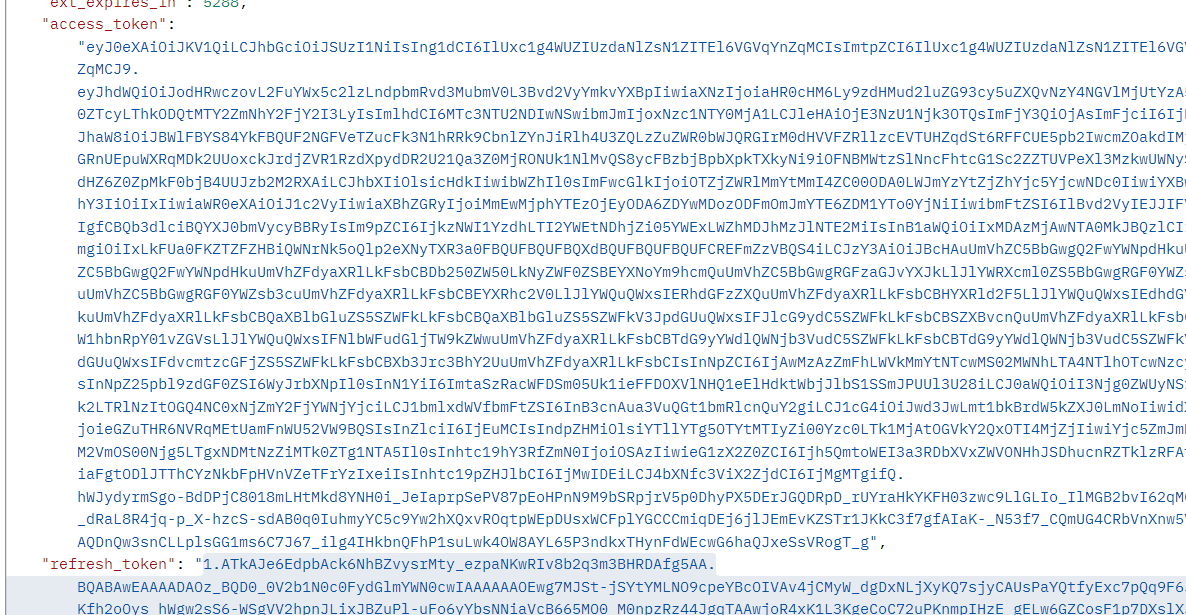
Send the request and you should get a response with an access and a refresh token. These two tokens are now to be stored in the azure key vault and are needed from the
ADF pipelineand theAzure Functionto call the refresh.
-
Try the refresh token to get a new access token.
-
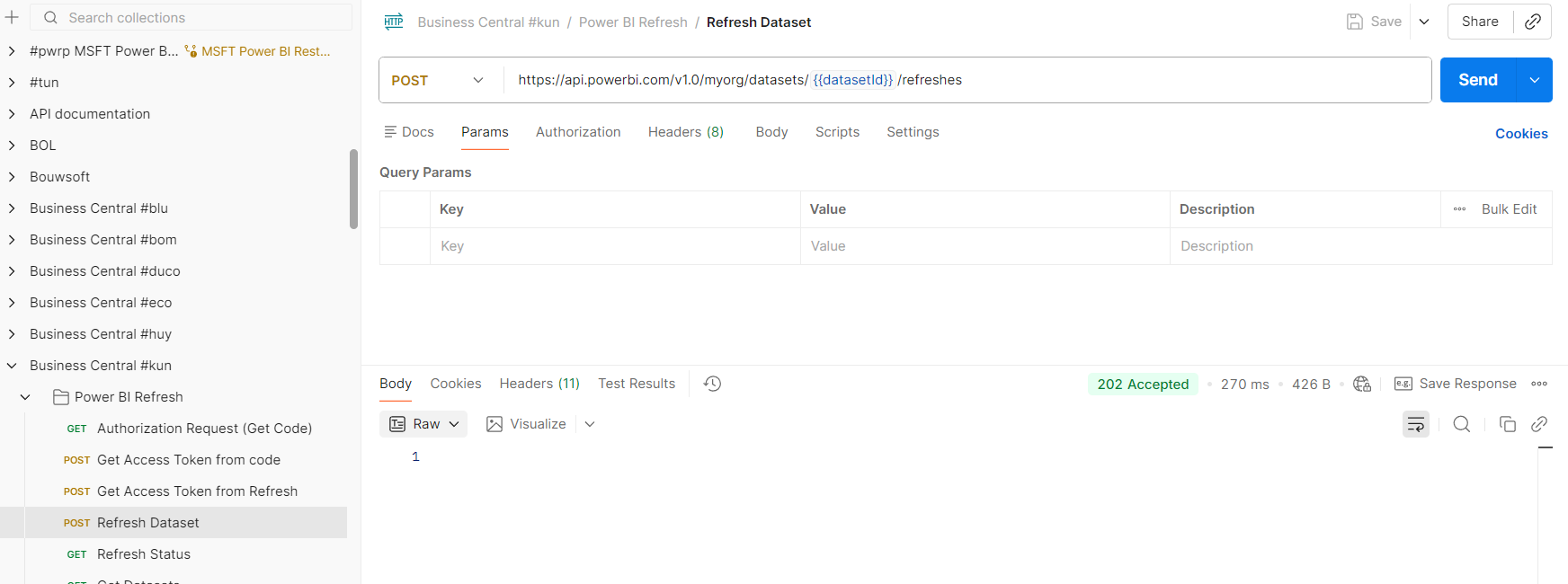
Use the access token to trigger the refresh of a dataset (you need the
semantic model idnot thereport id). If the response is 1 the refresh worked.
Azure setup
-
In the Azure portal go to
Azure Function -> Settings -> Environment Variablesin the Azure function which executes the refresh in the pipeline and set the following Variables:
PBI_REFRESH_CLIENT_ID:Application (Client) ID
PBI_REFRESH_MAX_ENTRIES:90
PBI_REFRESH_REDIRECT_URI:https://localhost:44300/ -
Next go to the
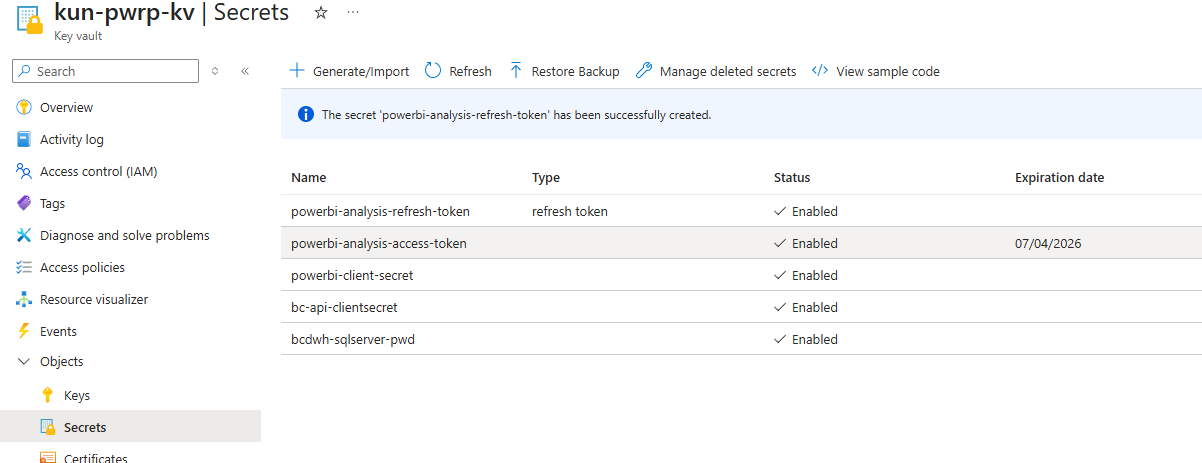
key vaultin Azure and add the relevant secrets:
powerbi-analysis-refresh-token: Refresh token from postman
powerbi-analysis-access-token: Access token retrieved from postman (Set the expiration date correctly the duration is only around 1.5 hours)
powerbi-client-secret: Client secret value stored in 1password
-
Last but not least set the
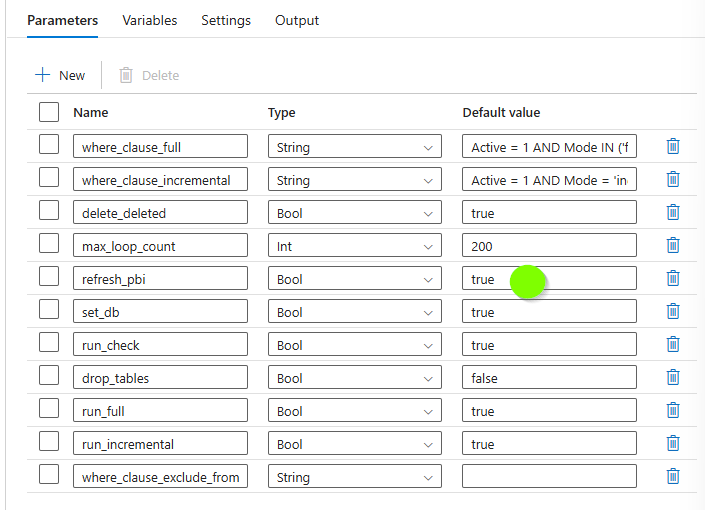
refresh_pbiparameter in theADFto true so it refreshes the dataset after the pipeline run. Don't forget toSave all->Validate all->Publishthe ADF pipeline