Azure SQL Server
Azure SQL Server is a cloud-based relational database management system. It works the same as SQL Server, but it is a fully managed and highly scalable, thanks to it being deployed in the cloud.
At Power Partners, we use Azure SQL Server often as a DWH (Data Warehouse). We prefer it over Cosmos or a file-based data lake structure thanks to the following features:
- for small data (SME operational data), being able to query is highly useful
- it is easy to update data incrementally (because we can easily query and batch replace a set of records). With a datalake, incremental loads (aka delta loads) can become very difficult (see for example the py-bouwsoft library). With SQL server, it's easy (see for example the BC Financial Accelerator product)
- thanks to elastic capacity, it is very cheap. With DTU basic, a typical data warehouse for our clients costs below 10 EUR per month. This is more than storing the same data in a Blob Storage, but much less than a dedicated SQL Server instance.
Debugging Azure Functions in VSC
You need to install the SQL Server ODBC driver, which is used by sqlalchemy.
You need Version 17. You can get it from here: https://learn.microsoft.com/en-us/sql/connect/odbc/download-odbc-driver-for-sql-server?view=sql-server-ver15
Authentication
Azure SQL Server data can be connected to with the following modes:
- SQL Authentication: authenticate with user and password
- Azure AD authentication: authenticate with a user defined in Azure AD (e.g. christoph.glur@powerpartners.pro )
For our projects, we typically use both (hybrid mode).
Tools
The easiest and best integrated tool to access data and manage databases is Azure Data Studio. It is downloadable for free.
Alternatively, you can access an Azure SQL Server like so:
- with SQL Server Management Studio
- from https://portal.azure.studio, by going to the Query Editor
Firewall
Azure Firewall
By default, public network access is turned off. You need to add your public IP to the SQL Server firewall in order to access a database:
-
log in to https://portal.azure.com
-
go to the Azure SQL Server
-
go to Networking
-
add a firewall rule for your current address (or for another IP address)
-
save
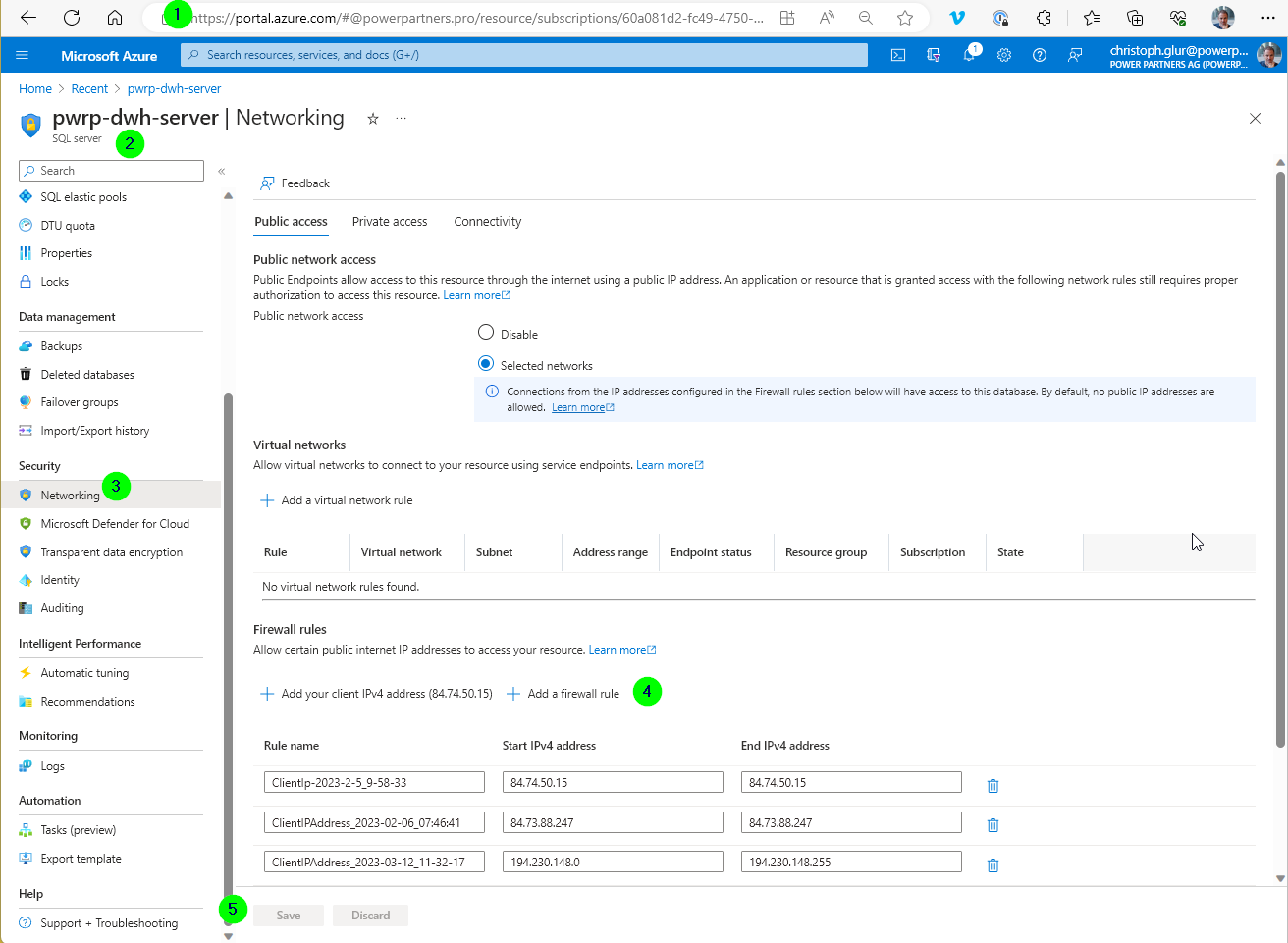
Outbound Firewall
Azure SQL Server uses TCP on port 1433. If you want to access it from your computer or from a server running the Integration Runtime (see Azure Data Factory), then you need to make sure that there is no outbound firewall rule preventing TCP on port 1433.
Create Microsoft 365 User or Role to access Azure SQL
Typically, we don't want to share or use the db admin to access the DWH. Instead, we have two options:
-
create a read-only user to be used from Power BI Service and Desktop
-
use individual M365 / Azure AD AzureAD authenticated users
For the second case, we proceed as follows:
Create Entra User
-
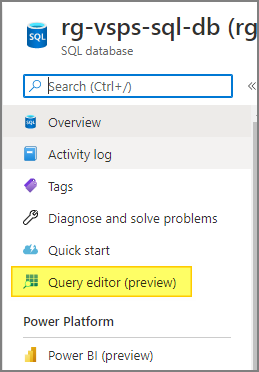
Log into SQL Server Management Studio, Azure Data Studio, or Azure Query Editor using an Active Directory Admin account. For simplicity, I will be using Query Editor in Azure Portal:
-
Sign in with the admin account.
-
Create a new Azure contained user using the below T-SQL syntax on the respective database (not on master):
The user will be added to access the contained database on which you executed the T-SQL statement. That means this user will not be able to use system databases such as Master.
The same works for an Azure AD group, just replace the user in [christoph.glur@powerpartners.pro] with the respective name of the group. Granting access will be exactly the same.
Grant Roles
The previous section will only create a new User that will allow the user to connect to the database. To enable the user to work on the database, such as reading data, you need to grant additional permissions. You can do this by assigning the user to Database Roles or giving the user access to specific Database Permissions. Here are some helpful links:
- https://docs.microsoft.com/en-us/sql/relational-databases/security/authentication-access/database-level-roles?view=sql-server-ver15
- https://docs.microsoft.com/en-us/sql/t-sql/statements/grant-database-permissions-transact-sql?view=sql-server-ver15
For BI, the typical roles are:
ALTER ROLE db_datareader ADD MEMBER [christoph.glur@powerpartners.pro];

--Grant Database Permissions
GRANT VIEW DATABASE STATE TO [christoph.glur@powerpartners.pro]
Once done, the user should be able to log into the database using his own login.
Fixed Database Roles
| Fixed-Database role name | Description |
|---|---|
| db_owner | Members of the db_owner fixed database role can perform all configuration and maintenance activities on the database, and can also drop the database |
| db_securityadmin | Members of the db_securityadmin fixed database role can modify role membership for custom roles only and manage permissions. Members of this role can potentially elevate their privileges and their actions should be monitored. |
| db_accessadmin | Members of the db_accessadmin fixed database role can add or remove access to the database for Windows logins, Windows groups, and logins. |
| db_backupoperator | Members of the db_backupoperator fixed database role can back up the database. |
| db_ddladmin | Members of the db_ddladmin fixed database role can run any Data Definition Language (DDL) command in a database. Members of this role can potentially elevate their privileges by manipulating code that may get executed under high privileges and their actions should be monitored. |
| db_datawriter | Members of the db_datawriter fixed database role can add, delete, or change data in all user tables. In most use cases this role will be combined with db_datareader membership to allow reading the data that is to be modified. |
| db_datareader | Members of the db_datareader fixed database role can read all data from all user tables and views. User objects can exist in any schema except sys and INFORMATION_SCHEMA. |
| db_denydatawriter | Members of the db_denydatawriter fixed database role can't add, modify, or delete any data in the user tables within a database. |
| db_denydatareader | Members of the db_denydatareader fixed database role can't read any data from the user tables and views within a database. |
List Users in SQL Server
select name as username,
       [type],
       create_date,
       modify_date,
       type_desc as type,
       authentication_type_desc as authentication_type
from sys.database_principals
order by username;
The lists of types are:
Principal type:
A = Application role
C = User mapped to a certificate
E = External user from Microsoft Entra ID
G = Windows group
K = User mapped to an asymmetric key
R = Database role
S = SQL user
U = Windows user
X = External group from Microsoft Entra group or applications
List Roles of an SQL User
SELECT r.name role_principal_name,
       m.name AS member_principal_name
  FROM sys.database_role_members rm
  JOIN sys.database_principals r
       ON rm.role_principal_id = r.principal_id
  JOIN sys.database_principals m
       ON rm.member_principal_id = m.principal_id
 WHERE r.type = 'R';
Drop / Delete User
On the respective database (not master), run the following
Where SG_ASQL_INTREP_READ_VD is the user name as listed in sys.database_principals (can be an SQL User, an Azure AD user, or an Azure AD role).