Guideline to update a BC DWH product
This will help if the DWH-BC-Product needs to be updated but since it is not done in a too frequent way this should prevent from making mistakes.
1. Checking for current version
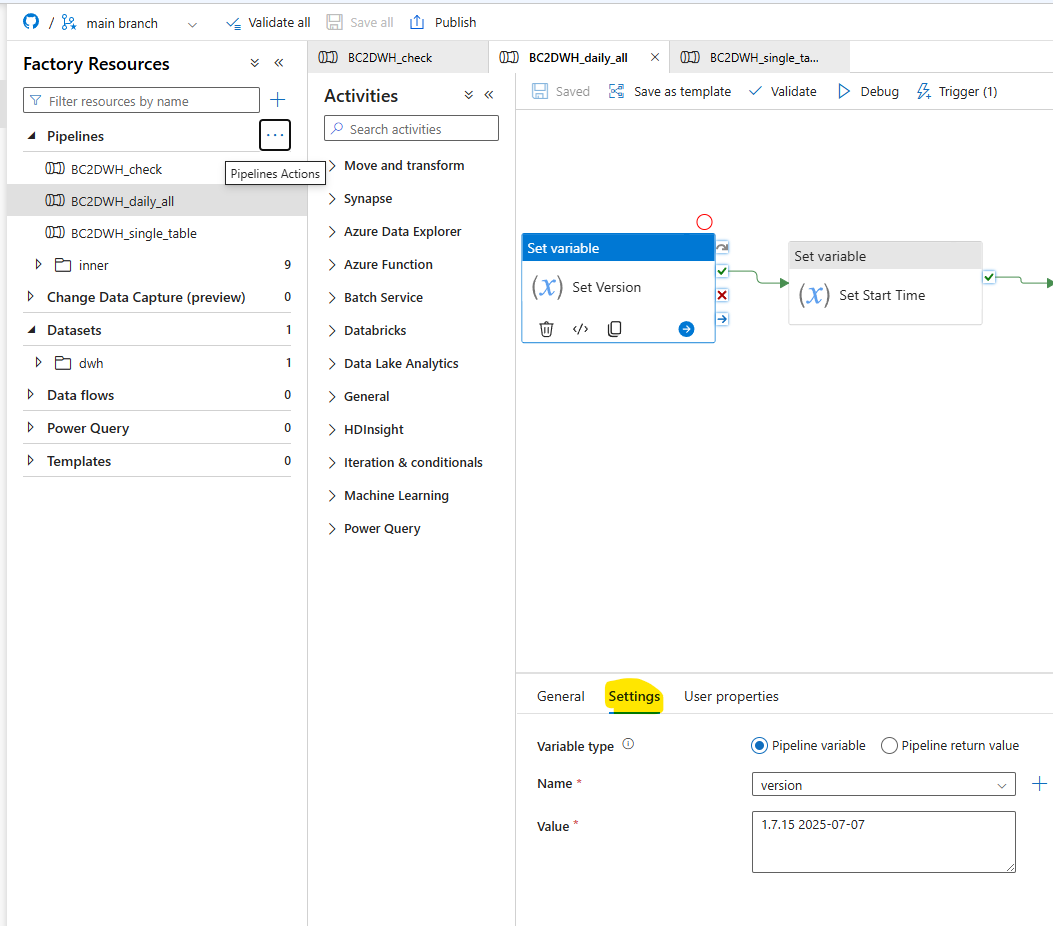
In the Azure Data Factory Studio go to the BC2DWH_daily_all pipeline and press on the set_variable function.
Under the ribbon settings the currently installed ADF version should be applicable.
2. Checking for added features
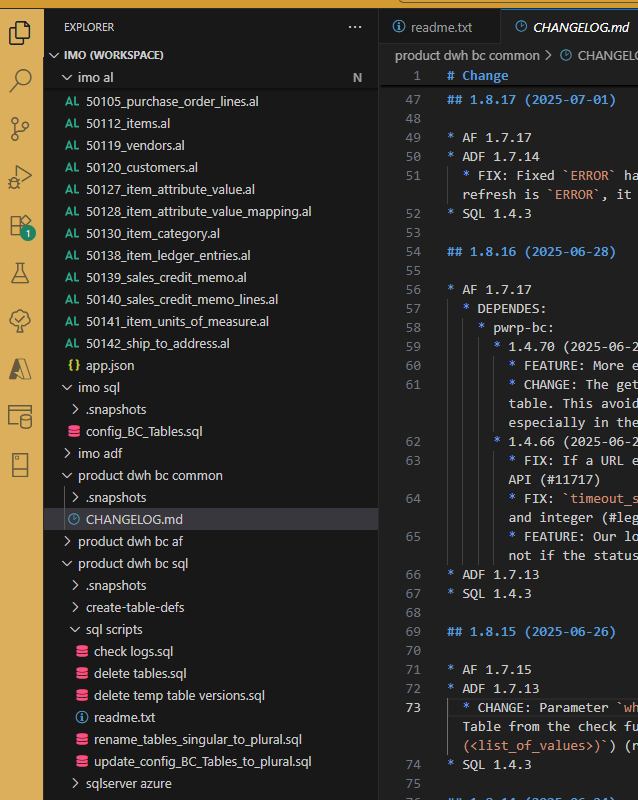
Next it needs to be checked in the CHANGELOG.md file in the product dwh bc common folder from git what changes were made in newer versions of the whole product.
3. Deploying Azure Function on Azure
In VS Code change to the Azure Tab and if no subscription for the current customer exists add it with the "+" sign under Accounts & Tenants.
Afterwards make sure only the currently needed account is checkmarked.
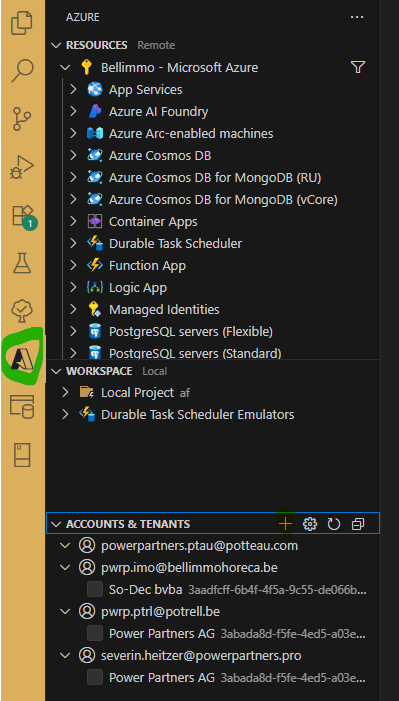
Under Resources press on the flash sign and press on deploy to Azure.
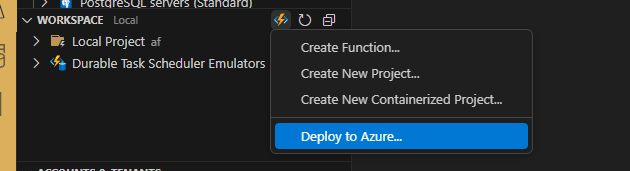
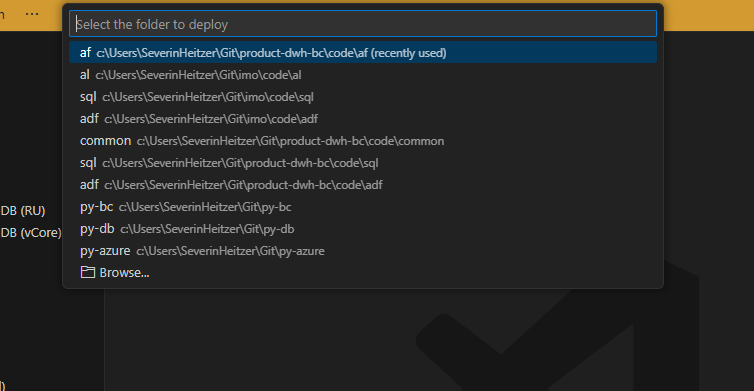
Next select in the occurring dropdown menu the right path to the af directory of the product folder.
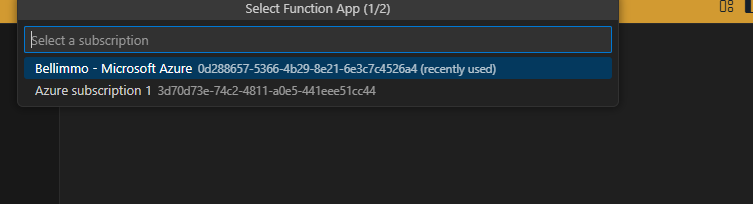
Make sure to select the correct subscription otherwise it will be deployed to the wrong customer and platform.
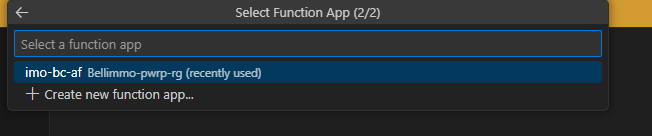
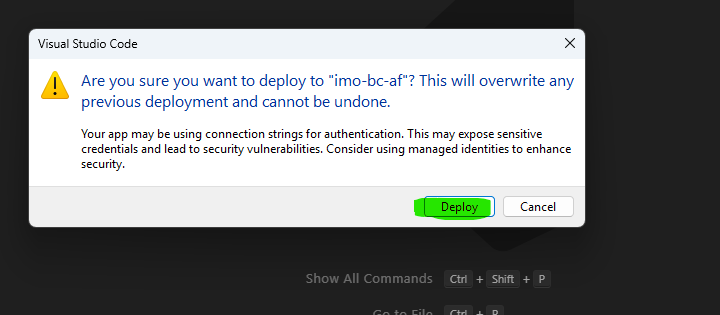
Finally select the correct function app and acknowledge the new pop up window with deploy. The AF will be deployed to Azure now.
4. Updating the ADF
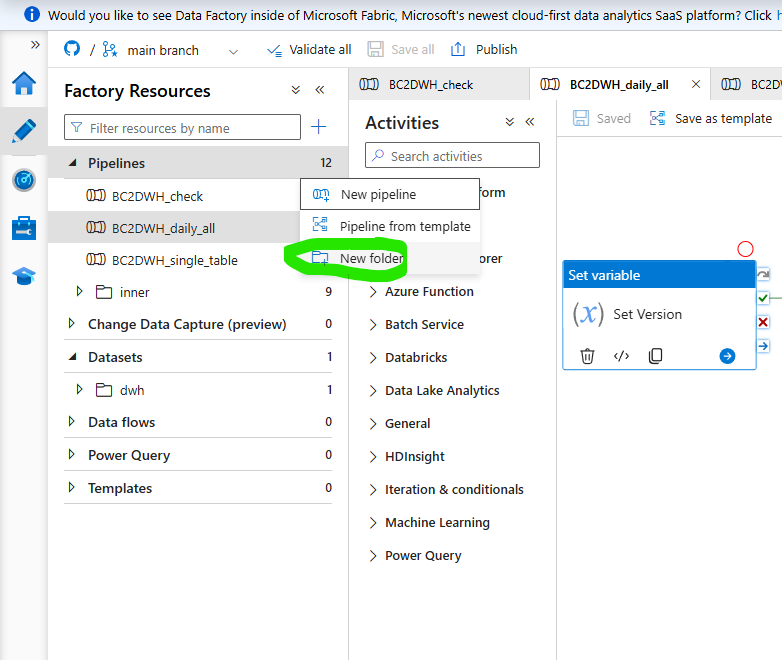
Before the new ADF version is deployed press on the ... sign on the pipelines and add a new folder. Name the folder to "old" and move all existing pipelines into that folder.
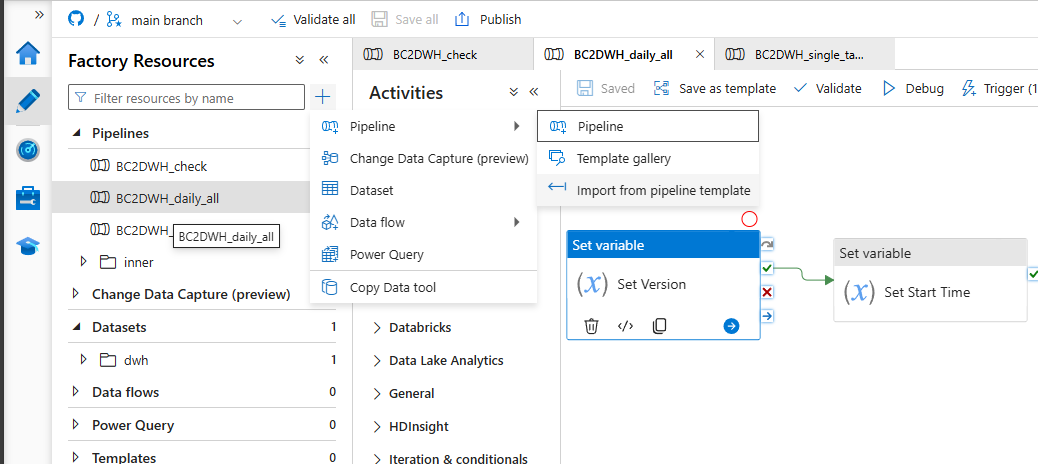
Now install the latest version of the ADF from the git repo. Therefore press the "+" sign choose pipeline and then import from pipeline template.
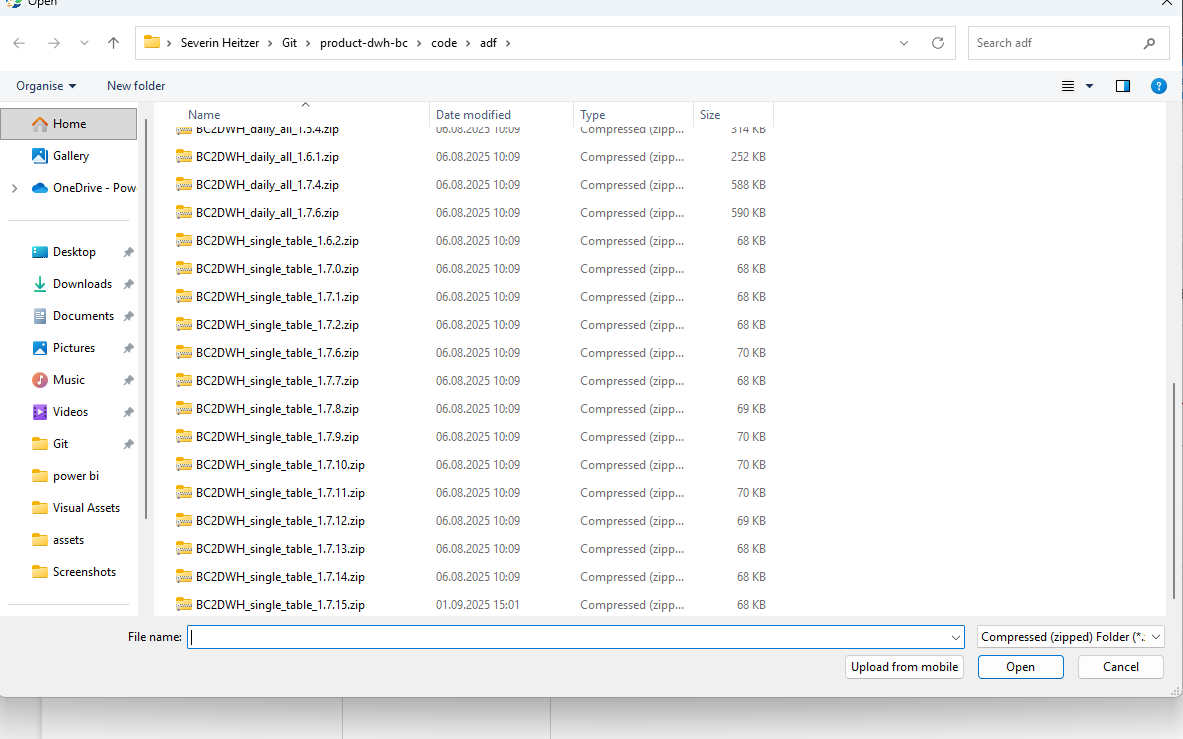
Now select the latest single pipeline version (it will also install the latest version of the daily all and the check pipelines).
After doing this step press on validate all to make sure everything is fine with all the variables.
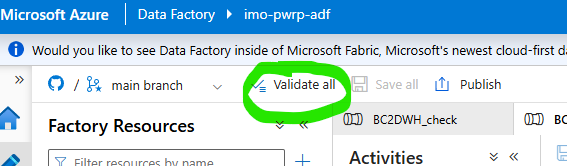
A menu will appear on the right hand side with the status of the validation.
If the validation was successfull the old folder with all the pipelines in it can be deleted. Now the names of the pipelines, the innner pipelines and from the dwh database in the Datasets tab (the "original" one can be deleted and the new renamed) must be renamed.
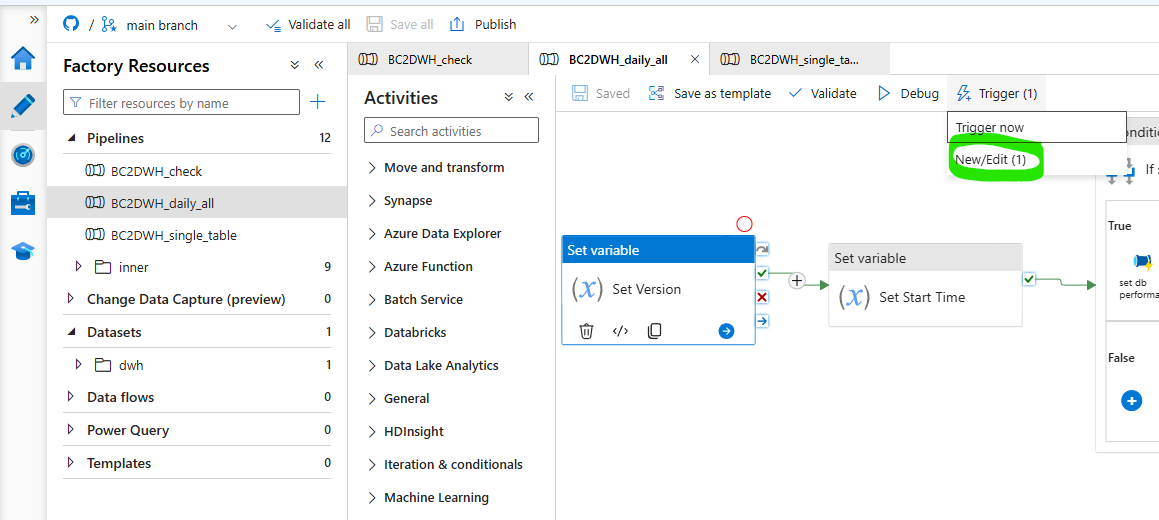
Last the triggers have to be added, make sure to press on the daily all pipeline otherwise the trigger will be set on the wrong pipeline.
Now select in the dropdown menu the existing triggers and just press ok as everything is already preconfigured and doesn't need to be changed.
5. Updating SQL (if needed)
If according to the changelog changes were made on the SQL tables, the SQL needs to be updated as well.
Therefore go to the product-dwh-bc sql folder in the VS Code workspace and search for the "update sql dwh.sql" file and open it.
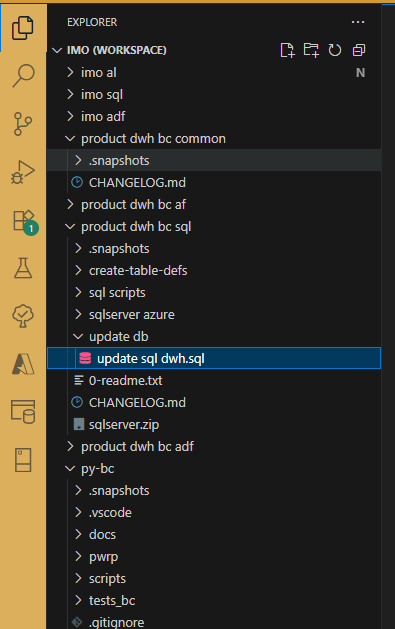
Make sure to have the dwh connection added in VS Code as well to be able to connect to the DWH.
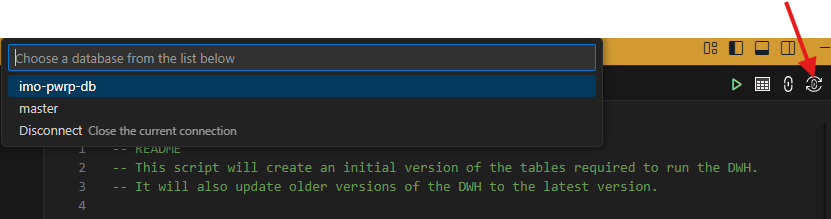
If added go back to the SQL file and press in the upper right corner on the connection sign and select the correct connection for the customer.
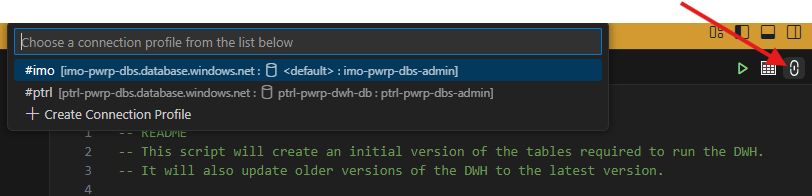
After choosing the correct connection press on the select DB sign and choose the correct DB. Finally execute the SQL file by pressing on the green arrow next to the previously used buttons.