Create Order
Background Info
See departments/delivery/knowledge-base/planio/guidelines and terminology-and-concepts for details.
Task Details
- Applies to: Project Manager
- Frequency: ad hoc
- Trigger: when agreed with client
Prerequisite
- Agreement with client
Steps
-
In planio, go to the right
Channel -
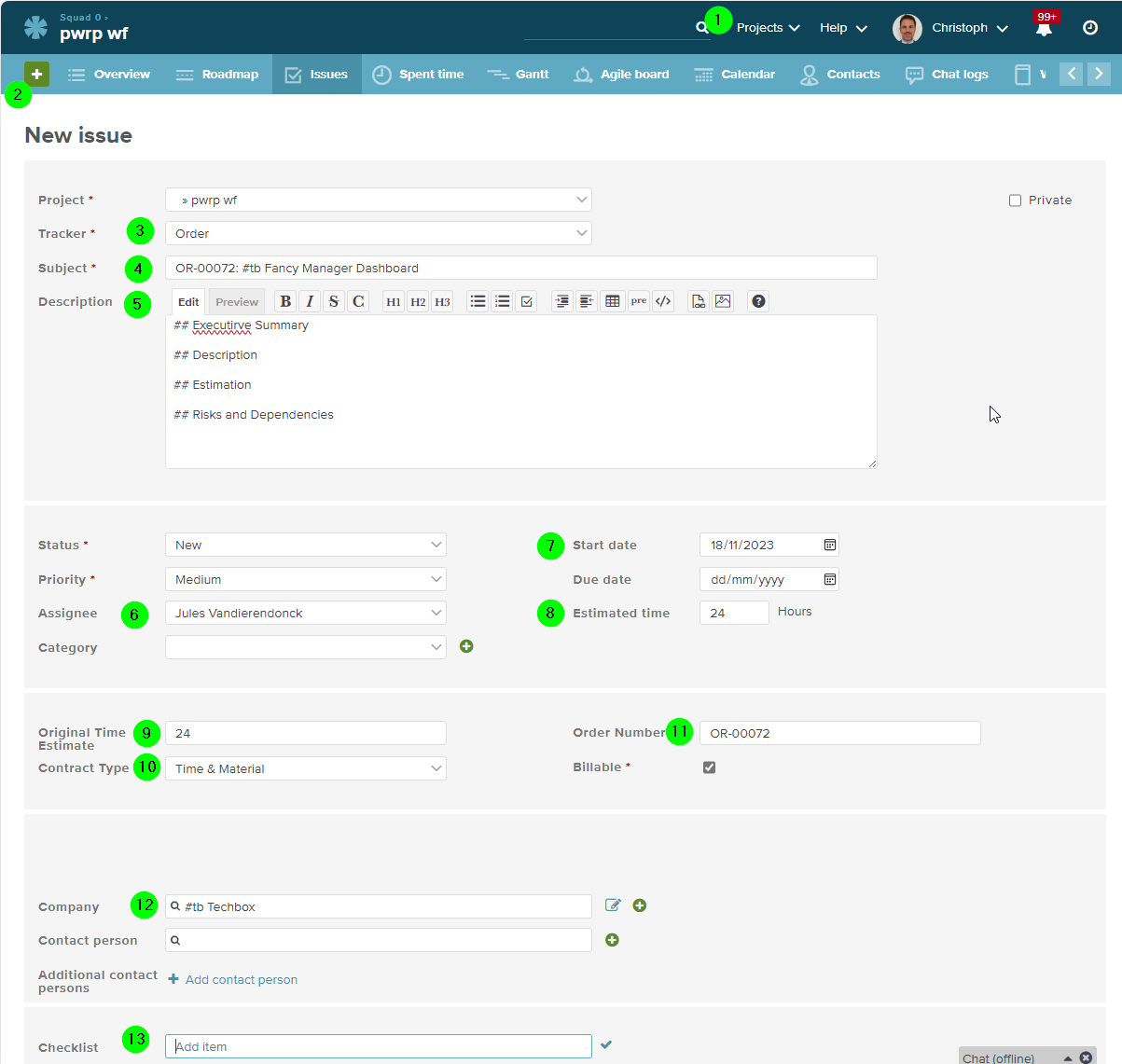
Clieck on New > Issue
-
Select
Tracker:Order -
Add the
Subjectaccording to the following guidelines:AU-[BEXIO-ORDER-NR]: #code Titlefor Power Partners AG orders.OR-[BEXIO-ORDER-NR]: #code Titlefor Power Partners BV orders.PO-[PLANIO-TASK-NR]: #code Titlefor Product Orders.RO-[PLANIO-TASK-NR]: #code Titlefor Running Orders.IN-[PLANIO-TASK-NR]: #code Titlefor internal orders
-
Write a
Descriptionthat summarises the order for the client. This should be in the client's preferred communication language, and in a form that can be shared with the client. -
Assign the Porject Manager
-
Set the
Start dateand theDue dateas agreed with the client -
Set the
Estimated timeas offered and agreed with the client -
Set the
Original Time Estimate(same as Estimated time) -
Set the
Contract Typeas agreed with the client -
Set the
Order Number -
Set the
Order Type(OR, AU, IO, RO, PO) -
Set the
Company, but leave theContact personempty. -
Add
Checklistitems, e.g. if you agreed on pre-conditions or delivered data with the client. -
Save
-
Export to PDF
-
Send to the client
Checklist
- The Order is Saved
- The PDF is sent to the client
- As soon as the client has agreed, you can set the status to
Defined