SAP S/4HANA
Introduction
SAP S/4HANA is the "big" SAP, similar to Dynamics 365 F&O.
Transactions and Programms
In SAP, a transaction is a specific task or activity that is performed within the SAP system. Each transaction is identified by a unique code, such as FBL1N or VA01, which is used to access the transaction within the SAP system.
SAP transactions are used to carry out a wide range of activities, such as creating a purchase order, entering a customer order, posting a financial transaction, or performing inventory transactions. When a user enters a transaction code in the SAP system, they are taken to a specific screen or series of screens that are designed to guide them through the steps necessary to complete the task associated with that transaction.
Each SAP transaction is designed to perform a specific function, and may have its own set of input fields, processing logic, and output screens. Transactions can be accessed from the SAP Easy Access menu, or by entering the transaction code directly into the SAP command field.
Transactions are an important concept in SAP because they provide a standardized way of performing specific tasks within the system. This allows users to easily navigate the SAP system and perform the tasks necessary to carry out their job responsibilities. Additionally, transactions can be customized or extended to meet the specific needs of an organization, providing flexibility and the ability to tailor the SAP system to meet the unique requirements of the business.
In SAP, a transaction is related to a program in the sense that a transaction code is often linked to a specific program that carries out the task associated with the transaction.
When a user enters a transaction code in the SAP system, the system looks up the corresponding program that is responsible for executing the task associated with the transaction. The program is then executed, and the user is taken to the screen or screens associated with that program.
For example, the transaction code VA01 is associated with the program SAPMV45A, which is responsible for creating a sales order in SAP. When a user enters VA01 in the SAP command field and presses Enter, the system looks up the SAPMV45A program and executes it, taking the user to the sales order creation screen.
Similarly, the transaction code MB51 is associated with the program RM07DOCS, which is responsible for generating a list of material documents in SAP. When a user enters MB51 in the SAP command field and presses Enter, the system looks up the RM07DOCS program and executes it, taking the user to the material document list screen.
In summary, transactions in SAP are linked to specific programs that carry out the tasks associated with those transactions. When a user enters a transaction code, the corresponding program is executed, and the user is taken to the screen or screens associated with that program.
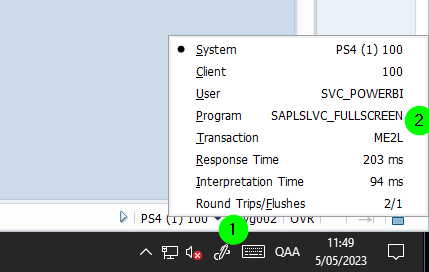
If you are in a specific screen, you can check out the transaction from the bottom right:
Common SAP Transactions
Here is a list of some commonly used SAP transactions:
Business Transactions
- FBL1N - Display Vendor Line Items
- FB60 - Enter Incoming Invoices
- ME23N - Display Purchase Order
- VA01 - Create Sales Order
- VA02 - Change Sales Order
- VF01 - Create Billing Document
- MIRO - Enter Incoming Invoice
- MIGO - Goods Movement
- F-02 - Enter G/L Account Posting
- MM01 - Create Material Master Record
- MM02 - Change Material Master Record
- MMBE - Stock Overview
- MB51 - Material Document List
- FB50 - G/L Account Posting
- FB01 - Enter Financial Posting
Admin and Maintanance Transactions
- SMIS - Service Catalog
- SE11: Dictionary (use to inspect technical details about tables)
- SE16: Data Browser
- SE38: ABAP Editor
- SE80: Object Navigator
- SE93: Show report transaction
- SM36: Scheduler
- SM37: Monitor and manage background jobs
- /IWFND/MAINT_SERVICE - Web Service Catalog
- SOAMANAGER: Web Services management
Alternatively, you can also access the Service Catalog by entering transaction code "SMIS" in the command field and pressing Enter. This will take you directly to the Service Catalog screen.
GUI - User
Layout
SAP GUI supports different themes. We typically use the Belize theme.
Once logged in, you can set under Options. But you need to login again for it to take effect.
Information Systems
In SAP, Information System refer to tabular views of data. For example, you can find it in:
Accounting > Flexible Real ... > Information System > Buildings
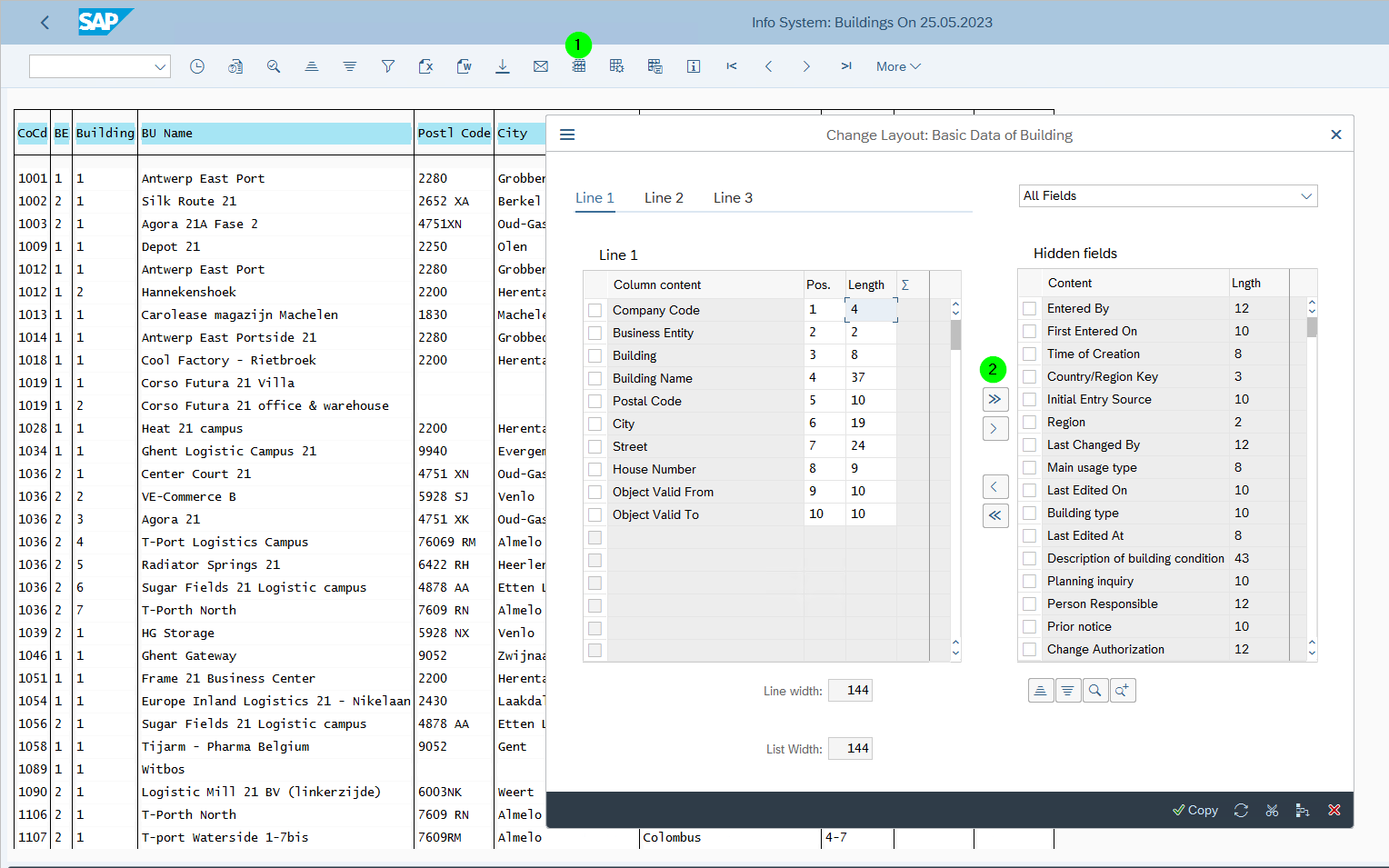
You can select the fields to be displayed like so:
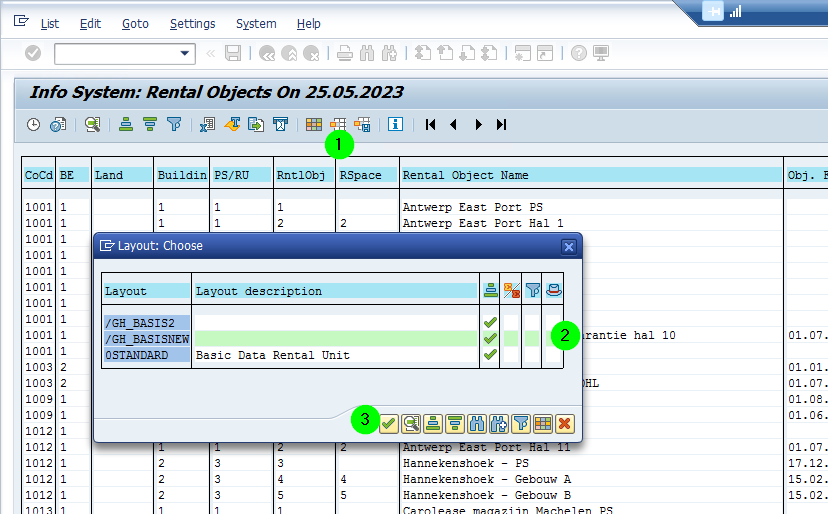
You can also open and/or create a reusable layout like so:
Measurements
In SAP, Measurements are then "numbers" on entities. For example, a Rental Object in REFX has a measurement \(m^2\) .
For, say contract, there is a difference between
- Contract Measurements: these are measurements that are directly defined on the contract entity.
- Measurements for Contracts: these are measurements that are linked to the contract entity.
QUESTION: is this correct?
How to select multiple columns in an SAP grid
Ctrl+Y allows you to select a section of a grid. This is a hidden feature that can save you a lot of time!
For example:
-
Go to structure or table (using SE11)
-
Click Ctrl+Y
-
Select first 3 columns
Fiori
Fiori is the new web GUI.
For example, for #hey this is accessible on this link: https://hyg002.groepheylen.be:50001/sap/bc/ui2/flp?sap-client=100&sap-language=EN
The initial view is called the (Fiori) Launch Pad.
Instead of working with transactions as in the (old) GUI, we are working with Applications (apps). So, instead of typing the transaction, we just type "Building" in the search bar of the Launch Pad.
Tips and Tricks
Naming Conventions
Normally, the customized objects (views, etc.) are prefixed with a Z.
Object Browser
In FIORI, there is an object and a query browser.
QUESTION: How to access it?
OData
See also this document (for Business One / B1): https://help.sap.com/doc/138a52ba164b4c3197ff4d19621400a3/10.0/en-US/4e330dc617254c4e942ba42116bff90c.pdf
Title: OData Client for Service Layer
List Services
Following the below steps, you can get a list of all the OData services
-
Login to SAPGUI and execute SE16 T-code
-
Enter "TADIR" in Table Name and click on Table Contents
-
Enter "IWSG" in OBJECT column and execute
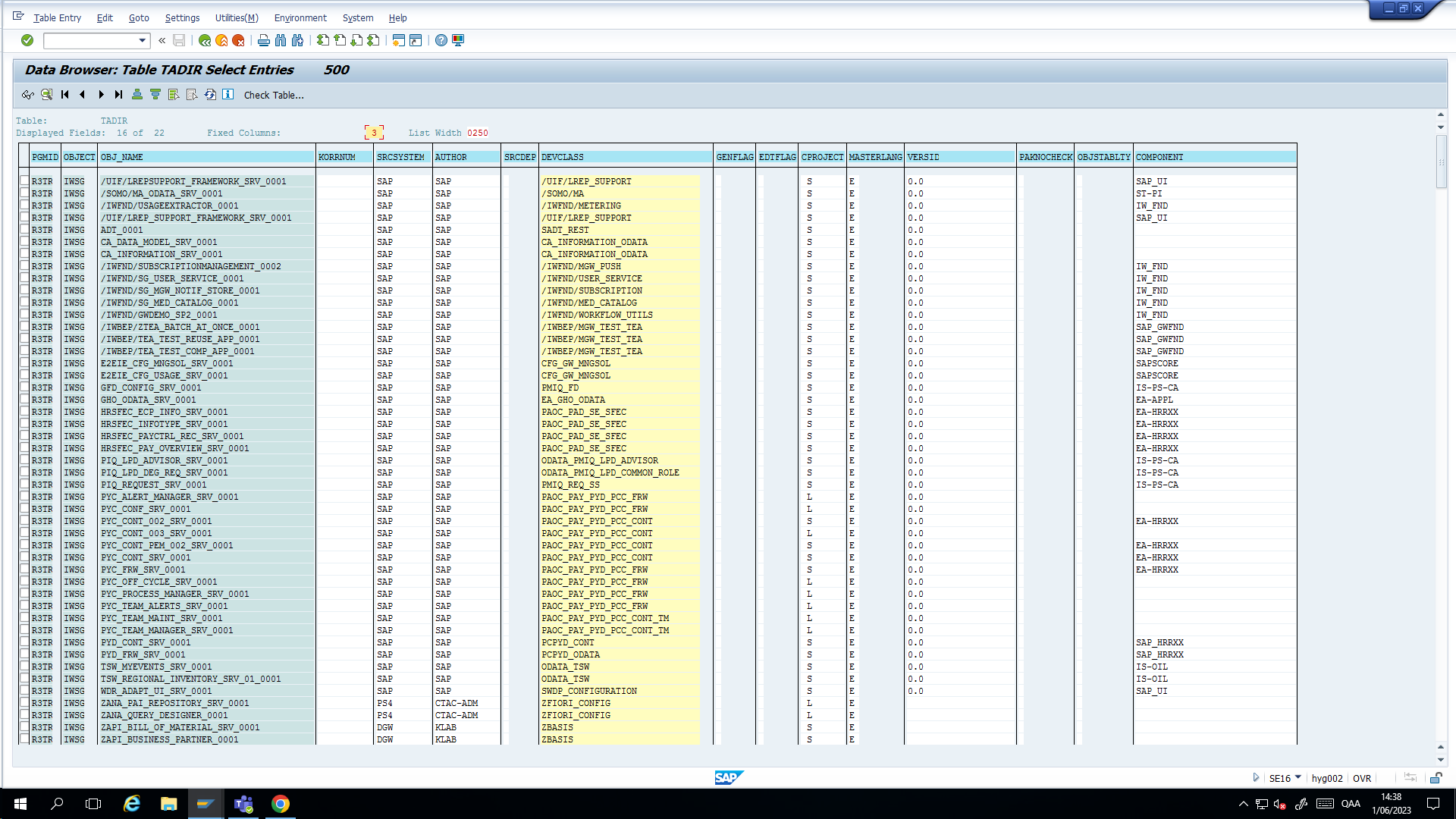
QUESTION: how to map the OBJ_NAME to a service
URL Template
For example:
CDS Views
There is a thing called CDS views
OData
Paging
SAP does not implement pagination natively. But you can implement it using these three parameters:
-
top
-
skip
-
inlinecount (this returns the _count in the result, too)
For example, the following call will return the first page of 500: