Work Time Tracking
Aka
- timelog
- time-logging
- time-tracking
- time tracking
- time logs
See also
Internal Employees
Background
We use Clockodo for time tracking.
Staff time tracking is required by law.
Also, tracking time might give you an entitlement in overtime compensation.
Process Details
- Owner: Internal Employee
- Participants: Roles
- Frequency: Daily
- Trigger:
- when starting to work
- when taking a break
- when stopping to work
- Involved Systems:
- Clockodo
Pre-Condition
- You are set up as a user in Clockodo
Process
-
Start time tracking
- when coming to the office
- when you start working (HO or client on-site)
-
Stop time tracking
- when leaving the office
- when taking a longer break (> 5min)
- when you stop working (HO or client on-site)
Checklist
- When you leave the office or stop working, Clockodo represents your actually worked time
- Clockodo represents your actually worked time, always
FAQ
What about travel?
It depends:
-
Travel to and from the Power Partners office is not working time
-
Travel to clients is working time (minus travel it would take you to get to the nearest Power Partners office)
External Employees
Background Info
Contractors and external employees are paid on the basis of their planio timelogs.
See planio-time-tracking for details.
Process Details
- Owner: External Employee
- Participants: line-manager
- Frequency: Daily, Weekly
- Involved Systems:
- Planio
MonthlyStaffReport
Process
-
Log your time diligently in planio
-
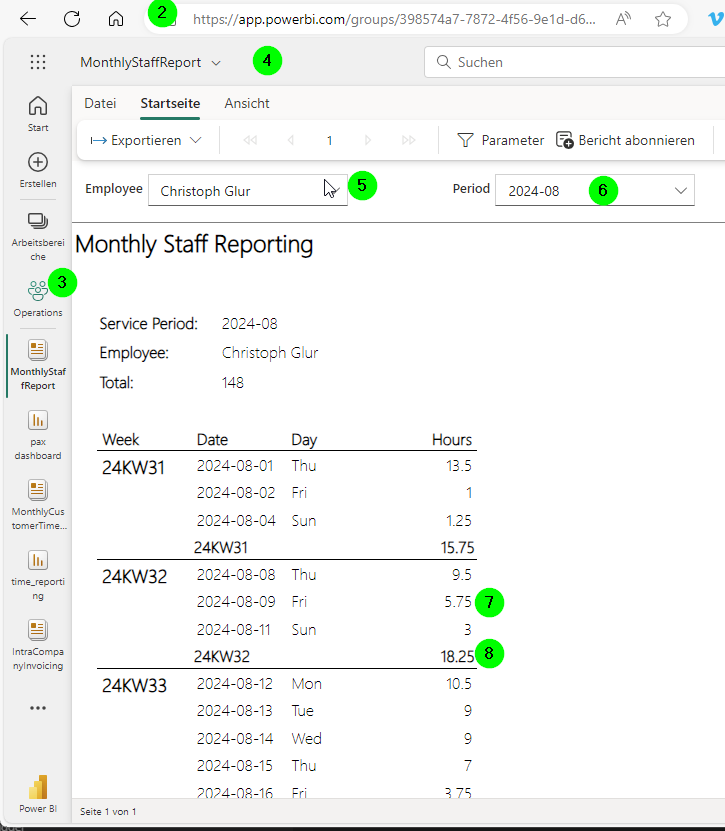
At the end of the week, go to the Power BI service of Power Partners
-
Go to the Operations workspace
-
Go to
Time Reporting\Paginated reports\MonthlyStaffReport -
Select yourself as Employee,
-
Select the current month as the
Period(using the Week-Ending-In-Month logic) -
Enter the hours with in the time reporting system of your legal employer
-
Make sure that the sum of the hours align in both systems
FAQ
What about the 15min rule?
We treat customers and suppliers the same way. We round time logs up to the next 15min. This takes into account switching costs, small breaks like toilet or snack, and other work time too small to track.
The Power Partners timelog report on Power BI is the point of reference for both client invoicing as well as contractor invoicing. It takes into account the 15min rounding rule.
Please stay fair to both our clients as well as towards Power Partners. Don't misuse this rule to your advantage, e.g. by excessively logging 1min tasks.
What about long breaks?
We pay external employees by the time they actually work for Power Partners. Lunch breaks, prolonged coffee breaks, internal meetings with your employer of record, administration done for their legal employer, fire-drills, etc. are not paid.
This effectively means that we pay whatever you log in planio.
What about short breaks?
Short breaks (toilet break, grabing a coffee or snack, etc.) are covered by the 15 min rule - at least if you keep them to a normal level.
What about general tasks (reading emails, etc.)?
Whenever possible, try to assign general work to a specific task.
However, sometimes this is not possible or useful. For example, it doesn't make sense to create a separate task for each 2 minutes.
If your general task is below 15 minutes, use the "Unassigned Non-Client Work" task of the week.
If your general task is above 15 minutes (e.g. if you come back after vacation and need an hour to go through your email), then create a specific issue in planio to track that work.
What if I don't reach my target hours?
If you don't reach the target hours agreed between your legal employer and Power Partners, then either:
-
your time logging is not accurate
-
your working time is not according to your employment contract
-
your employer and Power Partners set a target that is not in line with your employment contract and/or company culture
In the first case, it is up to you to log your time more diligently.
In the second case, make sure you are working according to your contract.
In the third case, escalate to your legal employer and/or to your Power Partners line manager. They will take it up together and give you guidance.
Can I make up time outside working hours?
Power Partners policy and culture is a flexible one: We don't care so much when exactly you work (within limits), as long as you attend the agreed daily, weekly and monthly meetings, and as long you comply with your legal employers rules and legal regulations.
However, we do not require anyone to do overtime, and we ask you to stay within the rules and policies of your legal employer.
Example: Assume on a given day, you take an extended lunch break. At 5p.m. you notice that you only logged 6.5hrs in planio, one hour below the 7.5h target that was agreed between your legal employer and Power Partners.
You now have the following options:
-
You go home, without making up for the lost hour. You log the 6.5hrs with your employer. You will have to justify to your legal employer why you didn't reach the target.
-
You continue for an hour. You will log 7.5hrs in planio, and with your employer. Power Partners will be happy, and so will - probably - your legal employer.
-
You go home, but you work an extra hour in the evening, the next day, or on a weekend. This is fine for Power Partners as long as it is fine with your legal employer. Make sure you respect local work regulations and the agreement with your legal employer.
Where can I find the time I logged?
You can find your time log in these places:
-
in planio, in the
Spent Timereport. IMPORTANT NOTE: this report does not take into account the 15 min rule. So you're actual, official time is likely to be higher. -
in the Power BI
time_report. Note, however, that this view is updated only every 2 hours, and only during business hours. -
in the Power BI paginated
MonthlyStaffReport. Again, data is updated every 2 hours.
Can I tweak hours at the end of the day or week to meet my target?
Absolutely not.
Can I correct my time?
You can correct the logged time of the previous week exceptionally until Monday morning, before 9:00 AM.
However, note that you are generally expected to log your time daily, and corrections should be the exception. Also, note that you might be asked by a project manager why you changed your time.
Corrections are only permissible in case you made an error or forgot to track a task, or forgot to turn off the time logging on a task. It is not allowed to tweak your hours to meet a target.
Either way, make sure you write a note to Comment of the timelog for any correction you do on a timelog from a previous day.
Can I log time to a "Catch-All" task?
No. If you don't have anything to work on, see next FAQ.
What if I don't have anything to do?
If you have dead time, if you are blocked, if you are waiting on information from a client or from a team member, you should proceed as follows:
-
ask your manager if he has a task for you to work on
-
if your manager does not, or if he doesn't respond, ask another team member if you can help them
-
if no team member needs any help, check if you can create an internal task (see below) to work on
-
if there is no internal task you can come up with, create a training task (see below) to log time against
-
if there is no training task you can come up with, create a bench task (see below) to log time against
Ideas for Internal Tasks
If you need to create an internal task because neither your manager nor other team members need help, then use this list for ideas:
-
improve the Solution Design for any client project you have been working on. See here for details: sd-guidelines. Make sure that you assign the task to the right channel and client, but set it to "free". This will not have an impact on your KPI, but it will make sure our client does not need to pay for this. Also put a note in it explaining why you were out of billable work and what you have done to try working on billable tasks.
-
prepare a marketing post that we can use on LinkedIN or on the web page. For example, create a post about an interesting technical detail you have recently discovered.
-
improve the internal documentation (doc.pwrp.pro). The doc project is full of TODO tags. Search them and document.
If there are no internal tasks you can create (which is unlikely), here's ideas for training tasks:
-
Watch an episode of Guy in a Cube. Make sure you summarise it and present it at the demo.
-
Review the latest Fabric product updates and check out its features. Again, summarise and present it in the demo.
-
Learn markdown
Rules
-
create a separate task, describing what you are doing and what you are trying to achieve
-
do not book on a catch-all task like Admin
-
use the same principles for tasks as always, i.e. use ACs, notes, etc.
What about "Free" Timelogs?
Our system allows to flag a task or a time-log as "free". If a time-log, a task or an order is flagged as "free", it will not be billed to Power Partner's customers. Similarily, we can set a "max billable" on tasks. If set, then time registered beyond this threshold are counted as free/not billable.
This has no influence on the hours billable by your legal employer. When it comes to paying your employer, we do not make a distinction between free and billable timelogs. All your time worked and logged for Power Partners will be paid to your employer. It appears automatically on the MonthlyStaffReport.
What about internal tasks?
If you are working on a Power Partners internal task (e.g. Internal Reporting), you log your time exactly the same way. On what Channel you book your time has no influence on the provider billability, and all time you logged for Power Partners work is considered billable by your legal employer, irrespective of whether it is internal or external. Both internal and external time logs appear on the MonthlyStaffReport.
What if a team member calls me to ask for help?
If a team member pulls you into an ad-hoc call, make suer you ask about the issue number first thing. You are allowed to log time against the team member's issue if asks you for help.
What about meetings?
Client meetings are logged on specific meeting issues in planio. When you are pulled into a meeting that you didn't plan, ask the organizer to provide you with the issue number, so you can log time against it.
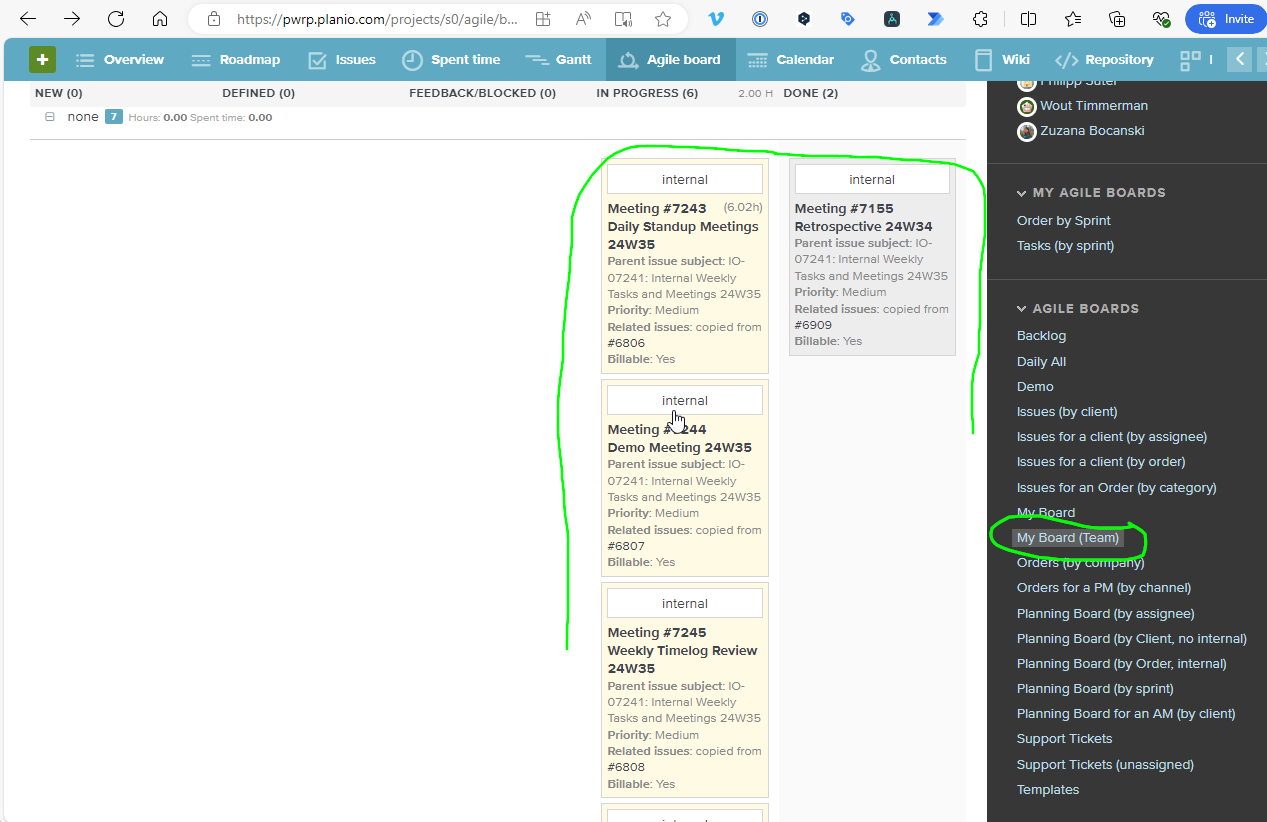
Team meetings (daily standup-meeting, planning-meeting, retrospective-meeting, demo-meeting, okr-meeting, weekly-timelog-review-meeting, monthly-greatness-meeting, and potentially other internal meetings) have their own team issues in planio. Log time against them.
What about travel?
This depends on the situation. Take it up with your manager to clear the arrangement before the trip.