Data Sources
We have the following data sources:
- TAS
- TX Connect
- Excel
TAS
-
TAS is a TMS, Transport Management System
-
It is hosted on premises, we have direct access to the database through a PBI Gateway
-
It is the beating heart of the V1000 operations
Modules
Each module is prefixed in the TAS database. The only tables we need is TOP_, TRA_ and TRB_
-
TOP_ administration, countries, postal codes, clients, addresses. These are shared with TopAccount, and accounting software from the same company.
-
TRA_ transport information, trucks, trailers, drivers (shared with Transics, the FMS)
-
TRB_ TAS tables
f.ex: I think that's what they refer to for expedition management.
Tables names:
-
Customers = top_identity (where cnr_cust is not null)
-
Suppliers = top_identity (where cnr_supp is not null)
-
Dossiers = trb_dossier – trb_mission – trb_transproduct – trb_traject_det – trb_sales – * trb_purchase
-
Invoice (sales) = trb_cu_invoice - trb_cu_invoicedet – trb_cu_invoicevat (creditnota’s zitten i n *trb_cu_credit – trb_cu_creditdet – trb_cu_creditvat)
-
Shipment = trb_tour
Power BI Gateway
Check out planio for details.
Acces Database
Check out planio for details.
Data
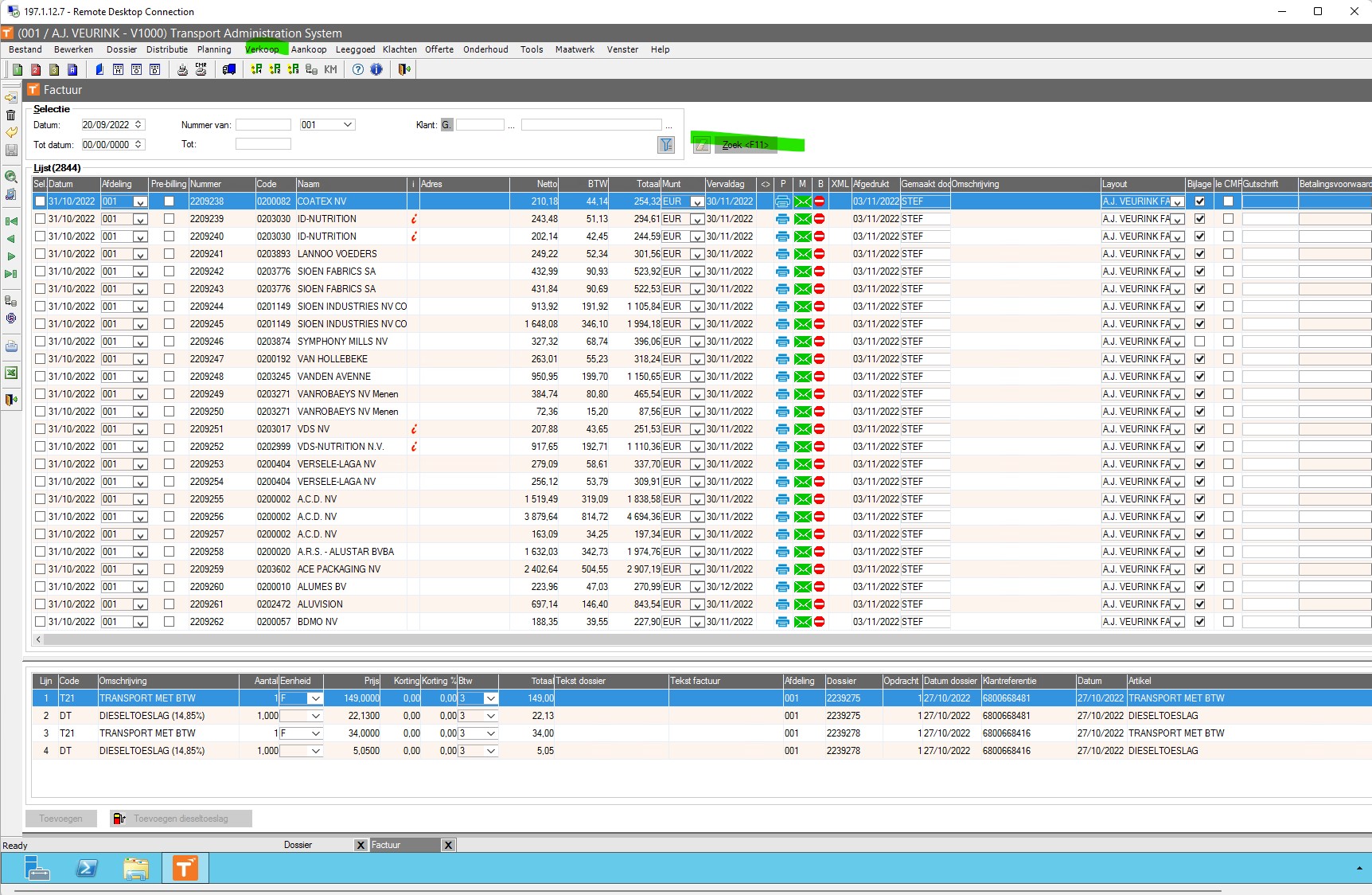
- Invoices: revenue
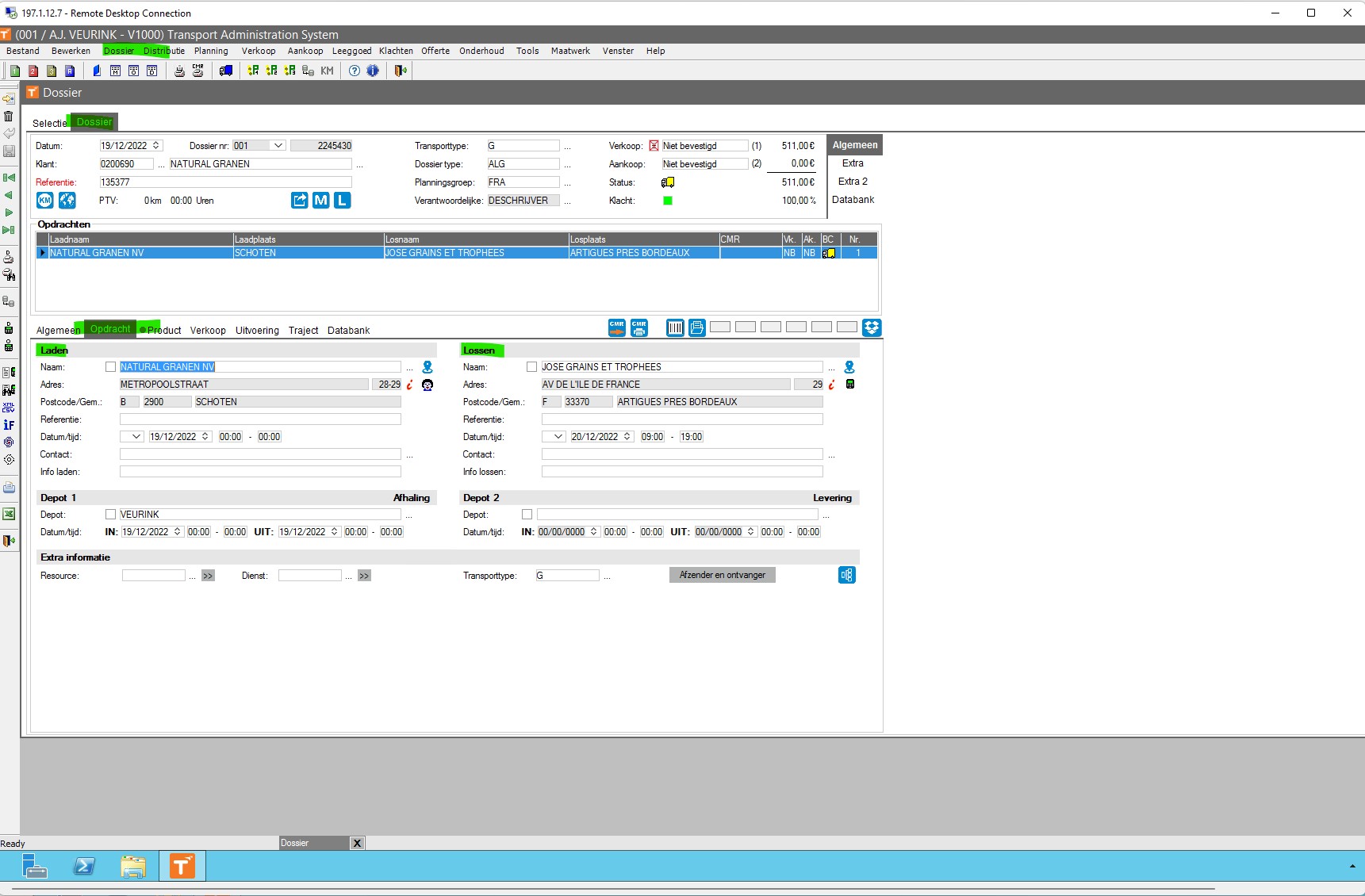
- Orders (opdrachten): clients, load & unload addresses, loading meters, load and unload times, packaging, license plate...
Entities
Order (dossier)
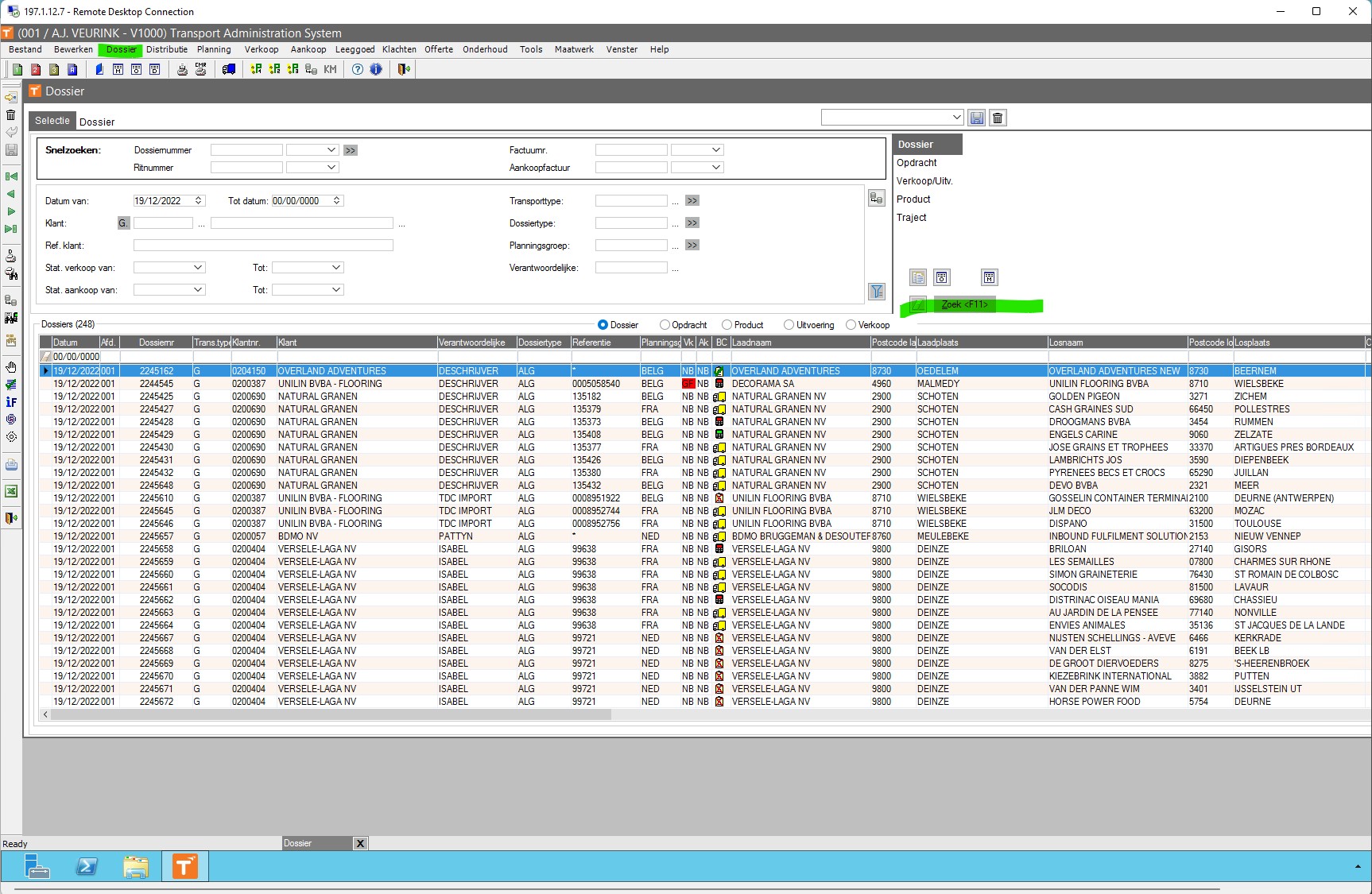
Opdrachten
You will find the "opdrachten" within the order
Invoice
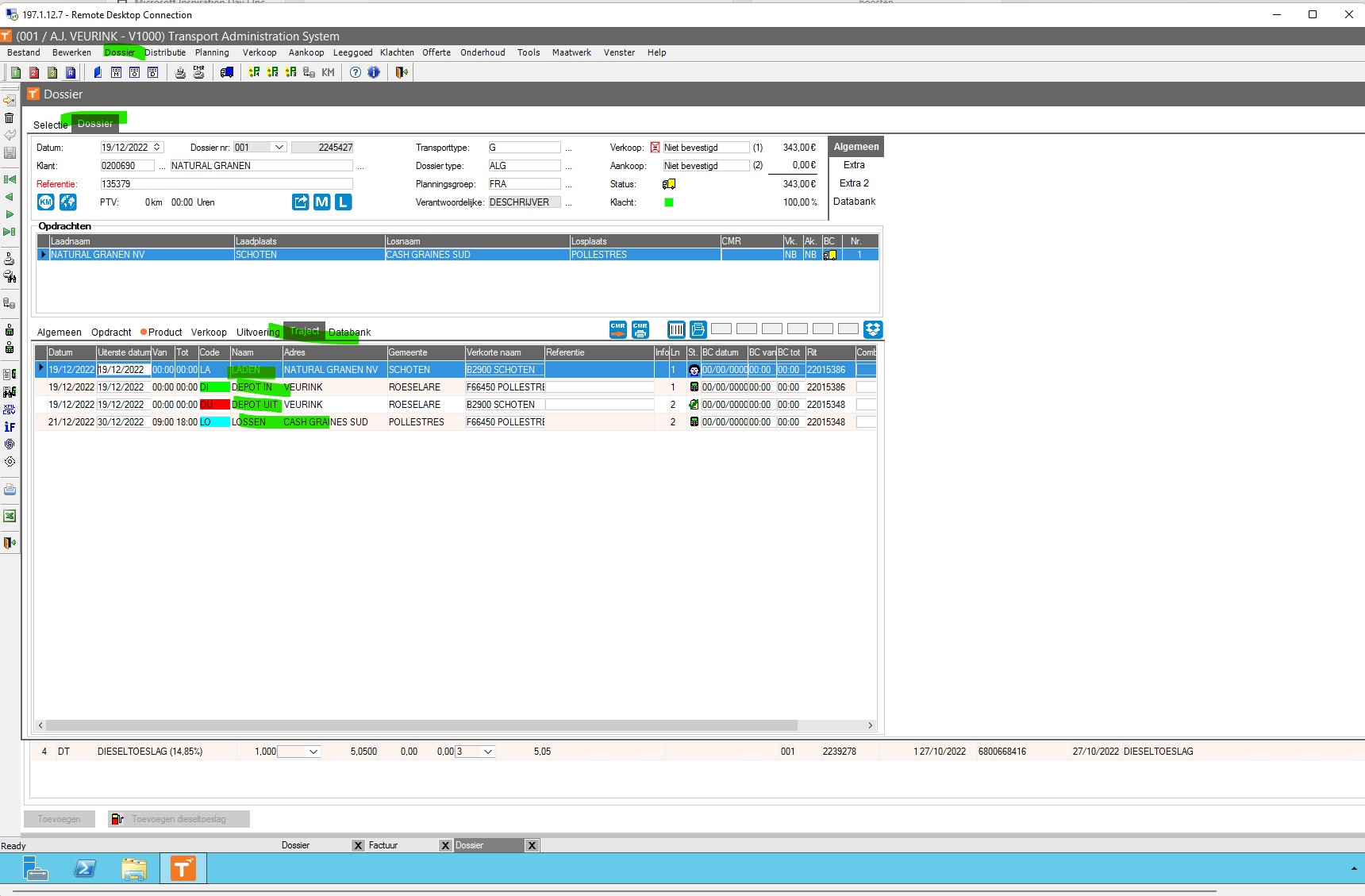
Activities
Cargo
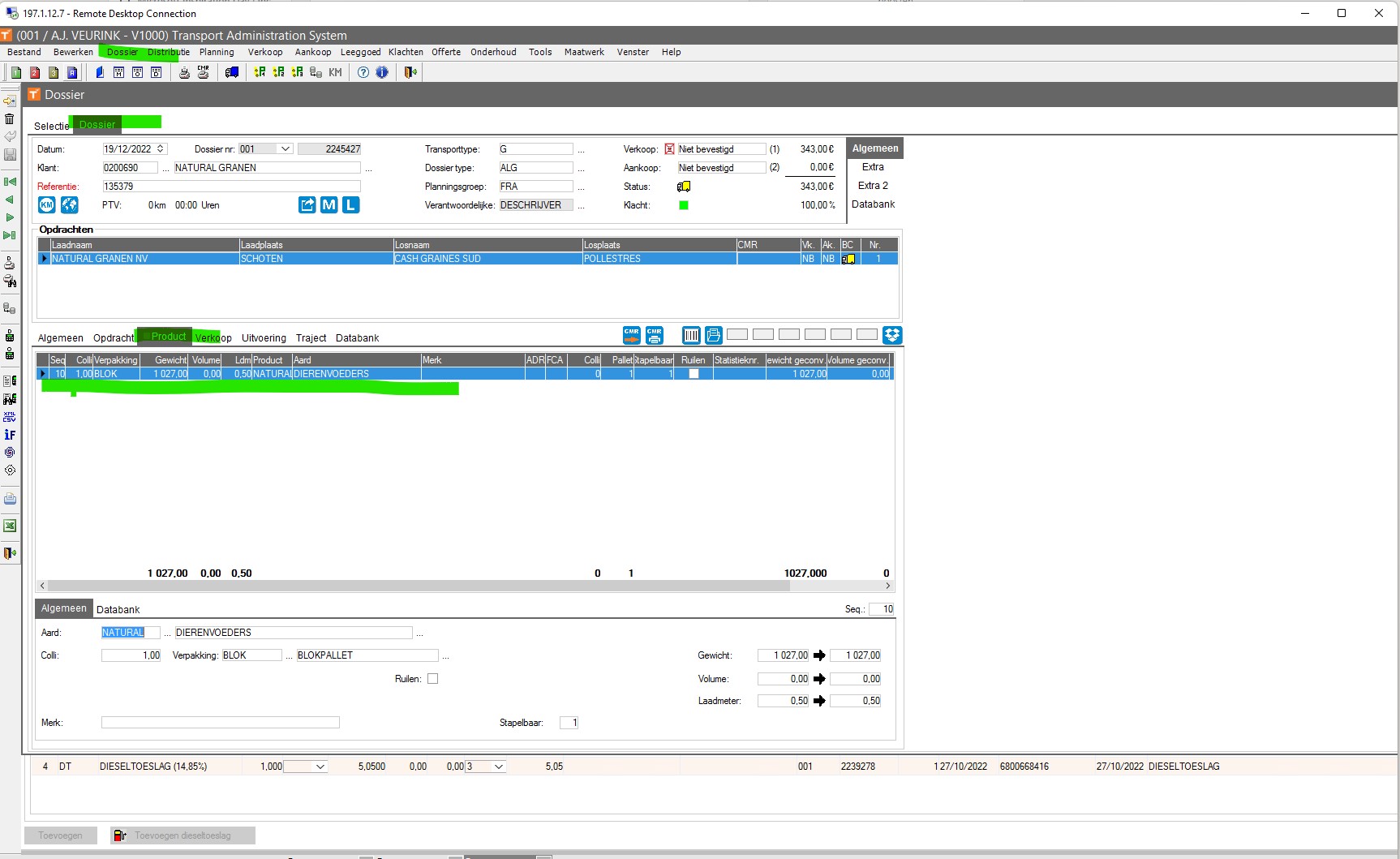
Los Lijst
Rit Lijst
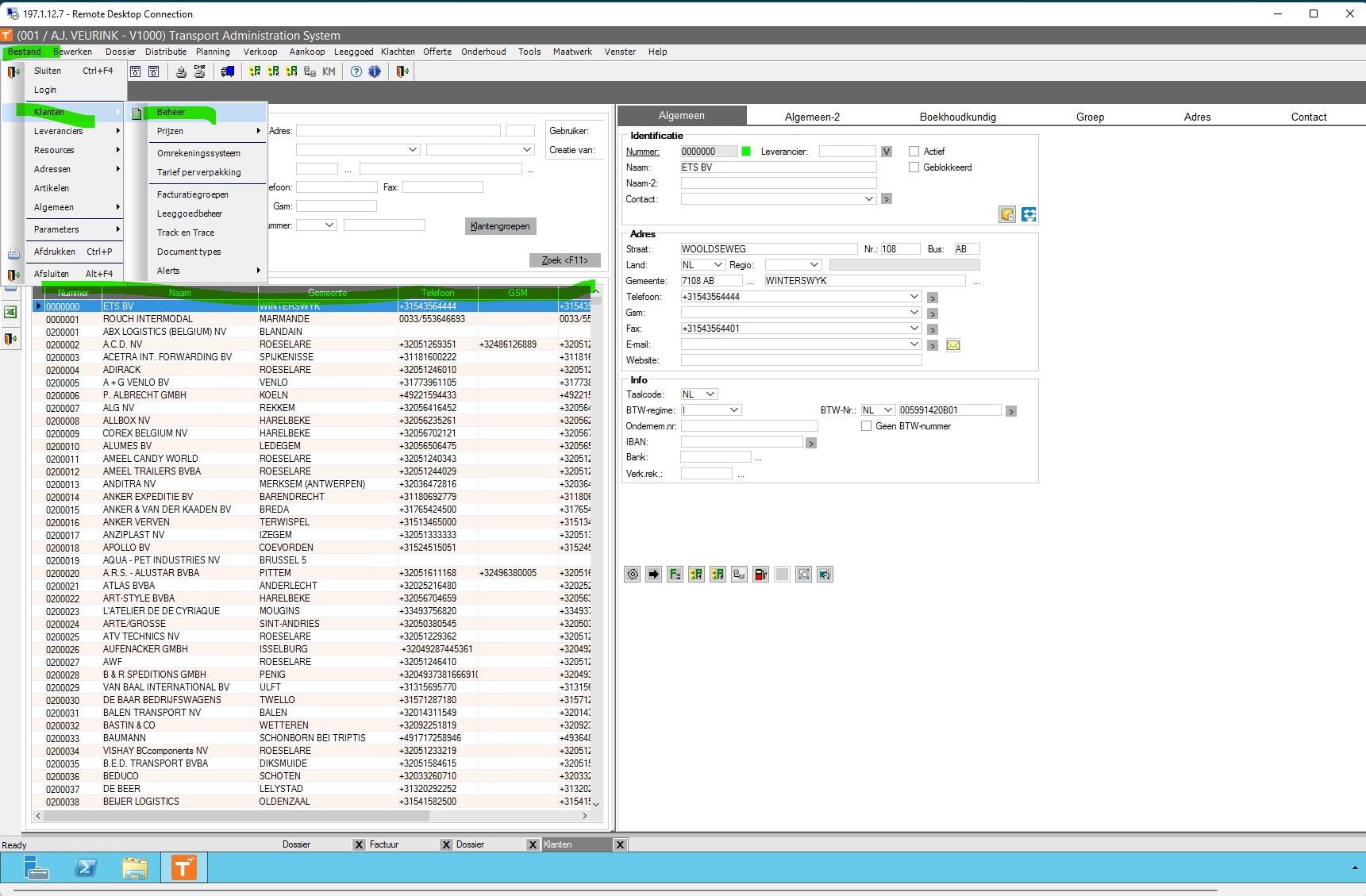
Clients (klanten)
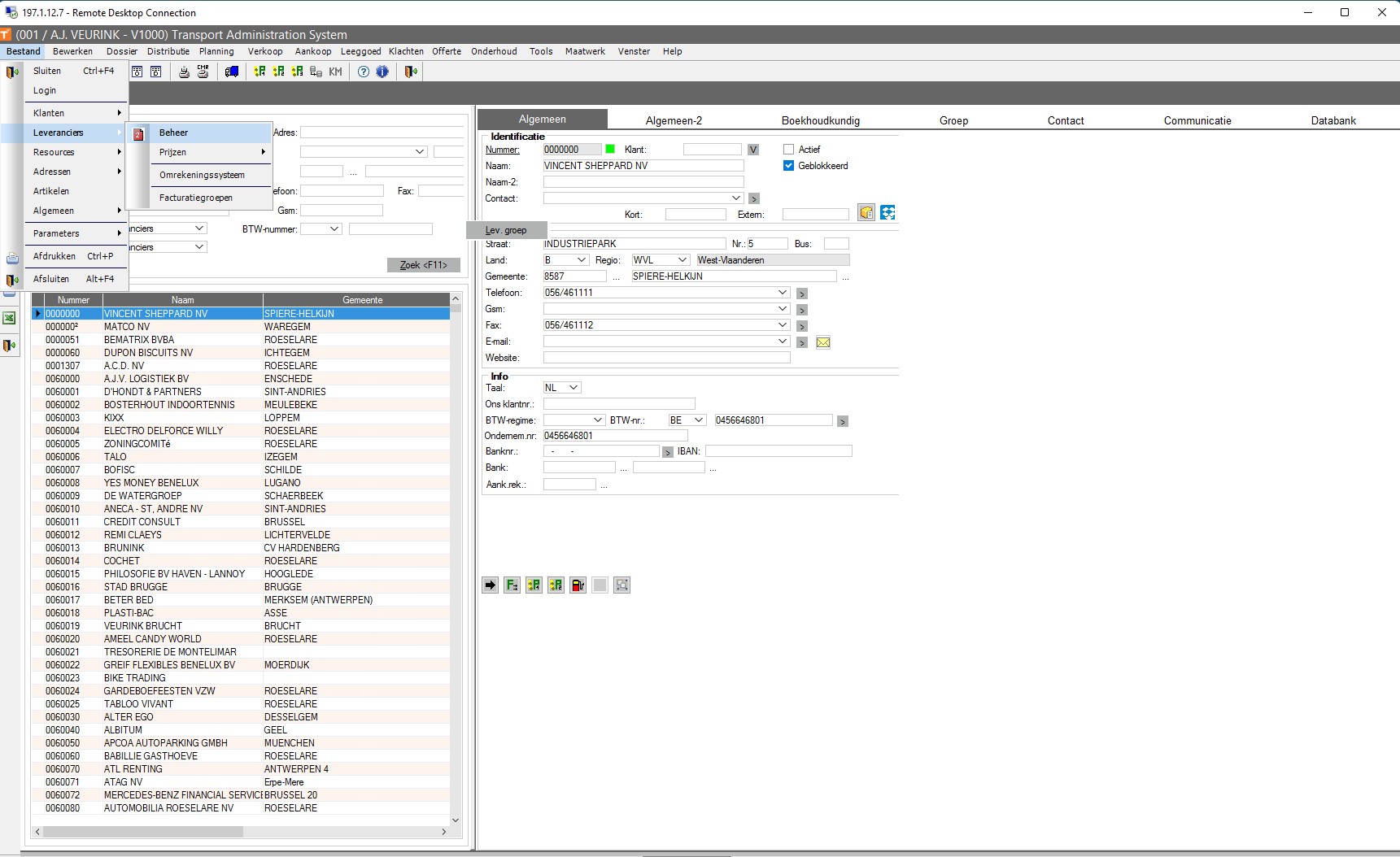
Suppliers (leveranciers)
TX Connect
-
TX Connect
is a TMS, Transport Management System -
It is hosted on premises, we have direct access to the database through a PBI Gateway
-
It is the beating heart of the V1000 operations
We agreed that Sandro will upload 1 file per week. Because he still needs to make some adjustments and this allows us to be sure that the data is correct.
To sfind the data:
-
log in to Tx Connect (see planio).
-
In the menu on the left go to the reports icon.
-
Tx Connect Reports will open.
-
Select the activities icon.
-
Here you can set some parameters, select the driver, period and metric.
We will tell Sandro which list to export.
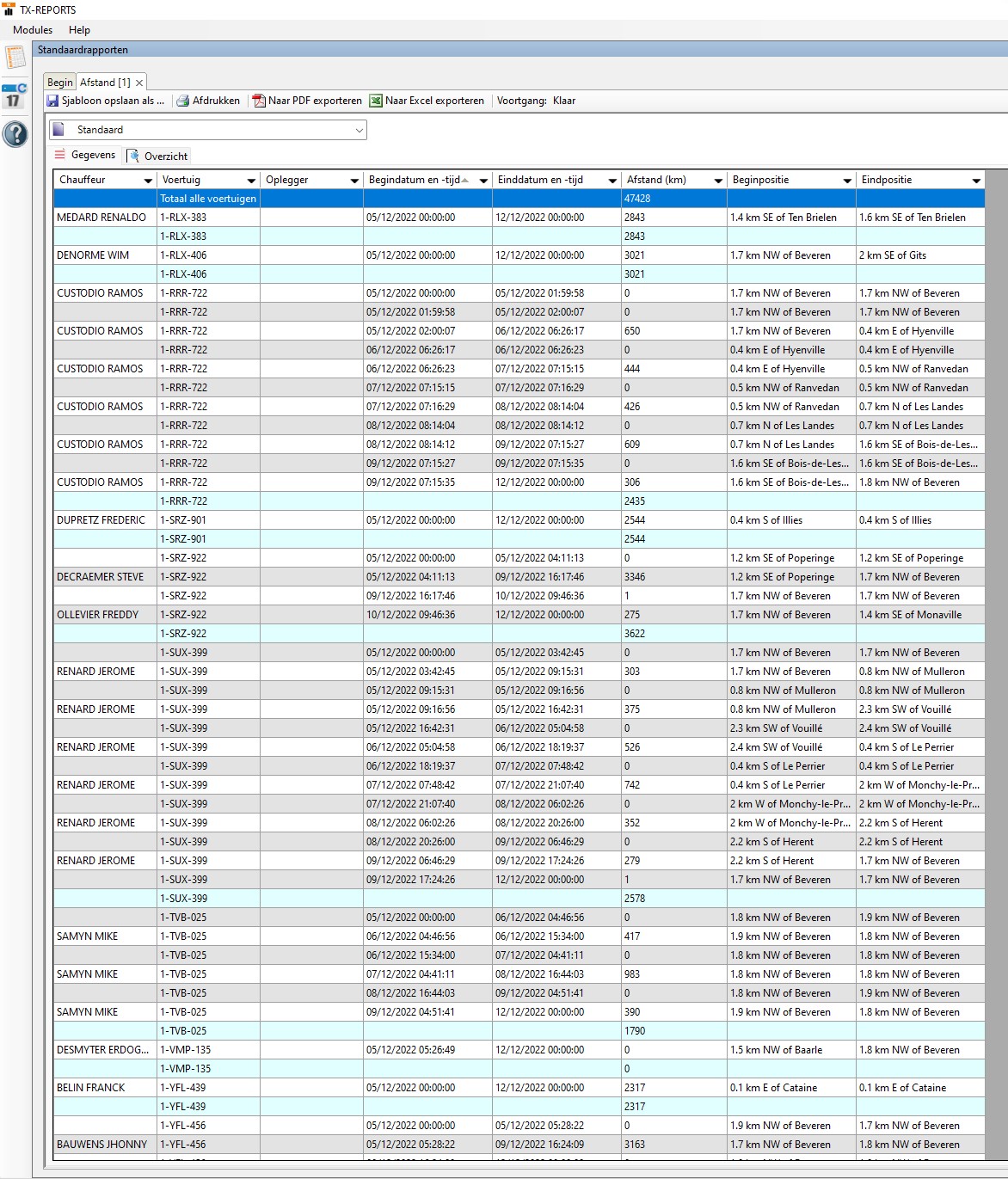
Hours
Total hours worked per driver per day.
Kilometers
Total kilometers driven per driver per day.
Working Days
Total days worked per driver.
Excel
Input files stored in a Sharepoint. It contains the following variables:
-
\(C^{Overhead}\)
-
\(C_{h}\)
-
\(C_{km}\)
-
\(C^{Peage}_{km}\)
-
\(Peage\%\)