Planio Meetings
Use the tracker Meeting in planio for meetings.
Doing this consistently has the advantage that team and client will see the latest state of a meeting, at all times.
As a little bonus, using meetings in planio has the following advantages:
-
You can directly log time against it
-
You can use the checklist template for the planio AC
-
You can add internal team members as watchers, so they are informed of changes
-
You can prepare the agenda directly in the issue
-
You can collaborate with team members and external contacts on the agenda
-
You can write the minutes and send it out to participants after the meeting
-
The attendees can collaborate on the minutes
-
You can give an external users access to the meeting for later, using the tracking page
-
You can easily find past meetings using the planio search functionality
Create a Meeting
-
in planio, create an issue
-
Tracker:
Meeting -
Subject:
yyyy-MM-dd description -
Parent issue: link to the Order if applicable
-
Company
-
Contacts: set the contacts if the meeting is with an external contact
-
Checklist: select "Meeting" from template
-
Watchers: add if applicable
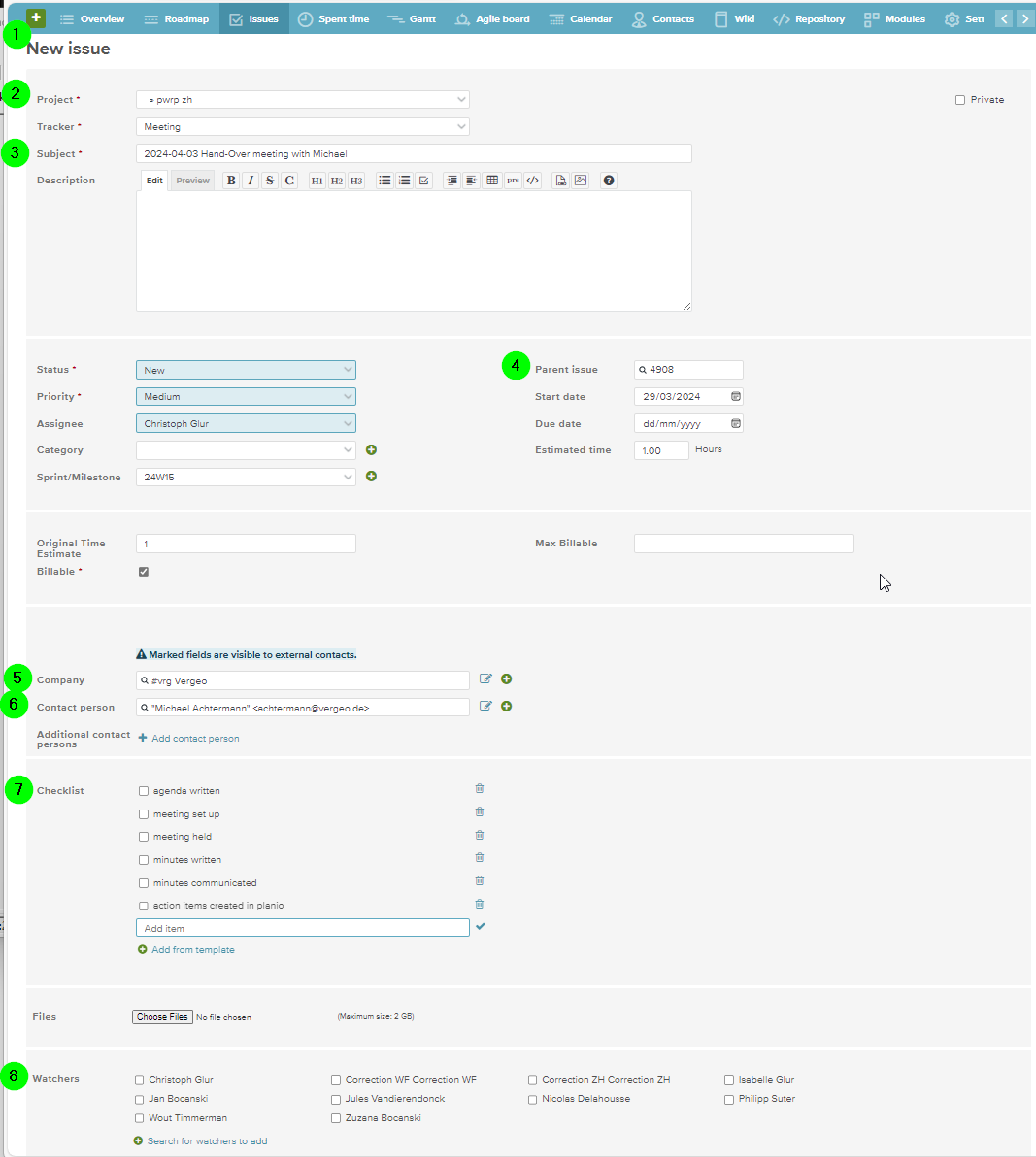
NOTE: at this stage, the contact will NOT yet receive an email.
Prepare an Agenda
-
edit the issue
-
create an external note
-
write the agenda, in markdown
-
log time, if applicable
-
adjust the status by ticking the checklist items
-
save the Issue
-
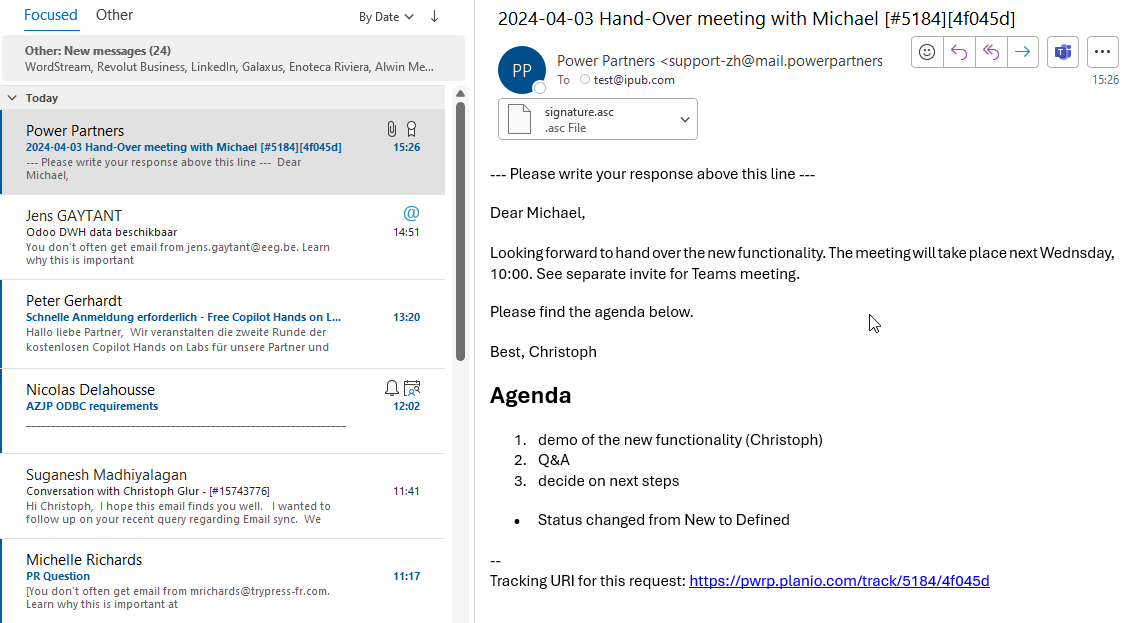
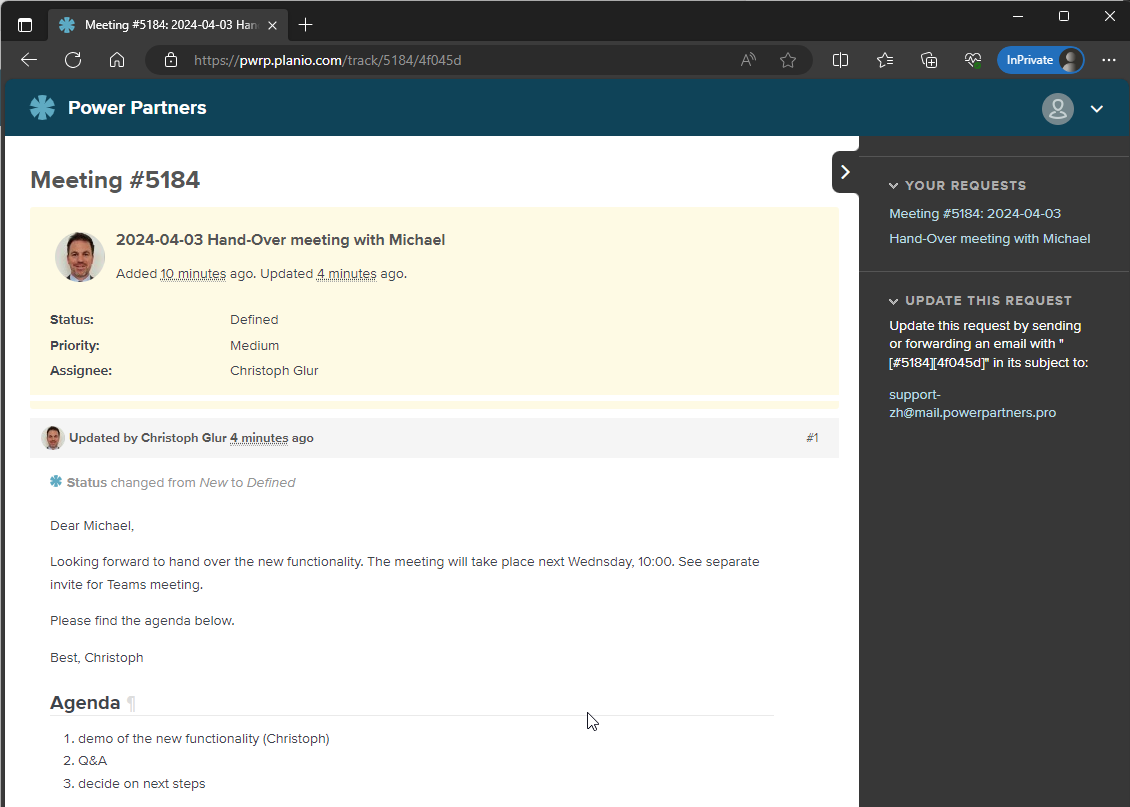
The contacts will receive an email with the agenda
-
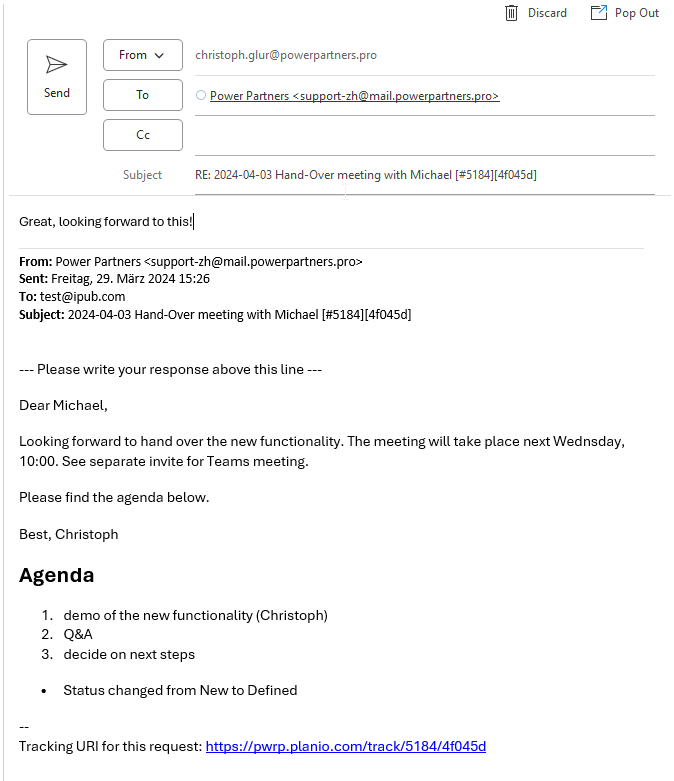
They can then reply to the mail, commenting the agenda, etc.
-
They can also access the tracking page by clicking on the link in the email
Writing the Minutes
-
edit the issue
-
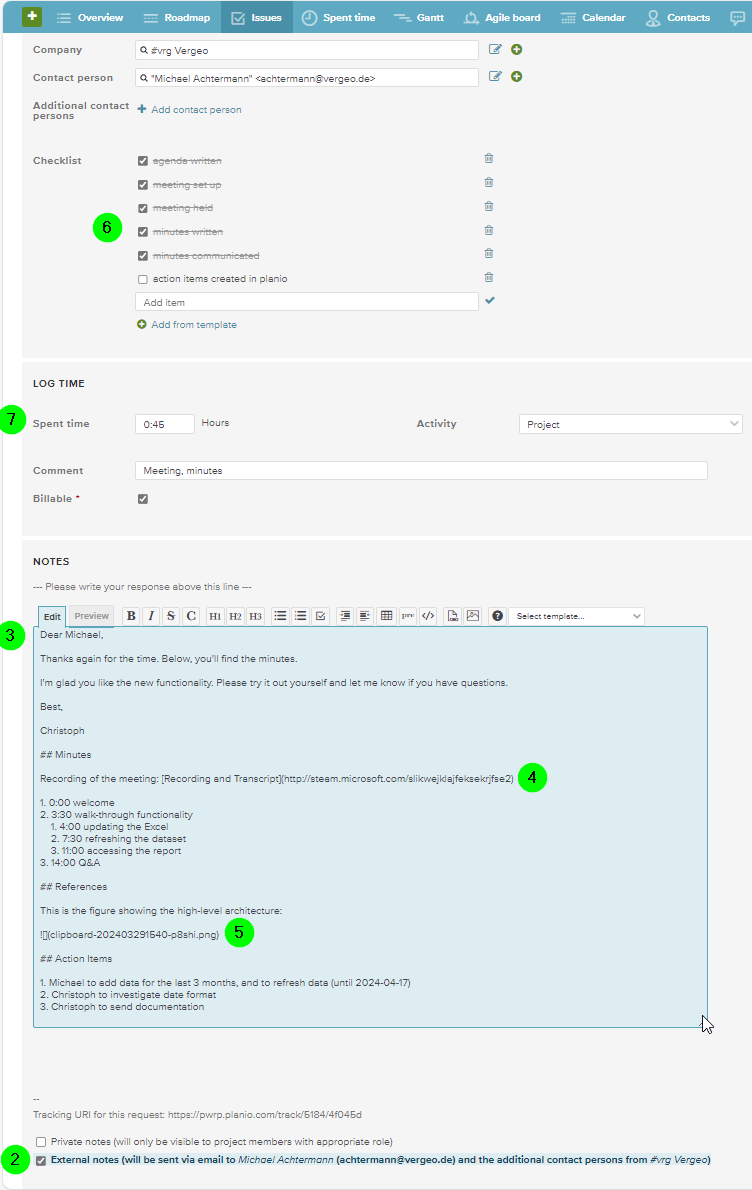
create an external note
-
write a mail and the minutes, in markdown
-
add a link to a Microsoft Stream recording, if applicable. Make sure the client has access to the recording.
-
paste screenshots Whiteboard exports, etc. that are relevant and helpful
-
check the relevant checkbox items
-
add timelogs
-
Submit
-
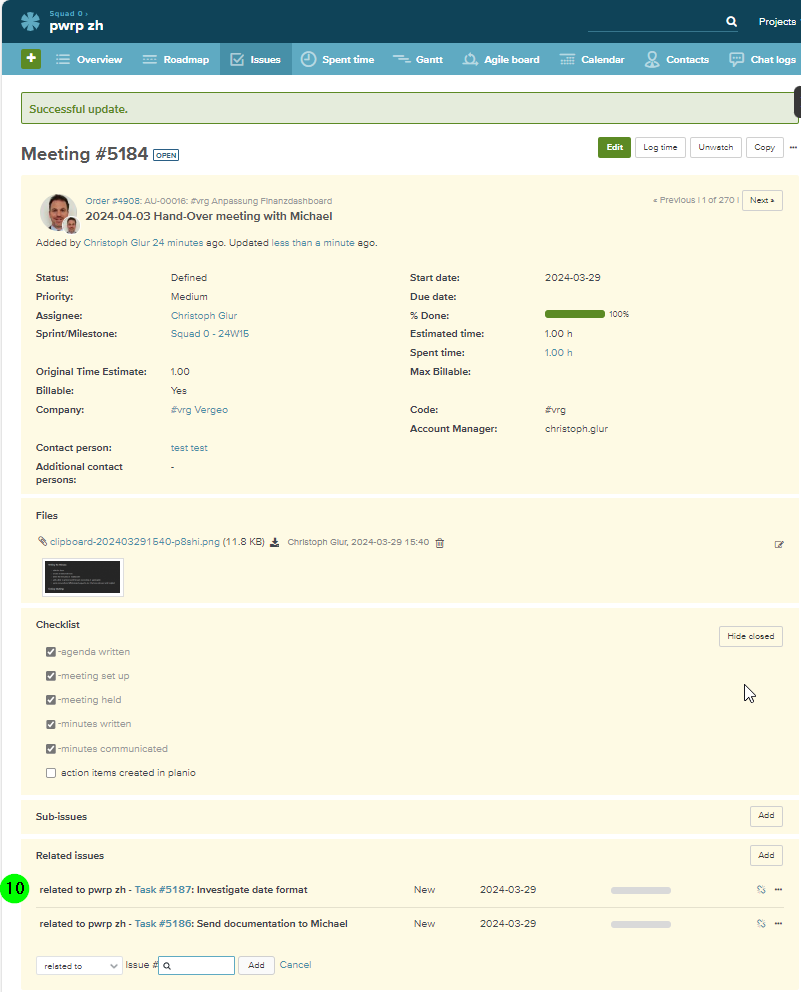
Create follow up tasks and link them to the issue
Finding Meetings
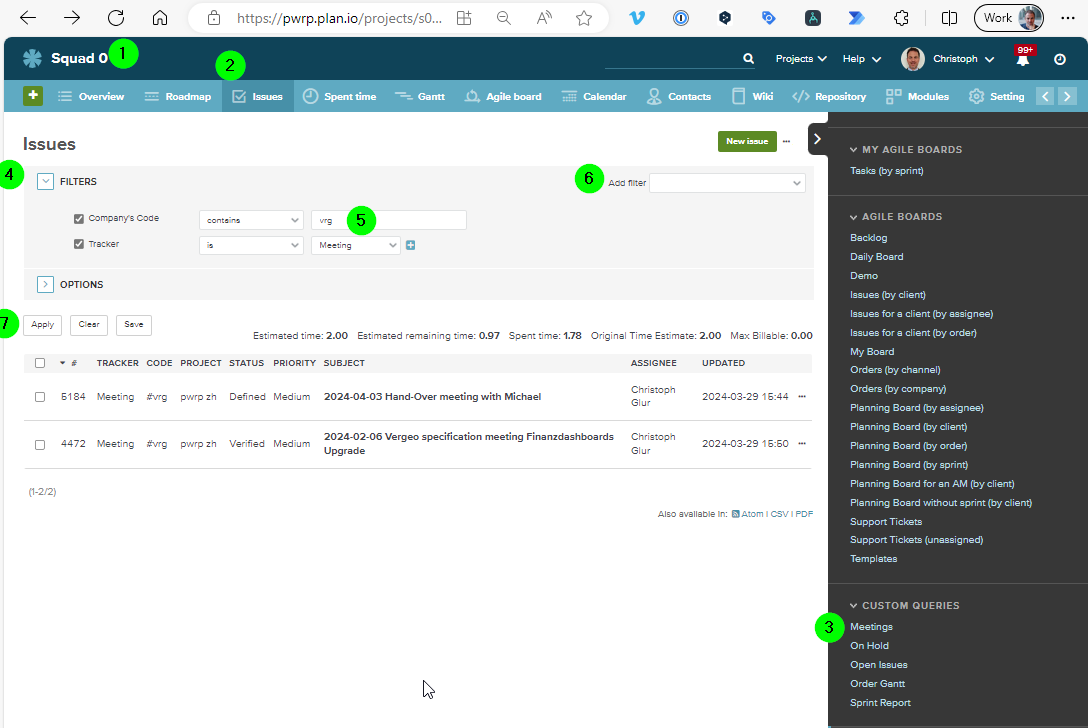
To find future or past meetings with a client, proceed as follows:
-
go to Squad 0
-
click on Issues
-
select Meetings
-
open the filters section
-
enter the clint code
-
if necessary, add additional filters
-
click on Apply