ionBIZ Custom Fields
In order to add the Custom Fields from ionBIZ, first we need to connect to the ionBIZ account of client:
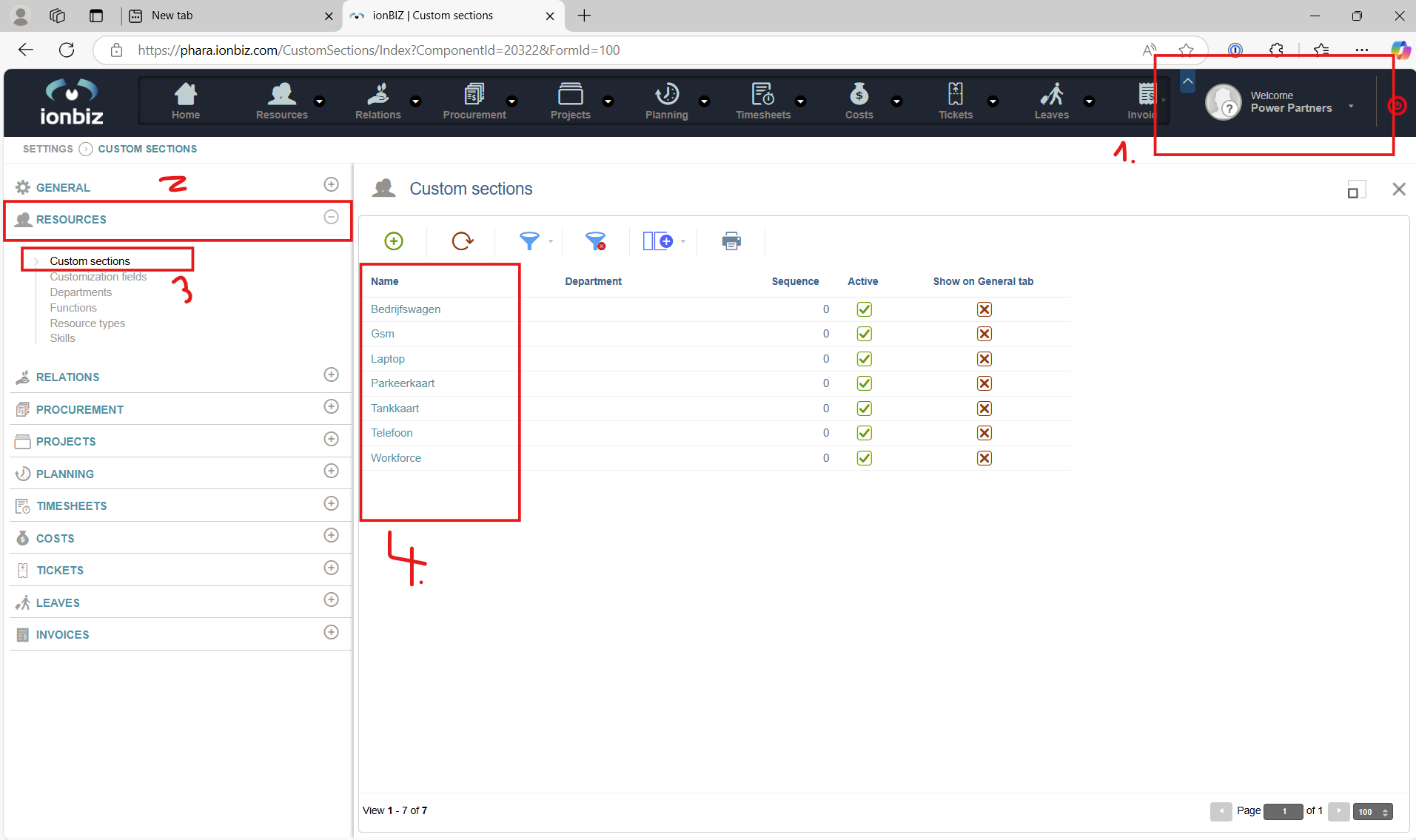
-
Click on the dropdown arrow on our account -> Go to Settings, which will lead us to the screen just like on image above.
-
In this case, we want to add Custom Fields for the ''Resources", so we open the "Resources" section
-
Left-Click the "Custom sections"
-
We see the names of the custom fields that are currently added to the ionBIZ
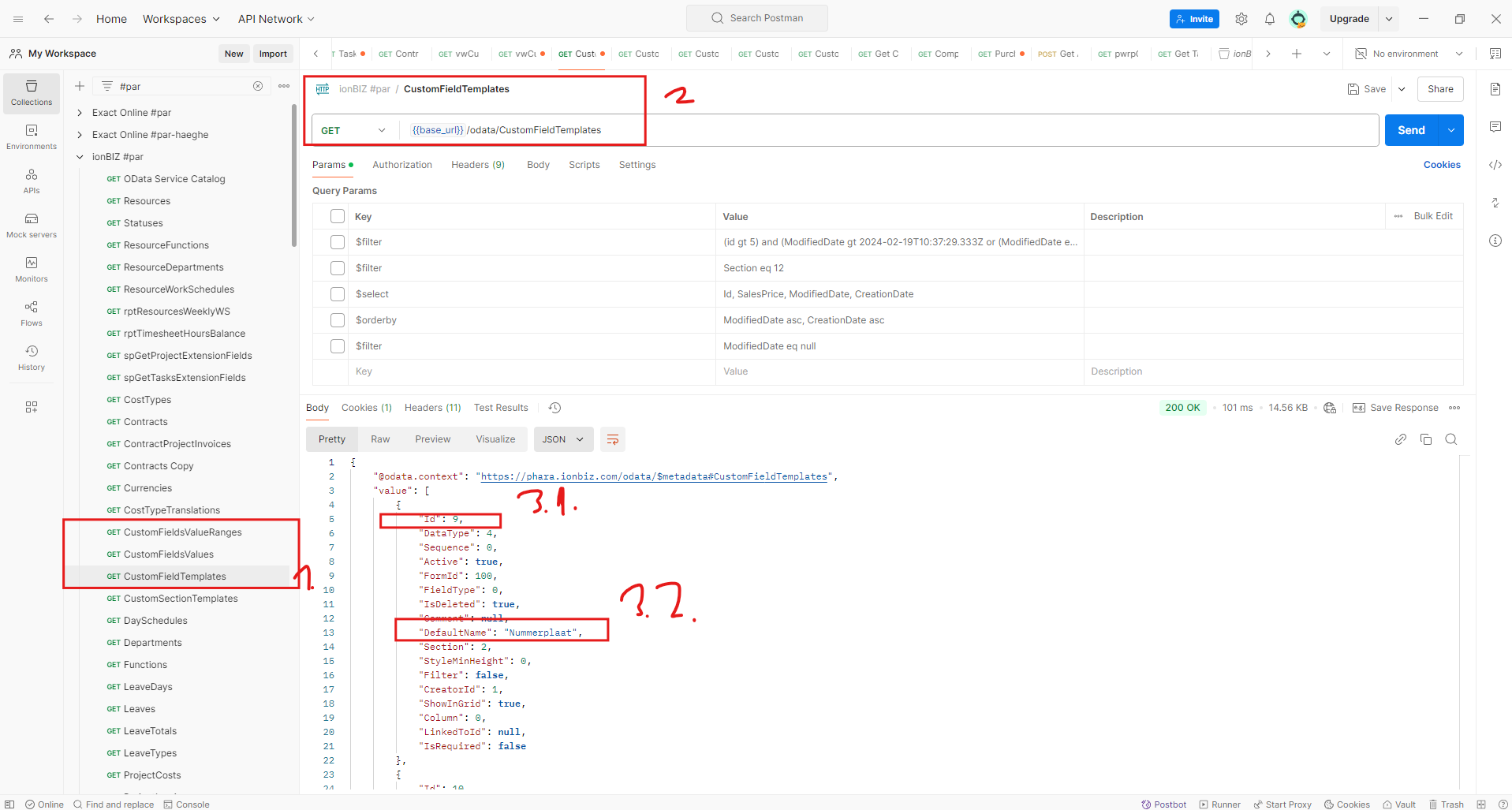
In order to add those, first we need to check their "Id", and we can do that using Postman:
-
The names of the 'GET' requests that we will be using, starting with the 'CustomFieldTemplates'
-
The body of the request
-
The fields that we are interested in
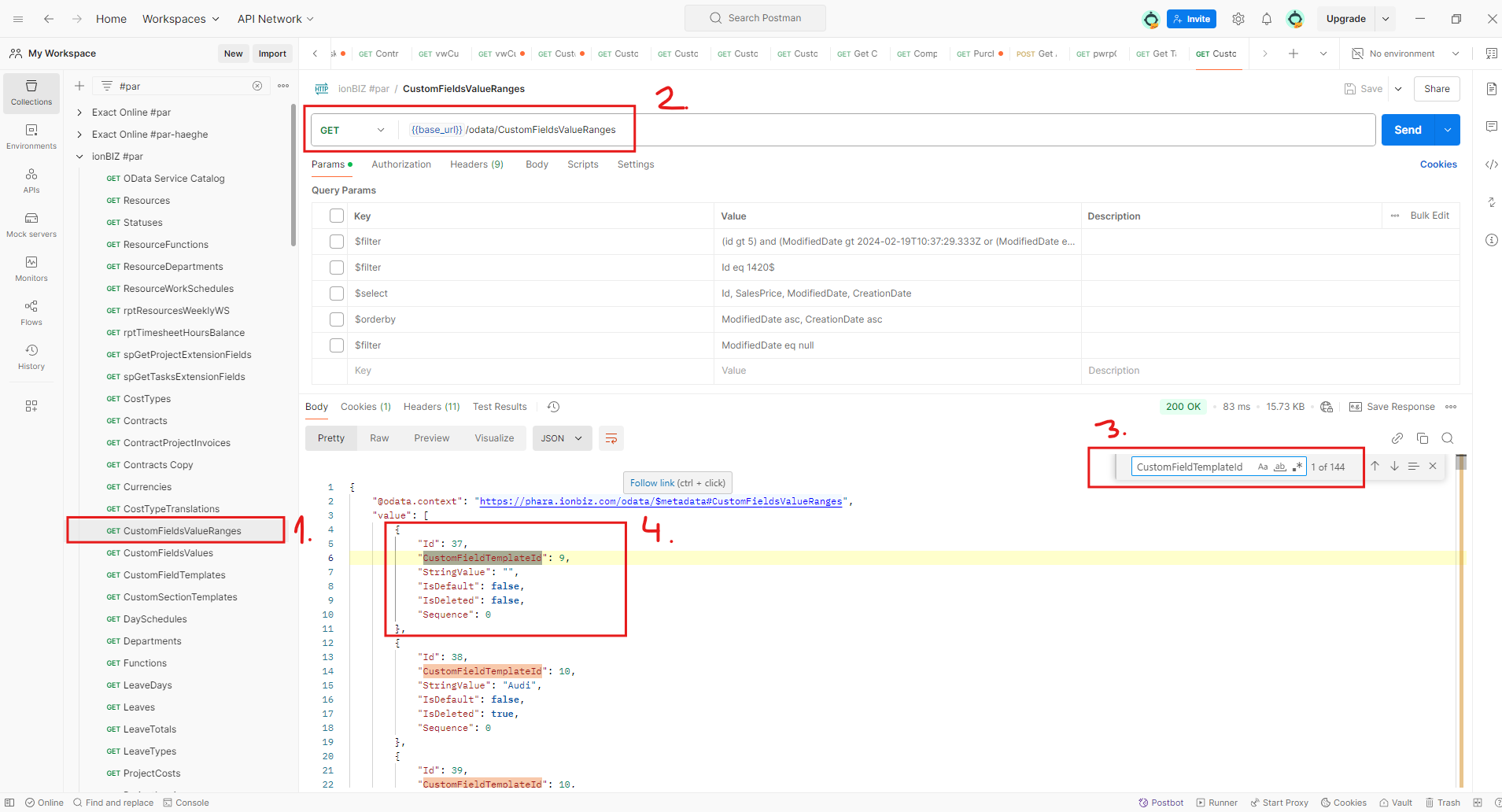
In this example, we will check how to add the custom field called "Nummerplaat" with the Id = 9. Now, we're gonna use the second request - "CustomFieldsValueRanges"
-
GET request that is shown in result above
-
Body of the request
-
In search, we want to find "CustomFieldTemplateId" for an easier highlight
-
"CustomFieldTemplateId" is the reference on the "Id" from the "CustomFieldTemplates" table. We see that the "Id" value inside CustomFieldsValueRanges is 37.
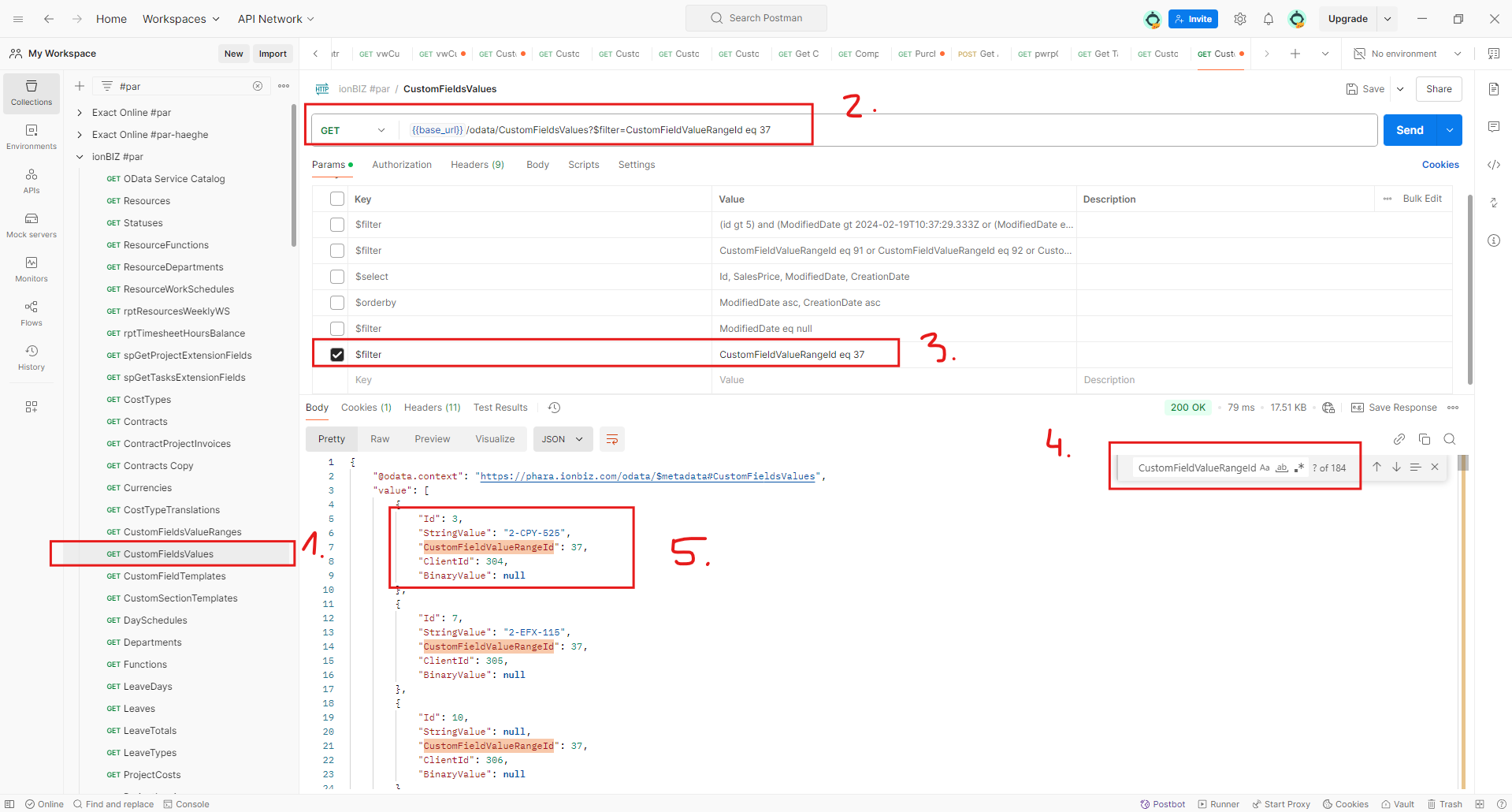
Now, we want to check the table "CustomFieldsValues" table
-
GET request that we are calling
-
Body of the request
-
filter applied for easier explanation. "CustomFieldValueRangeId eq 37", references the Id of the "CustomFieldsValuesRanges"
-
Adding "CustomFieldsValuesRanges" in search, for easier overview
-
The values that we need: Id,ClientId,CustomFieldValueRangeId (and any additional we might need)
Now, we need to add these into our config.ionbiz_Tables.
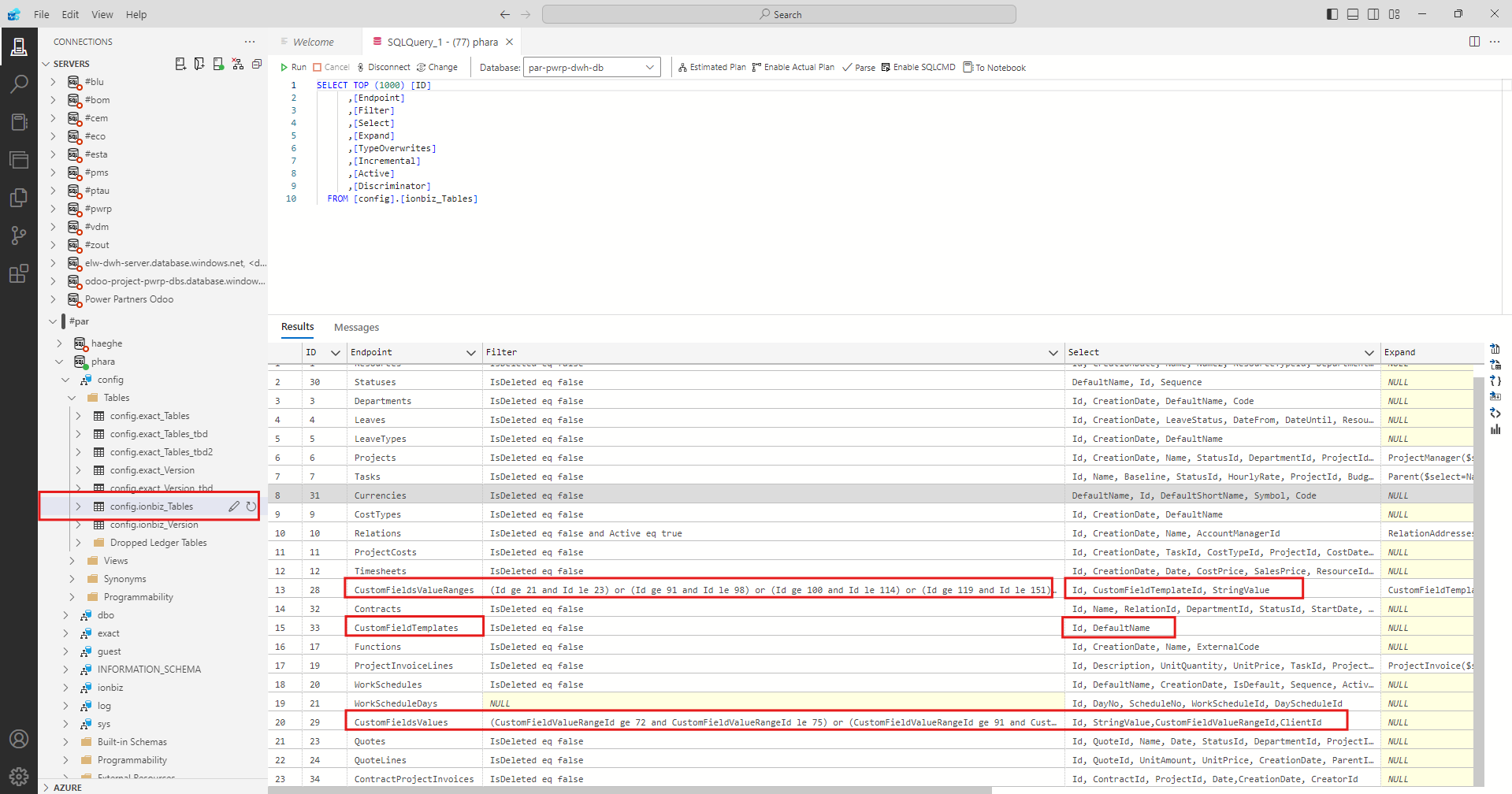
In order to get to the custom fields that we need, we will be selecting the highlighted columns. In the "Filter" column, we put which values of "Id" we want to extract.
The connection (reference) between tables: