How we use git
Definitions of entities
Client: an organisation that is asking Power Partners to create a dashboard for them. ex: SuperTrends, Transport de Rese, Heinrich Brandmeldetechnik, …
Order: one offer that has been made by Power Partners (in the form of a contract). This corresponds to an “issue” of type "Order" in Planio, ex: for SuperTrends the “Strategy Room” or the “Multi language and Synonym” project. For Hendrich the “Marketing Dashboard” or the “KPIs”. An Order is an incremental change to the client artefacts, e.g. a change to the Power BI Reports.
Git repository: There is a single repository per client.
Where to keep your local repositories
Never place git repositories inside OneDrive
Do not clone repositories into your OneDrive folder (e.g. Documents, Desktop, or anything under C:\Users\<YourUserName>\OneDrive...). Git and OneDrive both track and sync file changes, which means everything is synced twice and the two mechanisms interfere with each other. Typical problems:
- OneDrive's "Free up space" / Files On-Demand feature removes local file contents, which can corrupt the
.gitfolder and break the repository. - Sync conflicts create duplicate files (e.g.
file-DESKTOP-ABC123.md) that confuse git. - File locks from the OneDrive sync client cause git commands to fail intermittently.
- Large repositories waste OneDrive storage and slow down syncing for everything else.
Git already backs up your work: everything you commit and push is safe on the remote. OneDrive adds no protection, only problems.
Our standard location
Keep all repositories in a GitHub folder directly inside your personal user folder, i.e. outside of OneDrive:
Set-up: step by step
-
Create the folder, e.g. in Explorer or in a terminal:
-
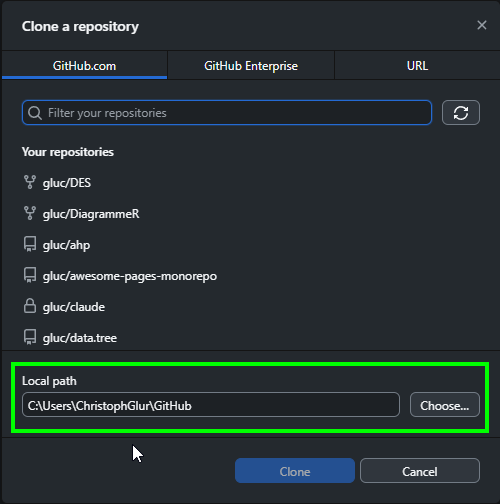
Clone each repository into it:
- Open the repository from the new location in your editor (e.g. VS Code: File → Open Folder…), and update any pinned/recent shortcuts so you don't accidentally keep working in an old copy.
Already have repositories inside OneDrive? Migrate them
- Close all applications that have files from the repository open (VS Code, Power BI Desktop, etc.).
- Make sure everything is committed and pushed. Check visually in github desktop, or use in a terminal
git status. - In GitHub Desktop, remove all your projects (right-click, Remove).
- Delete your old GitHub folder using
Shift + Delete. If asked by OneDrive, confirm that you want to delete the folder in the server, too. - Clone the projects to the new folder, entering the correct Local path
C:\Users\<UserName>\GitHub. You only need to set this once. You can lazy-clone the projects, as you need them.
Folder Structure
We have the following folder structure, for each client repository:
Solutions
In case of big clients with many assets, it is recommended to split the repository into multiple Solutions, on the top level, i.e.
Code
This folder contains the code assets. On the first level, we splict by technology (Power BI, BC AL, etc.).
Data
This folder contains data files that are or were important for the project, e.g. master data, legacy Excel files, etc.
Docs
This folder contains the *.md files that document the solution.
Branches
We are currently not using branches and always commit to the main branch.
Conflicts
Working on the same solution at the same time might cause some conflicts of versioning and changes made to the files. This section will highlight a few conflicts possible and propose solutions to solve them.
Working on the same *.pbix
Conflict
When working at the same time on the Dashboard without taking the other’s person changes into consideration, we will run into problem (2 ≠ versions). Unfortunately, *.pbix files are binary files. Git doesn’t handle conflict resolution with this type of files.
Solving Conflicts
The only way to handle that problem is to talk with the person who did the changes at the same time and copy his/her/its changes to the file you have modified.
Working on the same Azure function
Most of the time this should be handled by git. But if two people changed the same line of code, then the conflict should be handled in git itself (manual changes). This is the real advantage of git.