BC First Steps
Access
For cloud installation, BC is accessed via a URL, e.g.
- 52a... : tenant
- Production: environment
- company: Name of company
Sometimes, you can access from Office 365 directly.
In Business Central, it is easiest to get to a page by searching for the right transaction.
For example:
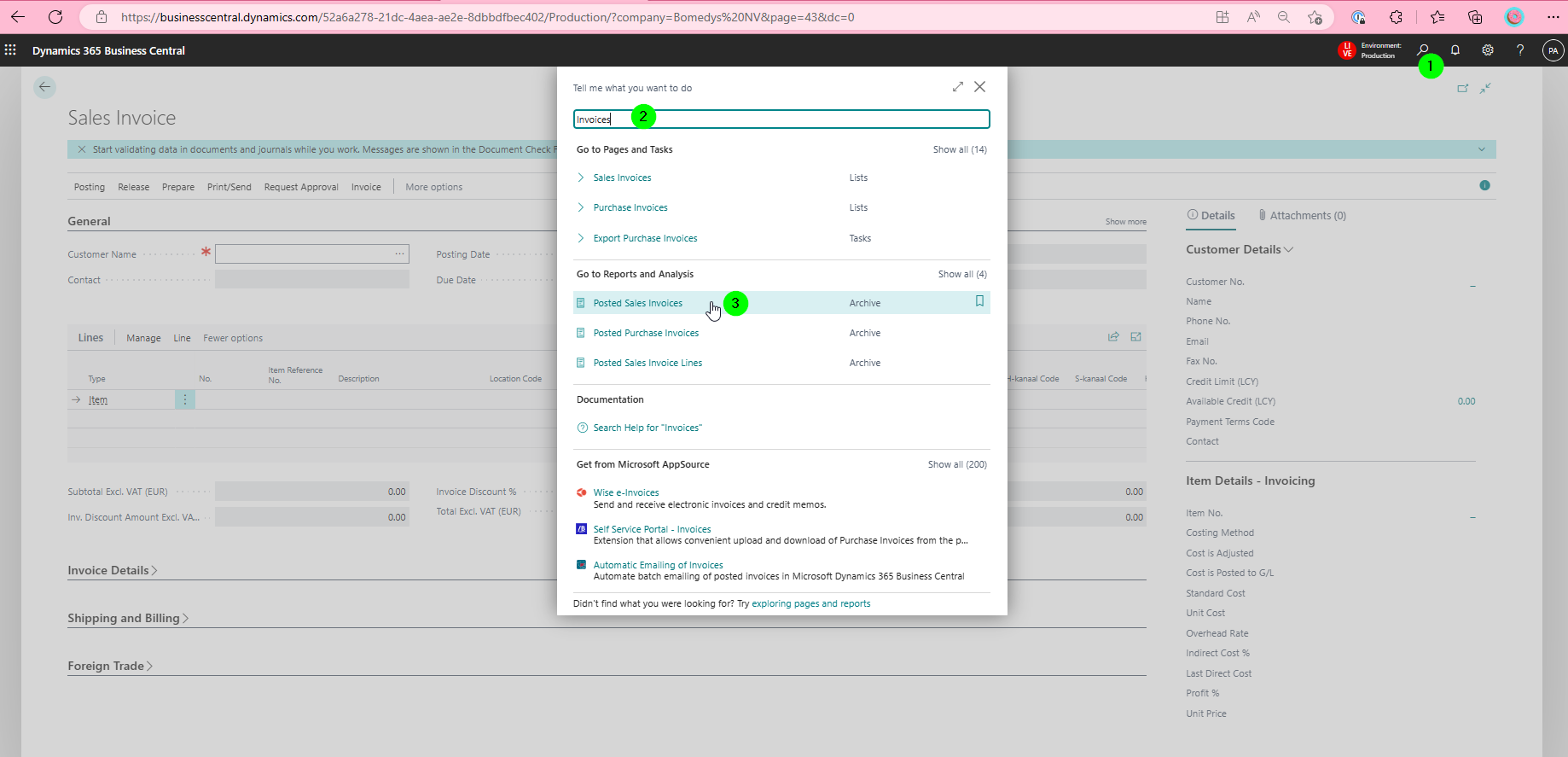
Typical Transactions are:
- Web Services
- Users
- Posted Sales Invoice Lines
- Manage Extensions
- etc.
System Information
Once you are at the right place in BC, you can access the information about the underlying data by pressing
Alt+Ctrl+F1
This is called Page Inspection.
If you do, then you have a vertical info section opening on the right that provides you with the details you need on the underlying data. For example, we can see that Sales Invoices are stored in Table Sales header (36), and that the underlying data set for this screen is a Page with ID 43, called Sales Invoice.
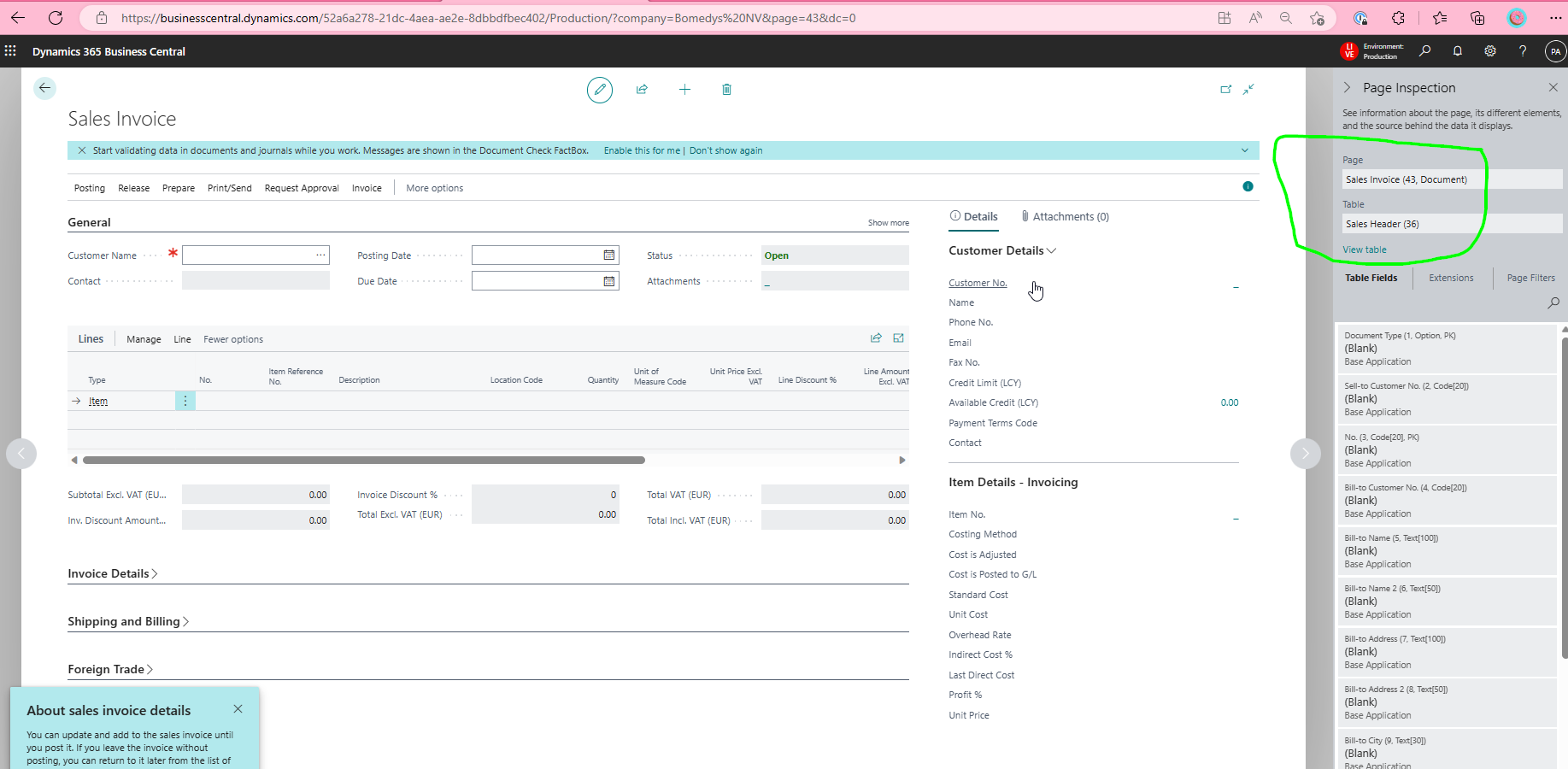
Note that the IDs (43, 36 in the above example) are an important concept in BC. They are needed, e.g., to define an OData endpoint on some data.