Markdown Tips and Tricks
Links
See also:
Links
Basic Links
A basic link is done like so:
This will render like so: pwrp.
Wiki Links
Within the scope of a single mkdocs.yml file, you can reference pages by title, e.g.:
...which renders as Fix This Next.
Internally, the following happens:
-
The name between double square brackets is translated to
fix-this-next.md -
The ezlinks plugin tries to find the "closest" file named
fix-this-next.md -
If found, a link to the page originating from the file is generated
Hence, we recommend to always name your files the same as the file name, and to be as explicit as possible with the file names. e.g.
Fix this Nextin the titlefix-this-next.mdas file name
File Links
You can also link by file name:
...which renders as departments/delivery/knowledge-base/md/introduction.
This is achieved with the ezlinks plugin for mkdocs.
Table
The best way to render tables is with VSC, using the plugin "TakumiI.markdowntable".
Syntax:
| Syntax | Description |
|---|---|
| Header | Title |
| Paragraph | Text |
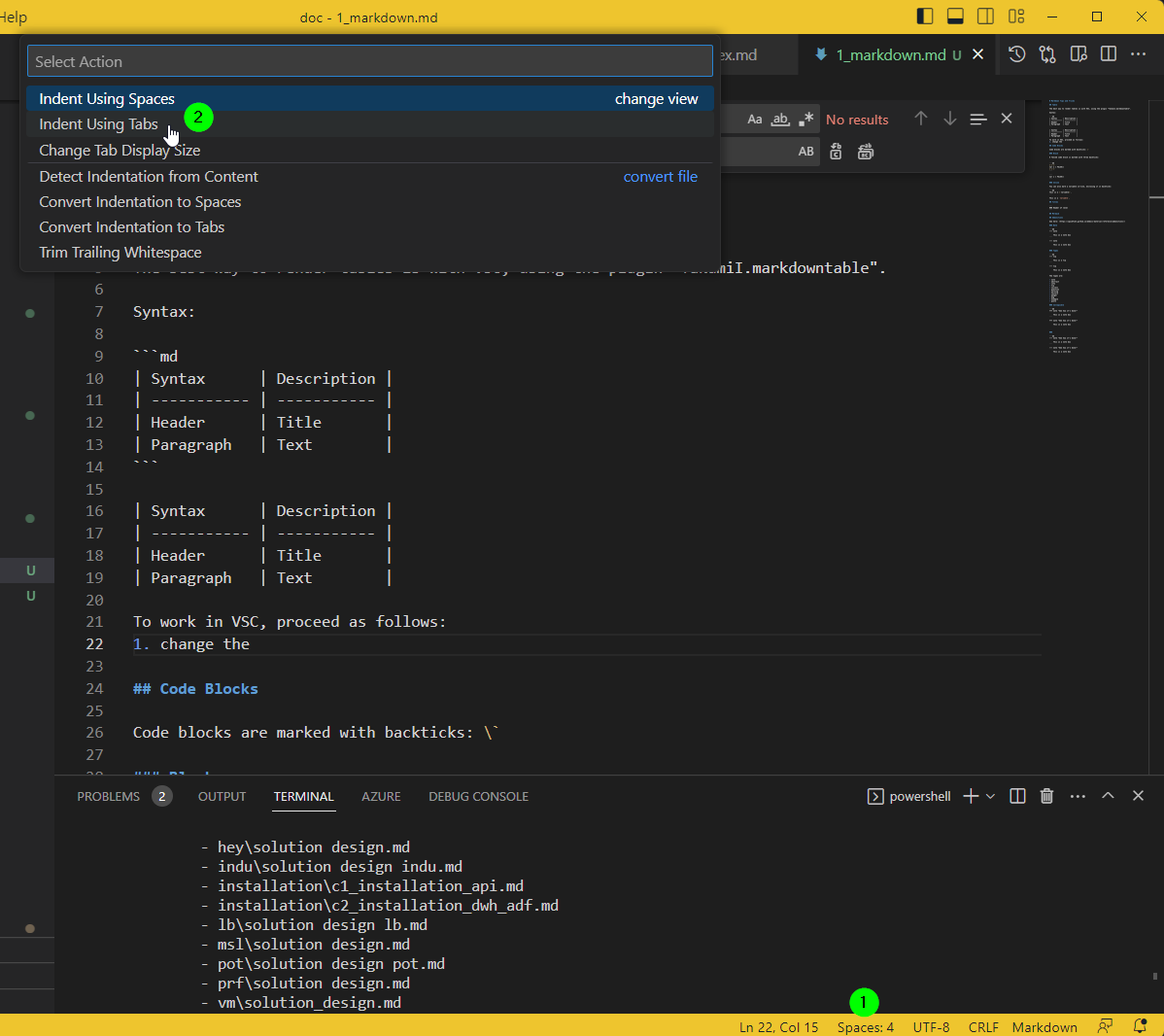
To work in VSC, proceed as follows:
-
select "Spaces" on the bottom right of VSC
-
define "Tab"
-
enter your table with tabs
-
select table in document, and hit
Ctrl+Shift+P -
select
Convert TSV to table -
use
Alt+Shift+Mouseto select or delete columns -
use
Tabto navigate and re-format the table -
use the context menu to add column
Images
An image is inserted like so:
The best is to use telesoho.vscode-markdown-paste-image in VSC.
Proceed as follows:
-
make sure the image is in your clipboard
-
in VSC, go to the document where you want to add an image
-
go to the place where you want to insert the image
-
hit
Ctrl+Shift+P -
run
Markdown Paste -
the extension will suggest an image name

-
replace the number with the image name, making sure to also add resources. This will make sure that the file will be stored in the resources subfolder

Code Blocks
Code blocks are marked with backticks: `
Block
A fenced code block is marked with three backticks:
Inline
You can also mark a variable in-line, enclosing it in backticks:
This is a variable.
Titles
Start every md file with a h1 title (e.g. # Finacc BC Overview). Then, it will be taken by mkdocs as a title of the page. Be explicit with your title (e.g. Finacc BC Overview instead of just Overview). Also, you may then reference the page like so: [[finacc-bc-overview|Finacc BC Overview]]. However, if the page title is not unique, then the "closest" page having that title will be referenced.
For details, see the ezlinks mkdocs plugin.
Mermaid
Callouts
Obisidan Callouts
You can use the obsidian callout functionality.
Title
This is a callout
You can use:
The following types of callouts are available:
- note (blue)
- abstract, summary, tldr (green)
- info (blue)
- todo (blue)
- tip, hint, important (sky blue)
- success, check, done (green)
- question, help, faq (yellow)
- warning, caution, attention (orange)
- failure, fail, missing (red)
- danger, error (red)
- bug (red)
- example (purple)
- quote, cite (grey)
mkdocs admonitions
In mkdocs, callouts are called admonitions. The notation is different (see below). But we make sure that our obsidian callouts are automatically converted to mkdocs-material admonitions when the website is built.
See here: https://squidfunk.github.io/mkdocs-material/reference/admonitions/
Note
My Note
This is a note box
Types
My Tip
This is a tip box
My Info
This is an Info box
My Question
This is a question?
My Warning
This is a warning
My Bug
This is a bug box
My Example
This is an example
My Danger
This is a danger box
My Failure
This is a failure
My Quote
This is a quote
My Abstract
This is a abstract box
The types are:
-
NOTE
-
ABSTRACT
-
INFO
-
TIP
-
SUCCESS
-
QUESTION
-
WARNING
-
FAILURE
-
DANGER
-
BUG
-
EXAMPLE
-
QUOTE
Collapsible Folding
A plus sign expands the callout by default, and a minus sign collapses it instead.
My Unfolded Abstract
This is a abstract box
My Folded Abstract
This is a abstract box