Hybrid Connection Manager (HCM)
Warning
The following points are important to note:
- The HCM endpoints are case sensitive. Also, the HCM always translates to lower case endpoints. As a result, only use lower case URIs when defining and configuring endpoints in a hybrid connection.
- Always use URIs, never use IP addresses. The HCM (respectively Python over HCM) does not support IP addresses very well.
- The advertised message size limit of 256 kb does not limit us in any way, contrarily to what you might expect.
- We had some issues from python when doing many requests to different endpoints. Then, the AF just quits without error message or timeout. We don't quite understand where this is coming from.
Tldr
You need the following Resource providers registered on the Azure subscription:
- Microsoft.Relay
Background
For on-prem, you need to use a Hybrid Connection. See https://docs.microsoft.com/en-us/azure/app-service/app-service-hybrid-connections.
The HCM is to Azure Functions what the IR is to the Azure Data Factory.
It allows connecting from AF to a on-prem ressource.
For details, see separate document by searching HCM
HCM vs Integration Runtime
In the context of BC, this can be useful if
- there are on-prem ressources we want to integrate via ODBC
- there is an SSIS that we can use
For the standard case, the HCM is better suited to access a on-prem API.
Prerequisites
- The Function App must run on an App Service Plan
- The App Service Plan must be at least B1 (roughly 13 EUR per month). See af-installation for details.
The HCM is installed like so:
-
In Azure, go to the Function App
-
Go to
Networking -
Go to
Hybrid Connections
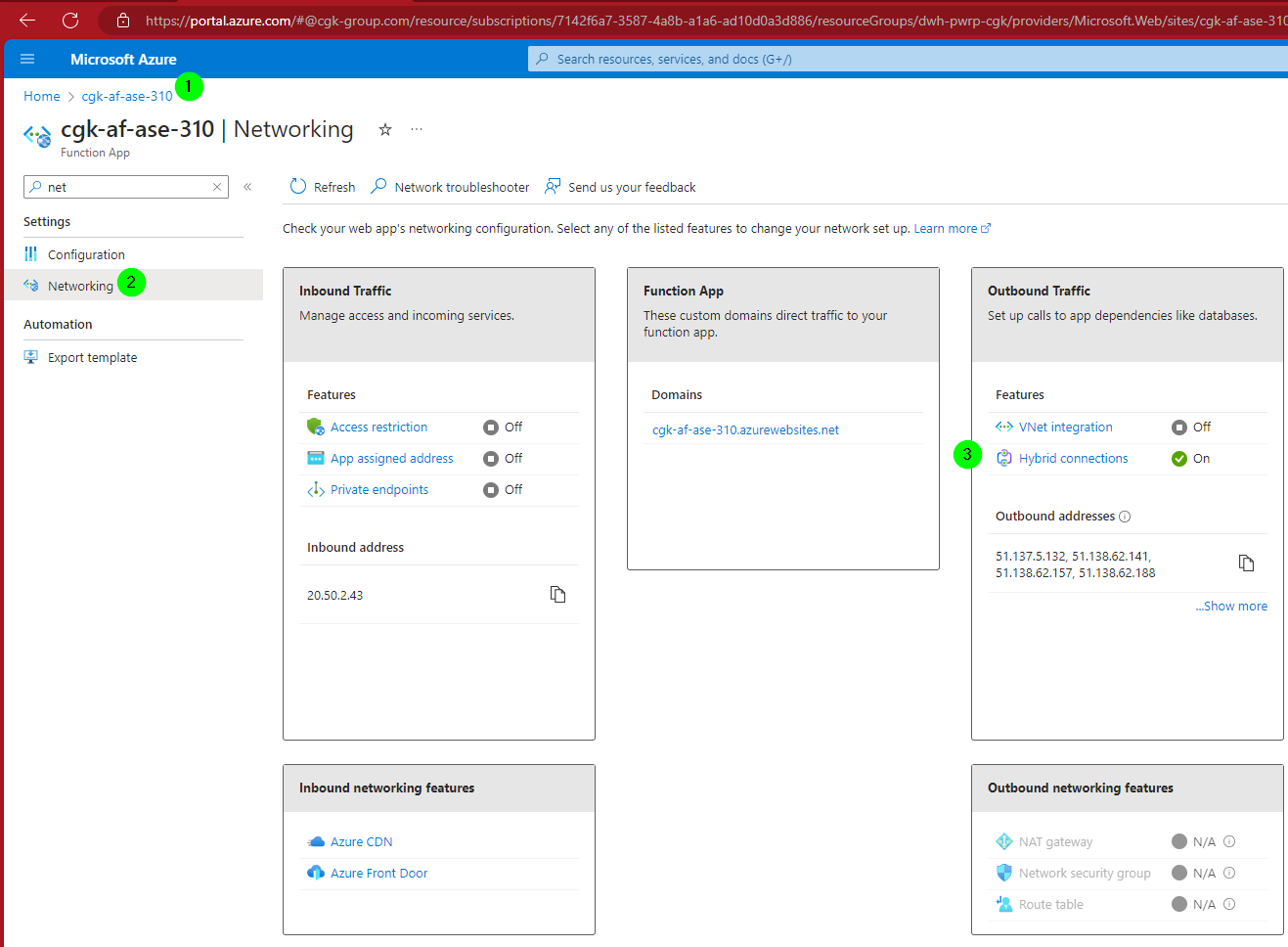
-
Click
+ -
Click
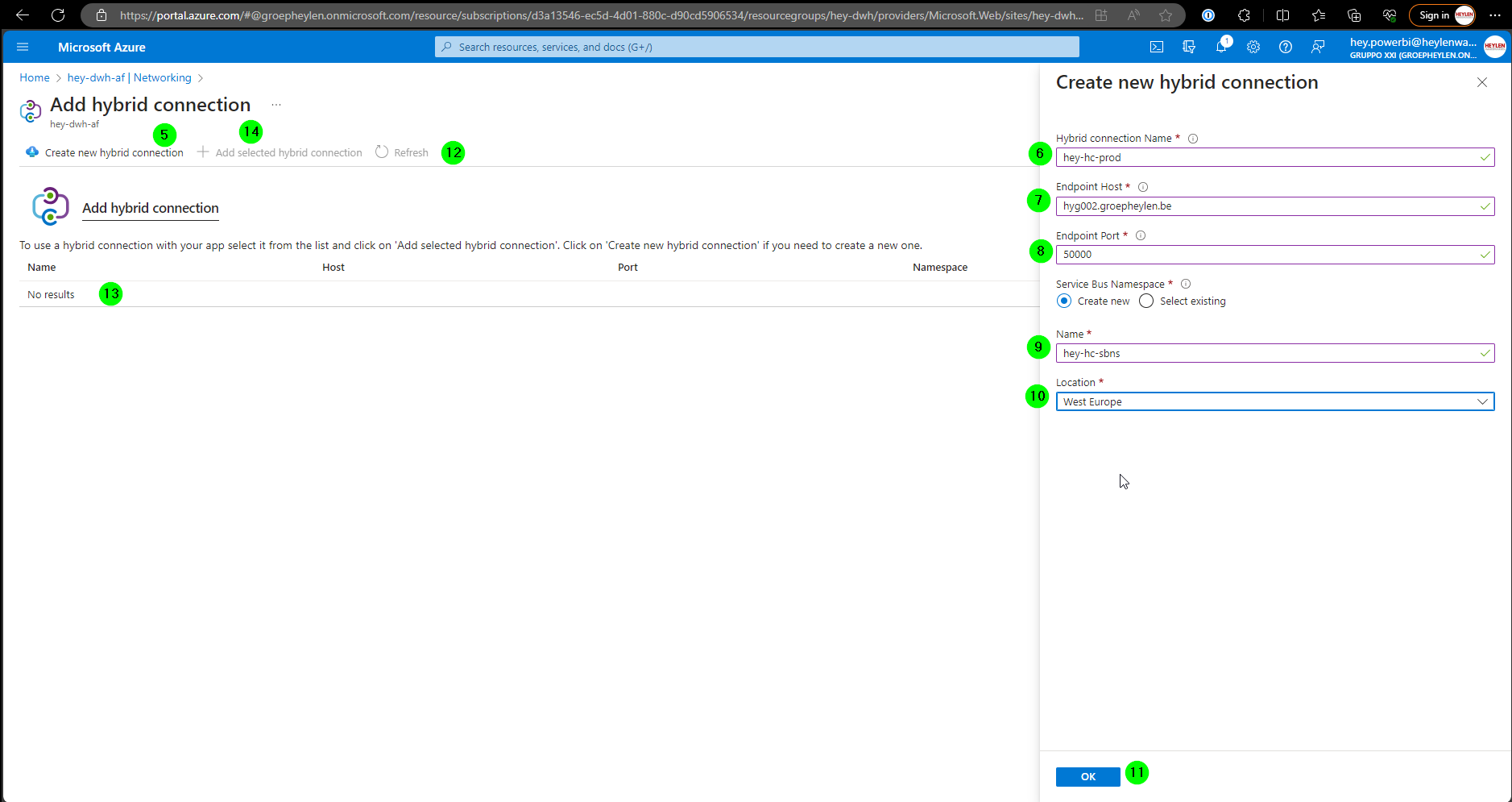
Create New Hybrid Connection -
Enter the Name following the naming convention
xxx-hc-id, e.g.hey-hc-prod -
Enter the Endpoint, this should be an URI of the on-prem service endpoint, and not an IP address. It's not easy to find it out if you don't have it, so you probably need to ask your IT contact person.
-
Enter the Port
-
Enter the Service Bus Name Space. Create a new one, follow the naming convention
xxx-hc-sbns -
Enter the Location, this should be the same as the location of the Function App, typically "West Europe"
-
Click
OK -
Refresh
-
Once you see the hybrid connection, select it
-
Click
Add selected hybrid connection -
Confirm
-
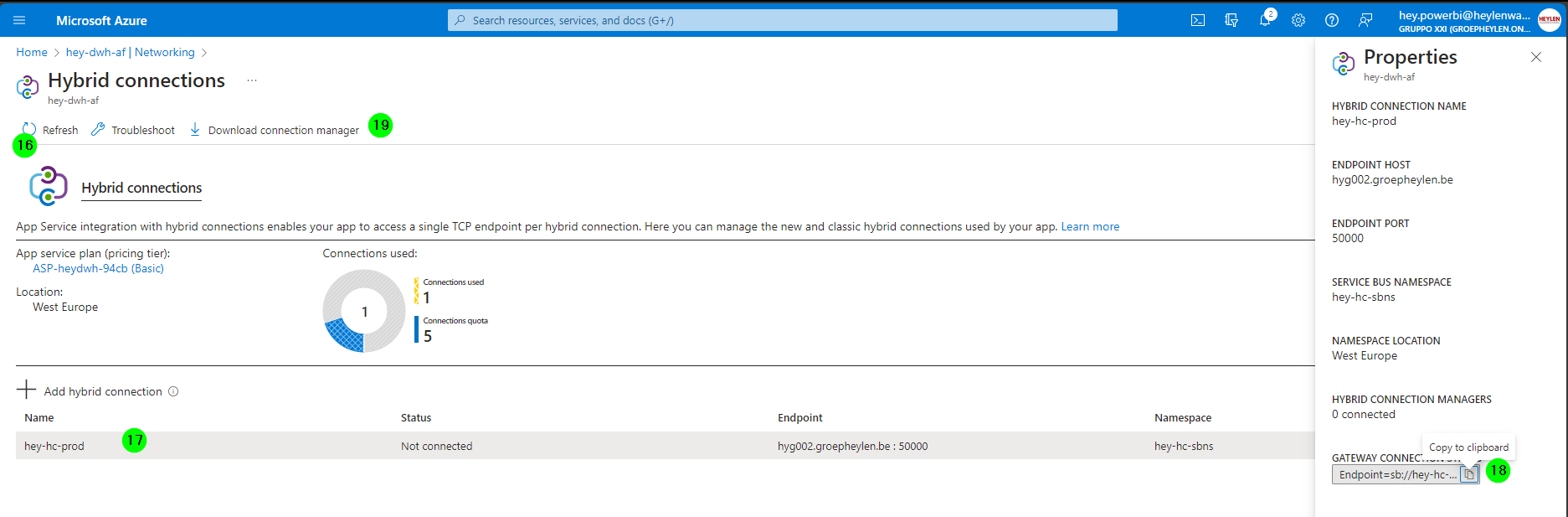
Back in the Hybrid connections screen, click on
Refresh -
Select the Hybrid Connection
-
Copy the Connection URI and store it in a text editor. You'll need it later for the Email.
-
Copy the Download Link and store it in a text editor. You'll need it later for the Email.
-
Send an Email with below text to your tech contact at the client.
Email Template
You can use the following Email template to request the installation of the HCM (Hybrid Connection Manager) from the client:
Dear Client,
We are currently working on integrating your data into the Azure Data Factory. To do so, we need to connect to System. We therefore need to set up a Hybrid Connection between the Azure Function and the Business Central API.
Please refer to this document for more information: https://docs.microsoft.com/en-us/azure/app-service/app-service-hybrid-connections
To set up the Hybrid Connection, we ask you to install the Hybrid Connection Manager on a Windows Server in your network. Please follow the instructions in the document above. Specifically:
- Download the Hybrid Connection Manager from https://go.microsoft.com/fwlink/?linkid=841308 GET URI FROM FUNCTION APP
- Install the Hybrid Connection Manager on a Windows Server that has access to the Service Endpoint (URI)
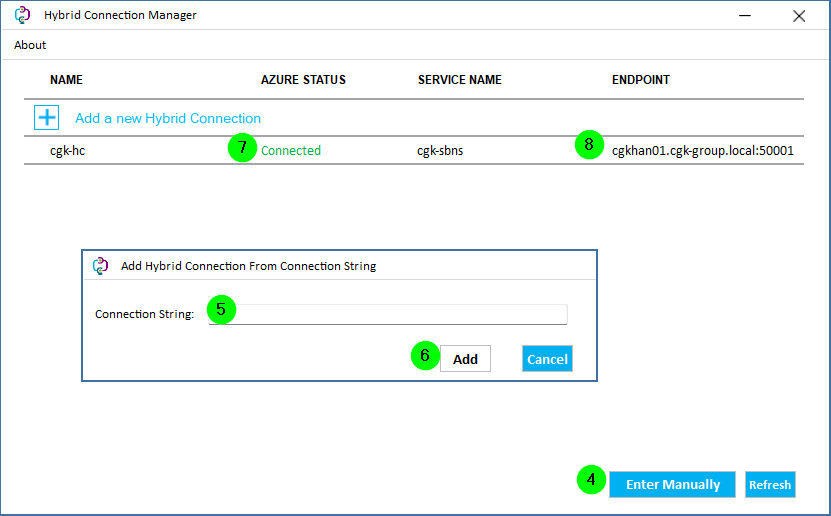
- Start the Hybrid Connection Manager UI
- Click on
Enter Manually - Enter the following connection string: Endpoint=sb://cgk-sbns.servicebus.windows.net/;SharedAccessKeyName=defaultListener;SharedAccessKey=W+WU9dx6bn4fseAheHGrk3Bnadd3vEEgq+ARmAATGUc=;EntityPath=cgk-hc
- Click on
Add - IMPORTANT: If the Azure Status is not
Connected, restart theAzure Hybrid Connection Managerservice - You should see the the endpoint cgkhan01.cgk-group.local:50001, with status
Connected
Let us know if you have any questions. Else: Thank you so much for your help.
Best Regards,
Name