Robaws API
Authentication
- Get Authorization code
Required parameters
- client_id
- redirect_uri
- scope
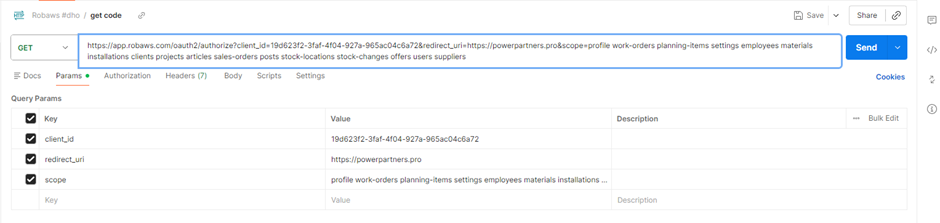
You can find the available scopes in the Robaws documentation (OAuth endpoints).
Steps
- Construct the get code URL with the required parameters
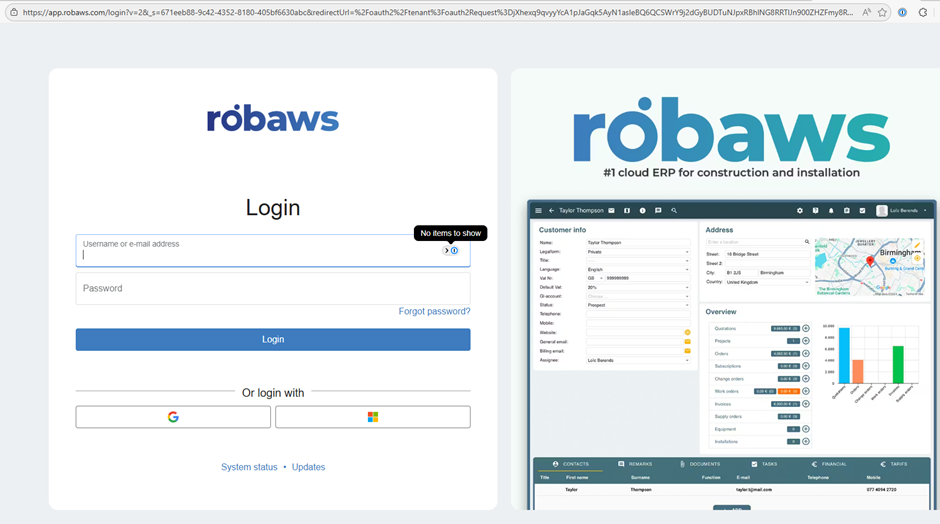
- Paste this URL into your browser
- Log in with your Robaws account
- Grant access to the application
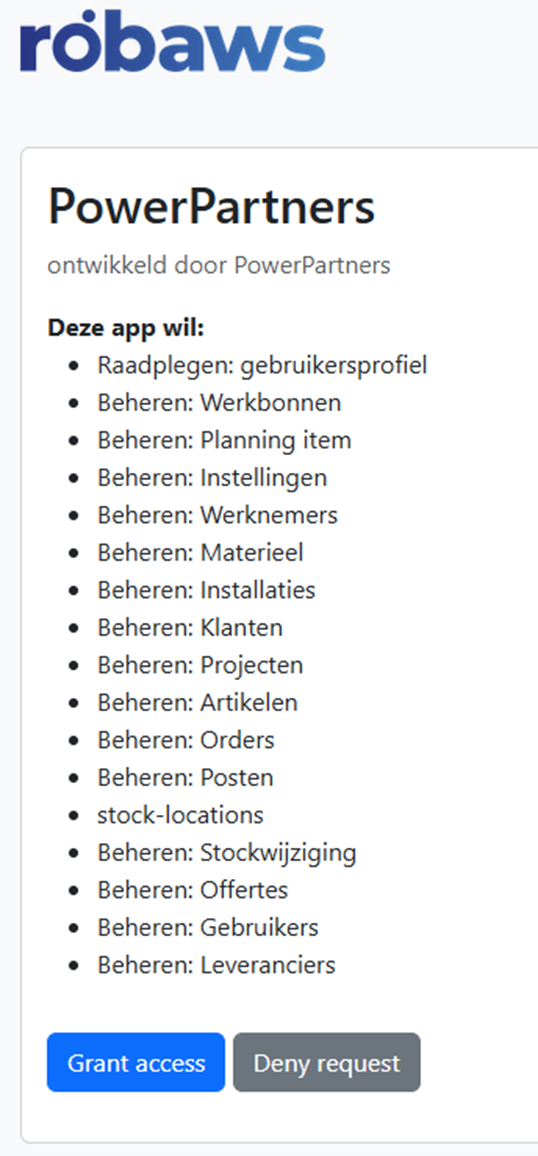
-
You will receive an authorization code in the URL
-
Get Access & Refresh Token from Code When retrieved the Code from the URL
Important This only needs to be done once in the beginning of the API authentication setup!- Insert the Code from the URL into the code variable
- Add the client secret from the Robaws Application (needs to be stored in 1Password)
- Add the client ID from the Robaws Application (needs to be stored in 1Password)
- Send the POST request
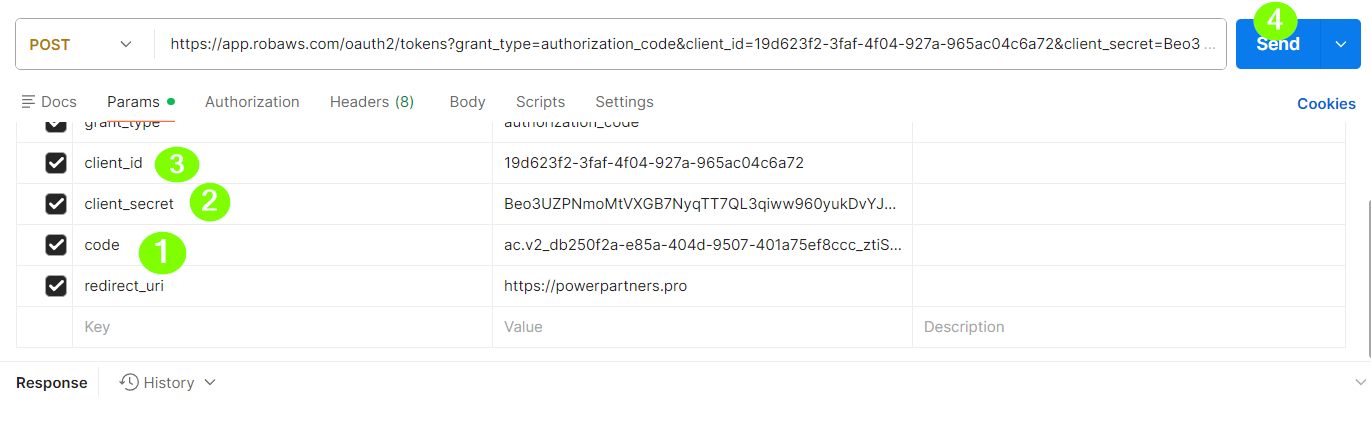
- Take the
refresh_tokenfrom the response and store it safely in the Azure Key Vault with the following naming conventionrobaws-refresh-tokenthis is the most important part since this refresh token widll be used by the Azure Function to get an access token for authentication. - Copy the access token as well but don't store it in Azure.
- Get Access from Refresh Token
- If one already has a refresh token a new access token can be retrieved with it. User the POST method in Postman called
access from refreshto retrieve a new access token
- If one already has a refresh token a new access token can be retrieved with it. User the POST method in Postman called
- Get Data
- Retrieve an access token (usually from the refresh token option)
- Copy the new
access_tokenvalue from the response - Insert the new access token in the
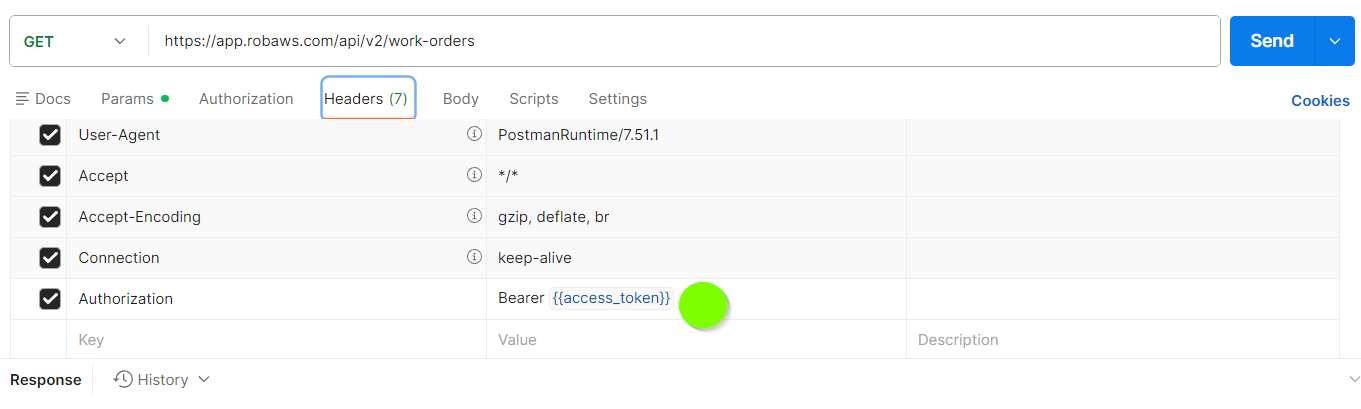
access_tokencollection variable in the header of the desiredGETrequest and press send to check if the response works and data is being returned