Dashboard on TV (Legacy)
Power BI Proxy
We have now developed Power BI Proxy. It is a Power Partners product that makes the configuration of a dashboard on a smart screen much easier.
Smart Screen, Smart TV, Power BI App
Assume you want to set up a TV in your office that shows current company KPIs and rotates through different visualisations.
Challenges to be solved:
- security: you should not give anyone having access to the TV give access to company ressources
- reboot: when the computer is rebooted, it should log in directly and display the dashboard automatically
Step-by-step Guide
Power BI
-
Create a single report (pbix) file containing pages for all the reports you want to rotate on the screen
-
Deploy to a dedicated workspace (or use an existing workspace that has no highly confidential data)
-
Make sure there is a service user. It must have the following properties:
- It is a service user on the respective tenant
- It is not an admin (for security reasons)
- It has access as a Viewer to the workspace
- It has a PowerBI license (Pro or PPU, depending on Workspace)
Nano PC
-
Get a nano, pico or barebone PC running Windows. Currently, 4 GB memory works, but 8 is better.
-
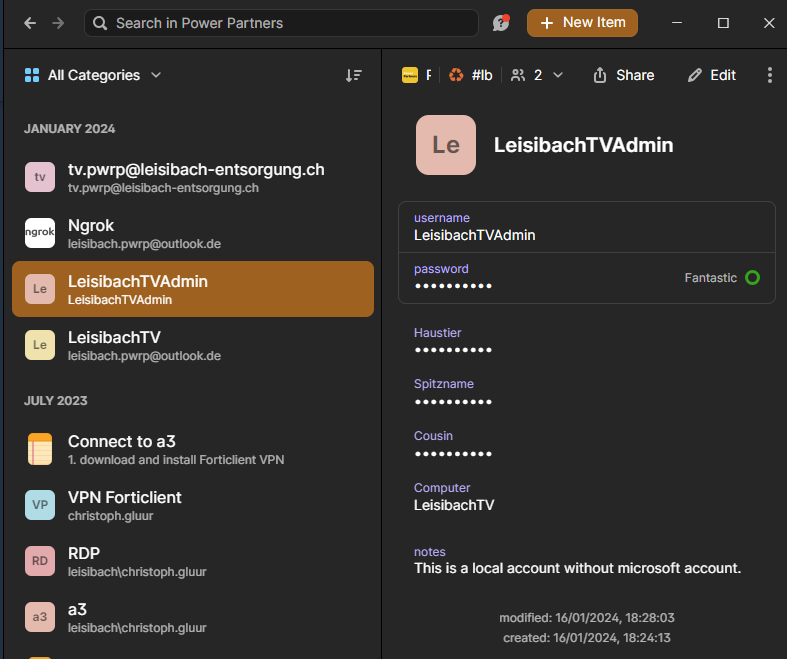
Create a local Admin account, without Microsoft account
-
Create a Standard User on the PC, but do not create it on the client's domain. Instead, create a new user in the wizard
-
Make sure the user can log into the PC remotely (by explicitly assign him remote rights; it is not advised to make the user a local admin for security reasons). This is important to comfortably install and maintain the computer.
-
Make sure the user can log into the PC locally
-
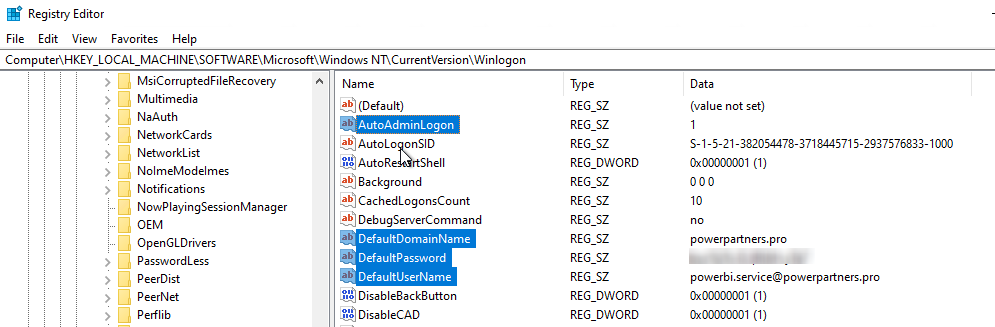
Make sure the PC logs automatically in when booting. This will allow any use to turn KPI screen on by just turning on the PC, or to use a timer or digital power switch
Chrome
-
Install Chrome (Edge does currently not work well with the Tab Rotate extension; for example, it doesn't start up automatically)
-
Log in to
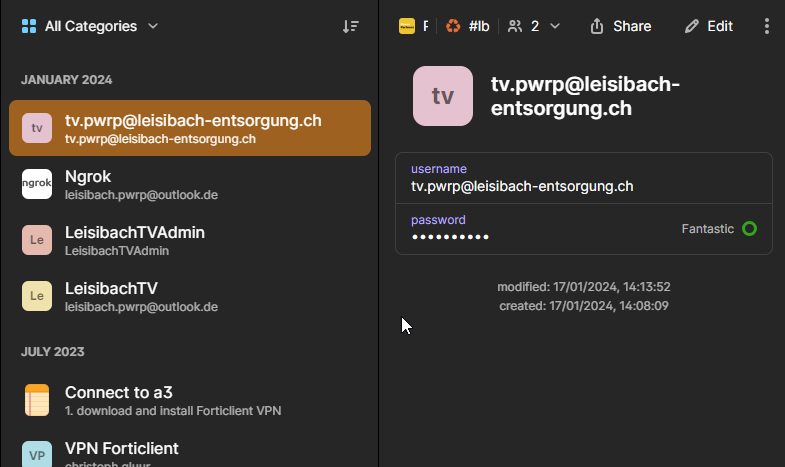
app.powerbi.comwith the Service user on the client's tenant (e.g. tv.pwrp@leisibach-entsorgung.ch). Make sure you- do not store the PW in chrome (answer "Never")
- tick the box "Remember me" or similar to avoid having to log in upon each boot
-
log into
app.powerbi.comand get the correct links.- for example:
https://app.powerbi.com/reportEmbed?reportId=da0c49ed-c98c-4c89-991c-1fef6805609f&autoAuth=true&ctid=2318ed6b-3946-4e1d-a812-549253ea0c0c&filterPaneEnabled=false&navContentPaneEnabled=false&actionBarEnabled=false&pageName=ReportSectione654b0d7277f1d9287c5 - You can get the
pageNamewhen selecting the right tab in Power BI Service
- for example:
-
install the "Tab Rotate" extension
-
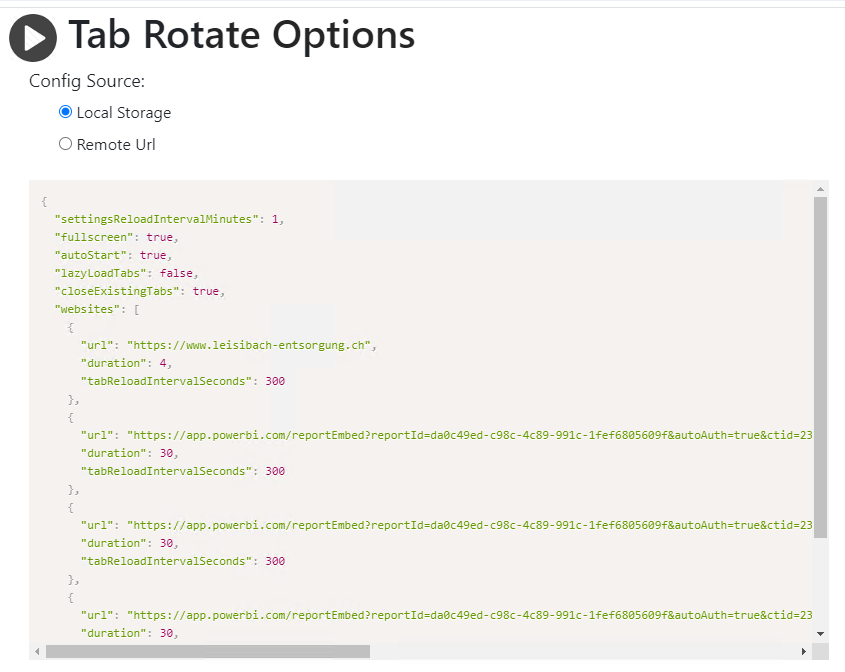
configure the tab rotate with the right URLs for the Power BI reports.
-
set the following:
"settingsReloadIntervalMinutes": 1,
"fullscreen": true,
"autoStart": true,
"lazyLoadTabs": false,
"closeExistingTabs": true,
Make sure the PC stops with a single click on the power button. This allows e.g. cleaning staff to turn off in the evening in order to save energy. -
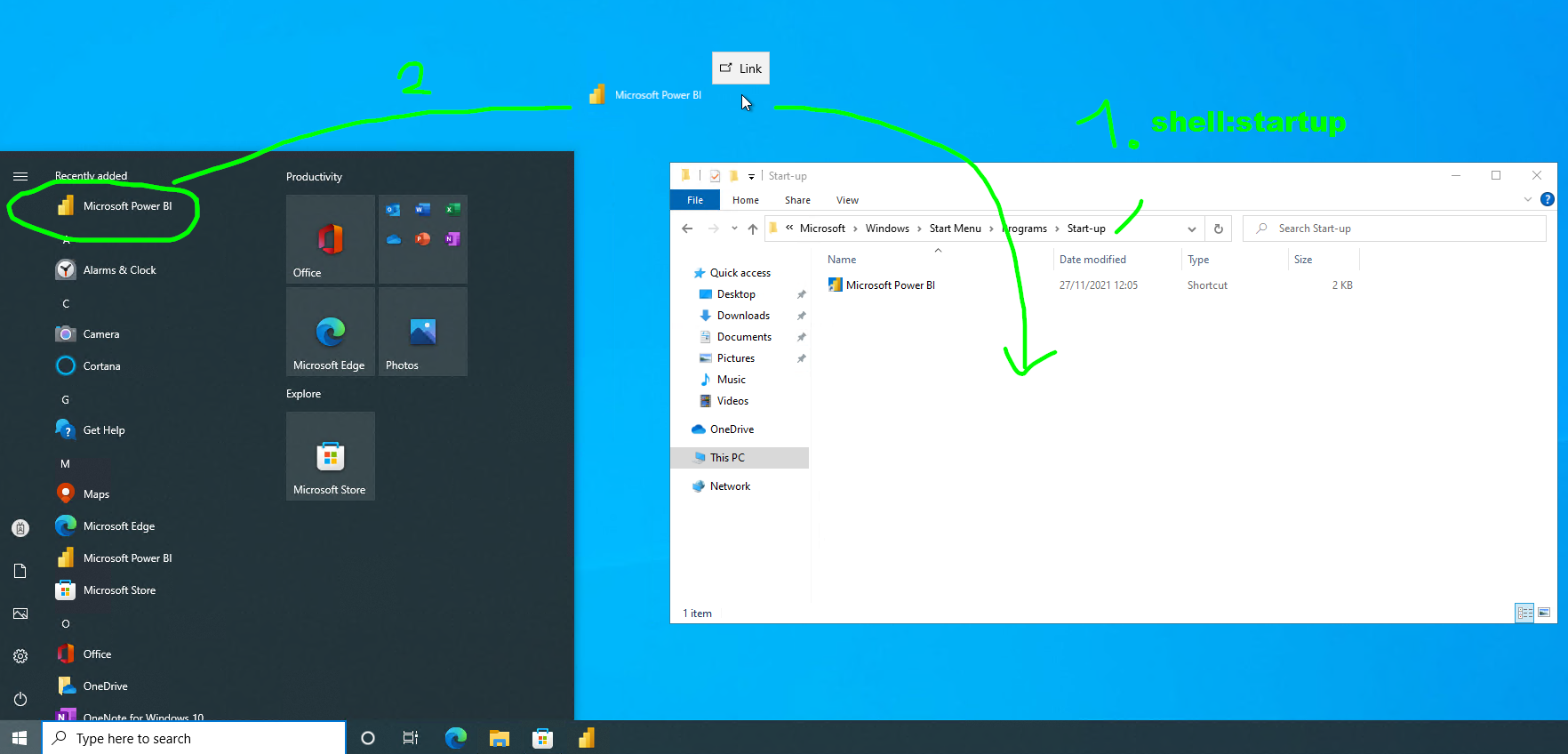
Make sure Chrome is starting automatically upon boot by dragging a shortcut to Chrome into the boot folder.
- Open Explorer and type shell:startup into the address bar
-
Open Start, find Chrome and pull into the Start-up folder
Ngrok
In order to provide remote support, we need to be able to log in with RDP (Remote Desktop). To allow this, even behind a corporate firewall, proceed as follows:
-
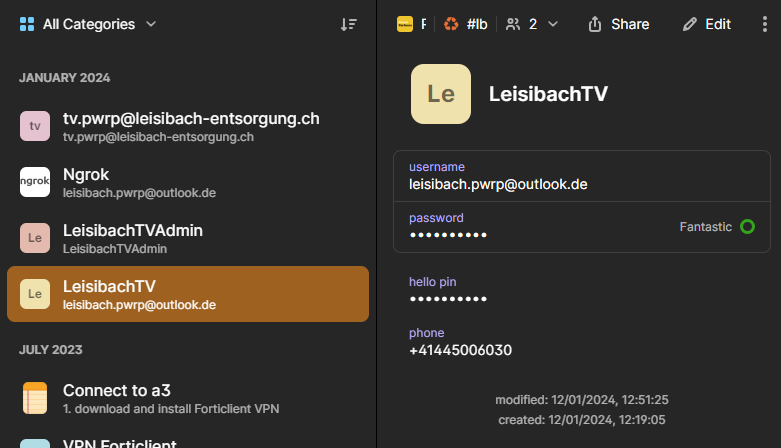
with the service user email account (e.g.
leisibach.pwrp@outlook.de), create a free Ngrok account. -
download to the mini computer and install ngrok as an admin, following the ngrok installation instructions. Install to
C:\ngrok\ -
create a
config.ymlfile inC:\ngrok\config.yml. You can copy it from the original config.yml, typically installed in"%HOMEPATH%\AppData\Local\ngrok\ngrok.yml". This contains the token required to authenticate with Ngrok. -
to the config.yml file, add an rdp tunnel. Your file will typically be:
-
open a command line and cd into
C:\ngrok\ -
run
ngrok service install --config "C:\ngrok\ngrok.yml" -
check in windows "Services" if the Service is installed and up and running
-
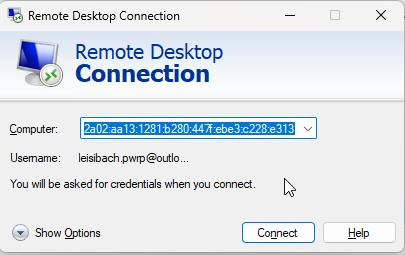
log into ngrok and find the tunnel IP Address (IPv6)
-
try to log into the machine using this IP address and RDP (note that the IP address changes each time you reboot the mini computer)
Checklist
- when you click on the power button, the computer is shutting down
- when you power on the mini computer, it automatically logs in with the service user (e.g.
leisibach.pwrp@outlook.de) - when the computer starts, chrome is automatically started
- it is started in full-screen mode
- tab rotate is running automatically
- power bi is logged in
- when the computer starts, ngrok is automatically started as a service
- the IP appears when you log into ngrok with the service user (e.g.
leisibach.pwrp@outlook.de) - you can log in with RDP
- the IP appears when you log into ngrok with the service user (e.g.
- all credentials are stored to 1pw
Email Templates
Email DE
Anrede
Hurra, Ihr Dashboard kommt in Ihr Büro!
Wie besprochen haben wir einen Nano-PC so konfiguriert, dass Sie ihn an einen beliebigen Monitor oder TV anschliessen können. Er wird von nun an dafür sorgen, dass Ihr Team immer ein Auge auf den wichtigsten KPIs hat.
So wird der PC installiert:
Variante A: Ethernet
- verbinden Sie den PC mit dem Screen (z.B. über HDMI, USB-C oder DisplayPort)
- schliessen Sie es an ein Netzwerkkabel an, welches mit Ihrem Netzwerk verbunden ist
- schliessen Sie das Gerät am Strom an
- drücken Sie den Power Button
Variante B: WiFi / Wlan
- verbinden Sie den PC mit Tastatur, Maus und Keyboard
- drücken Sie den Power Button -> das Gerät startet und logged sich automatisch ein
- richten Sie das Wlan ein. Es ist zu empfehlen, über ein Gastnetzwerk einzuloggen
- fahren Sie mit den Punkten fort, wie in Variante A beschrieben, wobei Sie jedoch Punkt 2 auslassen
Hier ein paar Punkte zu Ihrem Dashboard, zur Info:
- Um die Sicherheit zu gewährleisten, haben wir einen minimalen User aufgesetzt und ihm eine Power BI Lizenz zugeordnet. Dieser hat einzig Leseberechtigung auf den dafür vorgesehenen Workspace.
- Der mini-PC ist nicht geschützt. Installieren Sie darauf keine Unternehmenssoftware, und loggen Sie sich nur mit dem dafür vorgesehenen User ein. Dieser ist so aufgesetzt, dass er - ausser dem Zugriff auf das Dashboard - keine Berechtigungen hat.
- Funktioniert etwas nicht? Wir können Ihnen bei den meisten Problemen über Fernwartung helfen.
- Möchten Sie zusätzliche Dashboards in die rotierende Sequenz einbinden? Kein Problem, wir können die Dashboards im Nu über Fernwartung konfigurieren.
Wir wünschen Ihnen und Ihrem Team viel Spass und Erfolg mit den Dashboards!
Freundliche Grüsse
Name