BC
Here, we set up access to BC, so that we can fetch data via API.
Set up BC Access with S2S Authentication (Cloud)
-
Get access to the relevant BC companies
-
In Microsoft Entra ID, go to App registrations and create a new one
- name: Business Central Web Service Client
- Access by tenant only
- no URIs
-
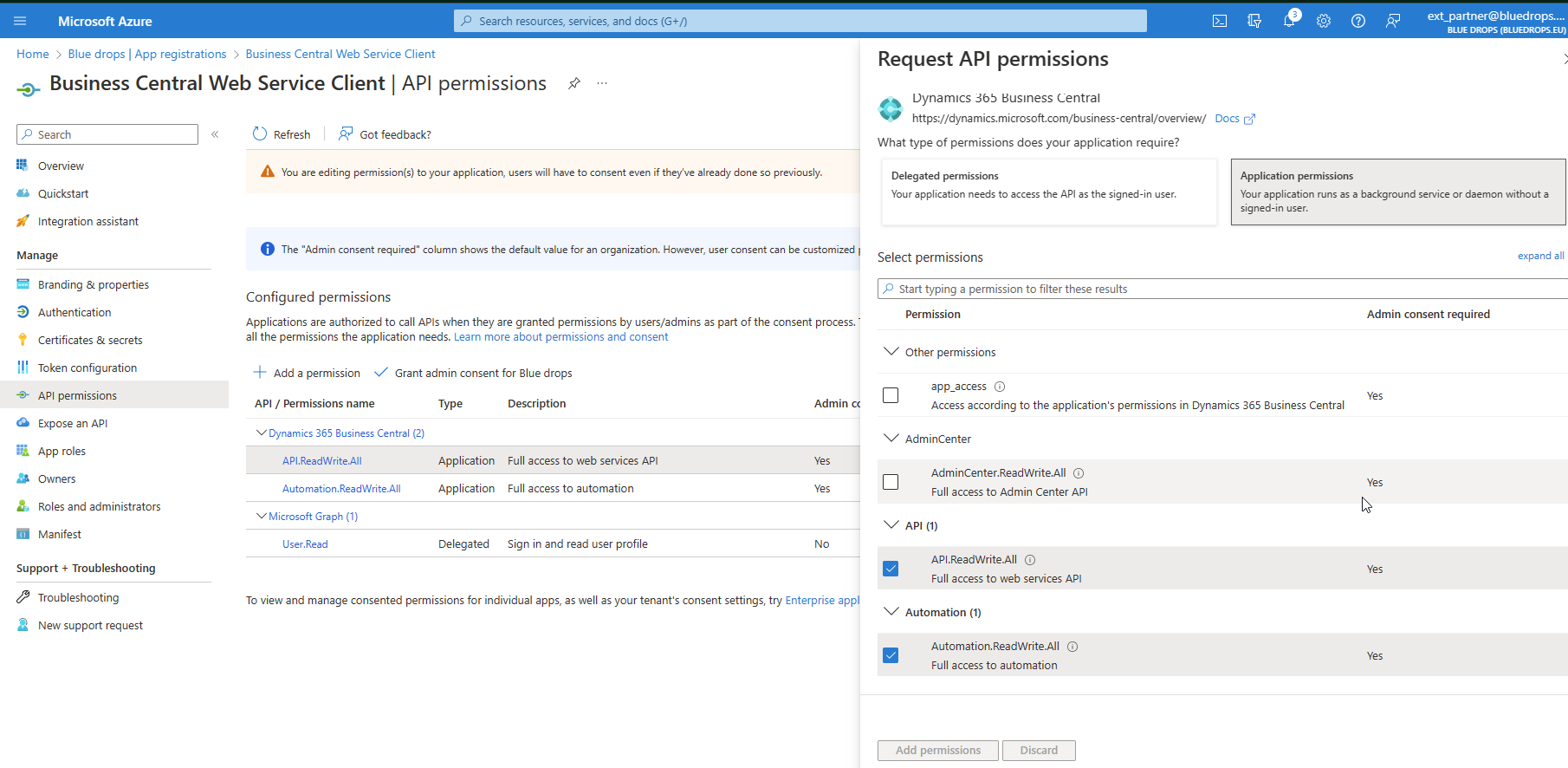
Request API Permissions
API.ReadWrite.All,Automation.ReadWrite.All
-
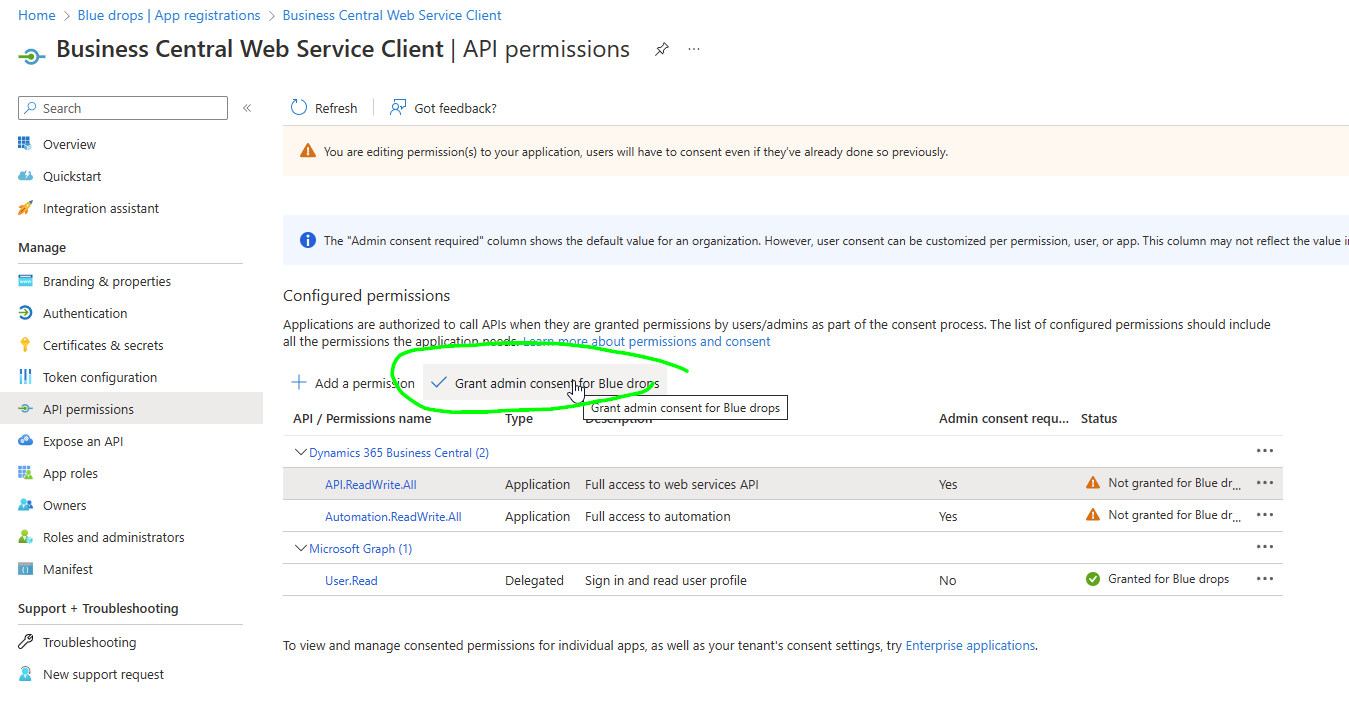
Grant API Permission (or have it granted by an admin)
-
In BC, set up the application
- In the Business Central client, search for Microsoft Entra Applications and open the page.
- Select New > Microsoft Entra Applications Card opens.
- In the Client ID field, enter the Application (Client) ID for the registered application in Microsoft Entra ID from the previous step.
- Fill in the Description field.
- Set the State to
Enabled. - Assign permissions to the required companies (Important to have SUPER(DATA) for custom fields that need special permissions, D365 FULL ACCESS is enough for Postman access to the endpoints).
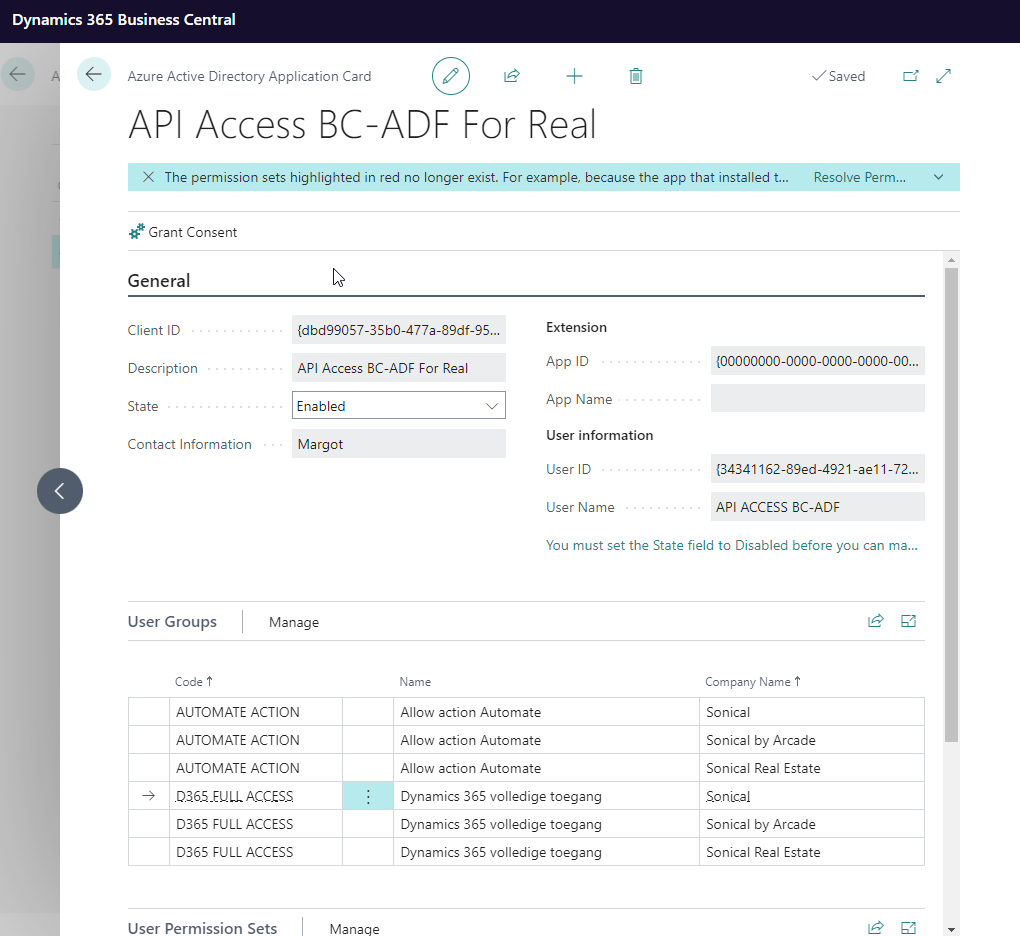
- Select Grant Consent (if you are Admin. Else, you can ask and admin to grant consent, or you can grant consent in the next step, from within Azure)
-
In Azure
- If consent wasn't granted from within BC, grant it here.
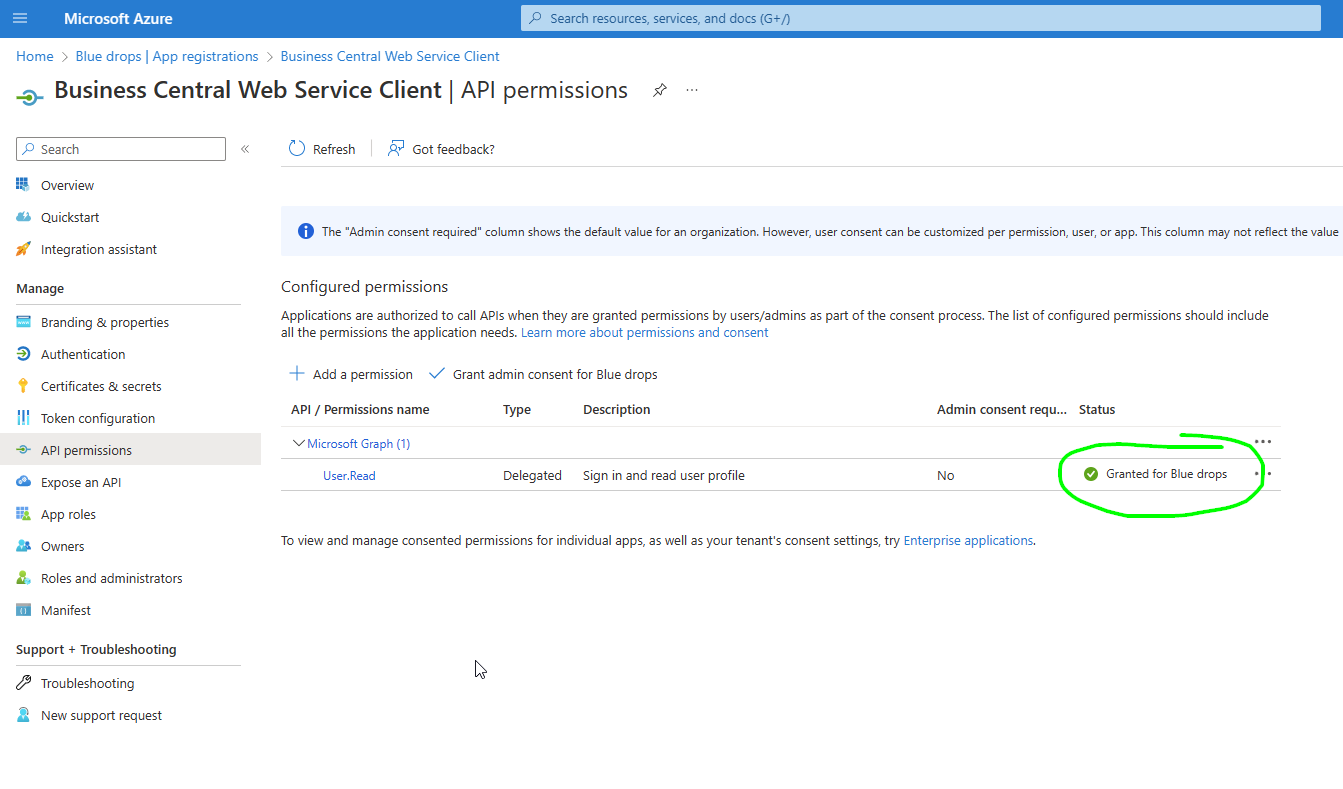
- If consent wasn't granted from within BC, grant it here.
-
In AAD
-
For the App Registration, create a Client Secret
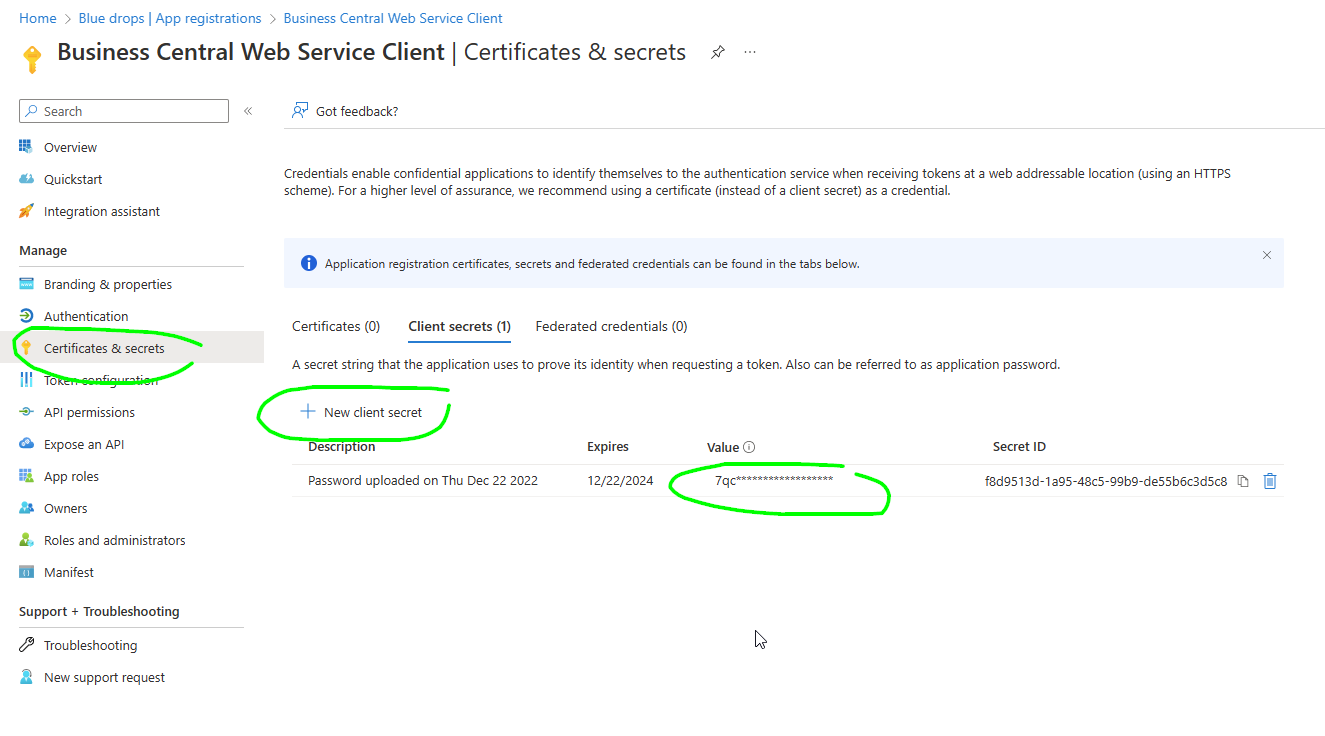
-
In the Key Vault
- Create a client secret
bc-api-clientsecretand set it to the value of the Client Secret created for the App registration
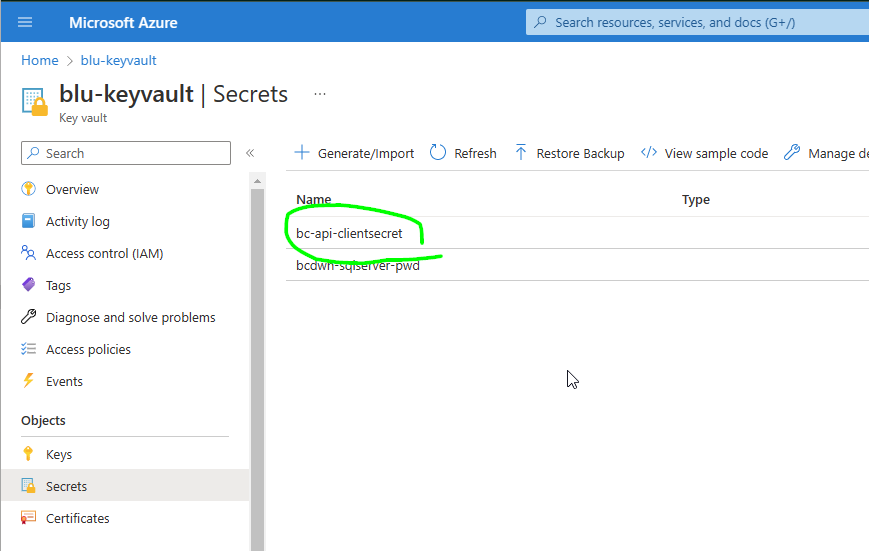
- Create a client secret
-
Test in Postman
- Configure tenant, client ID and client secret as Postman Variables
- Call
Get Access Token - Call "Get Companies" to be used for the SQL
Config.Src_BC_Companies
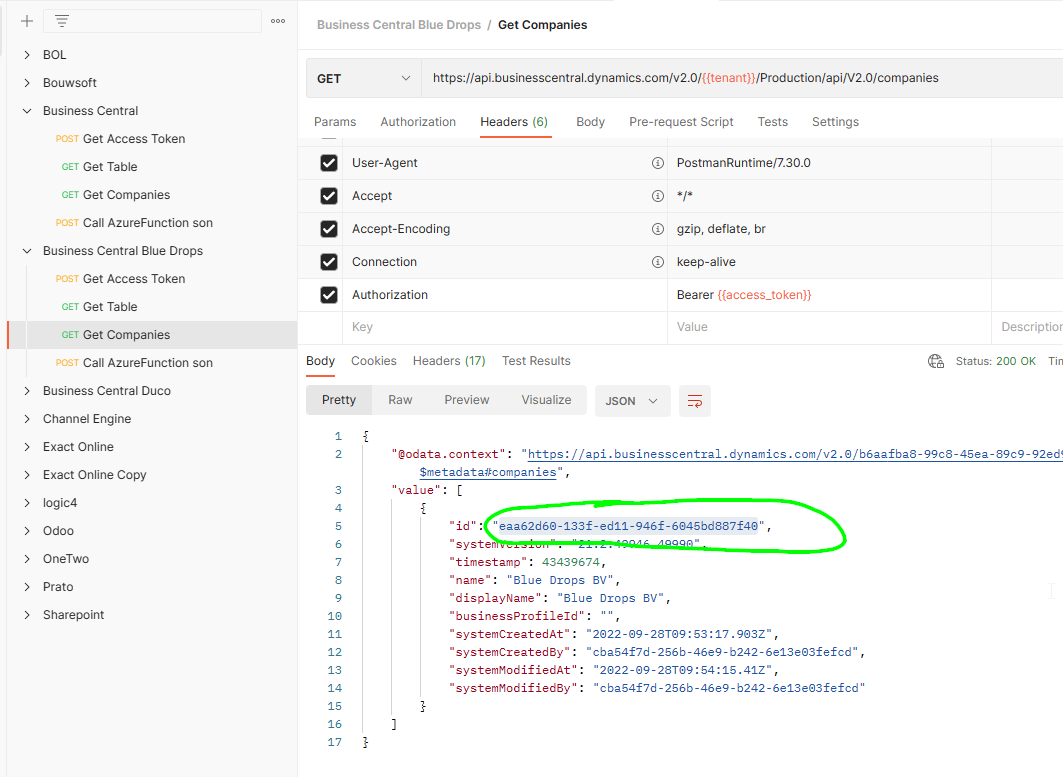
-
Configure
Src_BC_Companies.CompanyID
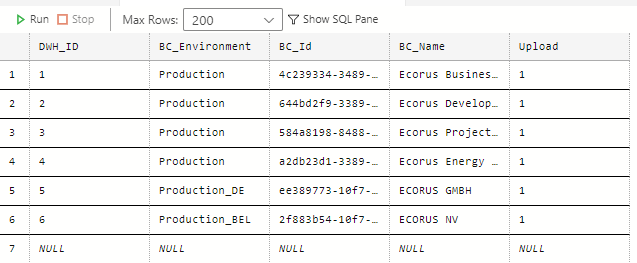
Set up BC Access with Basic Authentication (On Premise)
In the case of On Premise, we typically have Basic Authentication. In that case, you don't need an app.
Ask the client how to access the OData layer.
Some requirements are:
-
You must be licensed
-
Your user must be enabled
-
Password Authentication must be enabled
-
You must have the appropriate rights. For example, your user must have execute rights on the queries.
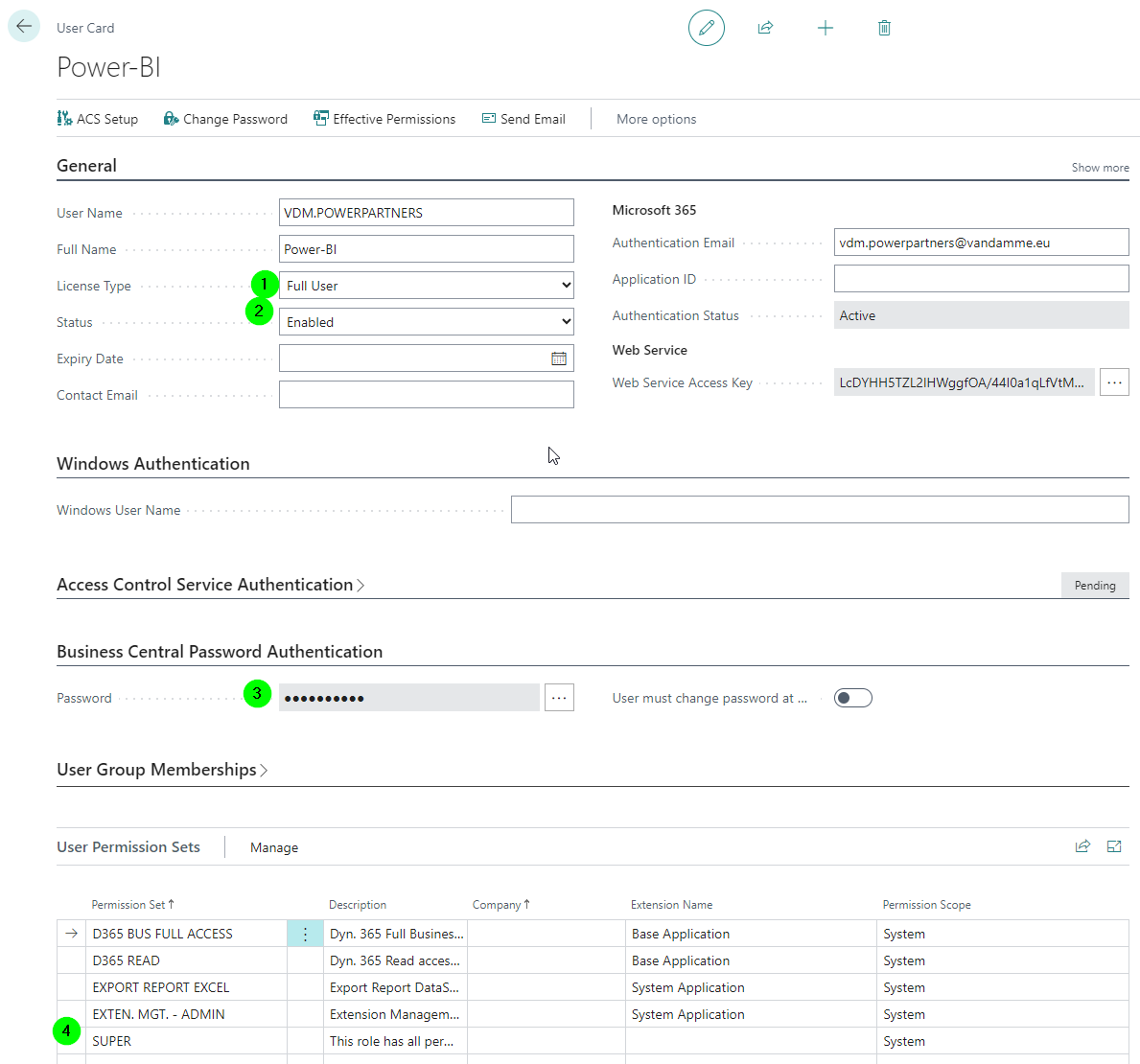
Check List BC Access
- You can call the
companiesendpoint from BC - The table
config.Src_BC_Companiescontains all required companies - The table column
config.Src_BC_Companies.BC_Idcontains the IDs returned by the companies endpoint
Install Extension App
Prerequisite:
-
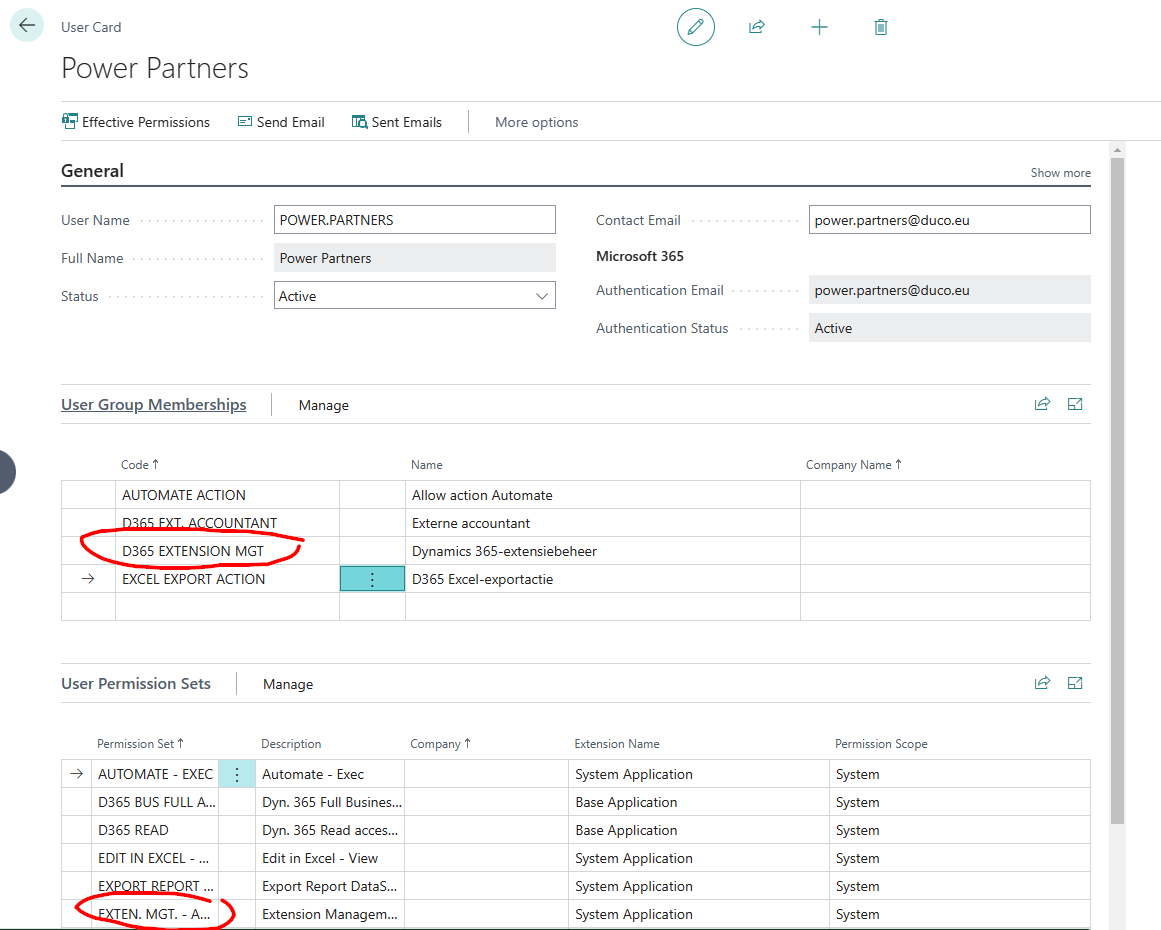
You need to be in the
Extension Mgtgroup -
You need to have a license other than
Team, e.g.External Accountant
You install like so:
-
Go to BC
-
Search "Extension Management"
-
Manage
-
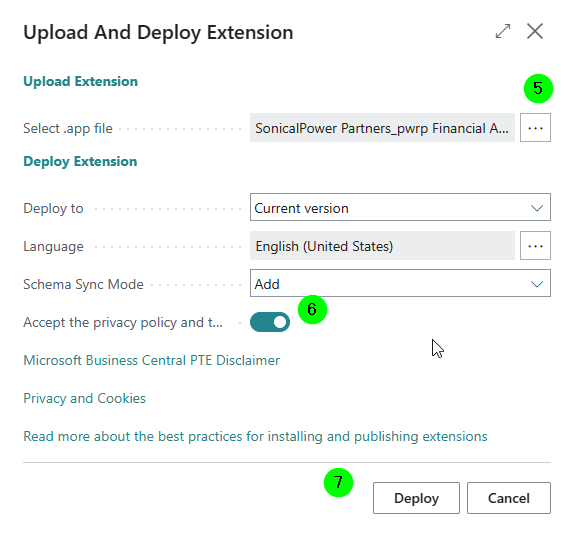
Upload Extension
-
Browse file
-
Accept privacy policy
-
Deploy
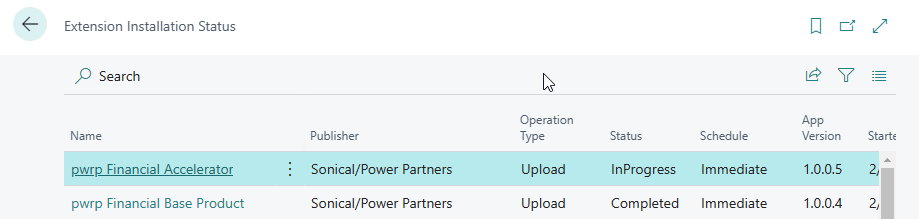
Check List Extension App
- The installation status in BC is
Completed
Define BC Webservices
| Query/Page | Object ID | Extension? | Orig. Object ID | Service Name |
|---|---|---|---|---|
| Query | 50119 | x | pwrpvendors | |
| Query | 50120 | x | pwrpcustomers | |
| Query | 50107 | x | 25 | pwrpCustomerLedgerEntries |
| Query | 50102 | x | 263 | pwrpVendorLedgerEntries |
| Query | 50103 | x | 143 (Page) | pwrpSalesInvoices |
| Query | 50105 | x | 146 (Page) | pwrpPurchaseInvoices |
| Query | 50104 | x | 526 (Page) | pwrpSalesInvoiceLines |
| Query | 50106 | x | 529 (Page) | pwrpPurchaseInvoiceLines |
| Query | 50108 | x | 134 | pwrpSalesCreditMemo |
| Query | 50109 | x | 527 | pwrpSalesCreditMemoLines |
| Query | 501010 | x | 140 | pwrpPurchaseCreditMemo |
| Query | 501011 | x | 530 | pwrpPurchaseCreditMemoLines |
| Query | 50101 | x | 261 | pwrpGLEntries |
| Page | 77 | Resources | ||
| Query | 260 | DimensionSetEntries | ||
| Query | 2400 | accounts |
To verify the installation, call https://api.businesscentral.dynamics.com/v2.0/{{tenant}}/Production/ODataV4/Company('{{company_id}}')/pwrpSalesInvoiceLines in Postman.
Check List BC Webservices
- You can call the API from Postman