Planio Helpdesk Functionality
aka Support Desk, Supportdesk, Help Desk
Planio contains a simple helpdesk functionality.
Support Desk Mailboxes
-
Service Desk | Power Partners: support@mail.powerpartners.pro (other channels, internal channels)
-
Service Desk Sonical | Power Partners: support-sonical@mail.powerpartners.pro
-
Service Desk WF | Power Partners: support-wf@mail.powerpartners.pro
-
Service Desk ZH | Power Partners: support-zh@mail.powerpartners.pro
Dos and Don'ts
Dos
-
Use planio whenever possible. Avoid communication via Outlook, except for Sonical, where we have to use our sonical email address.
-
distribute the email addresses of the Support Mailboxes to your clients
-
inform your clients that we are using a Helpdesk system that might send emails about tasks
-
set the contact on issues if the client will interact with you on the ticket, or if he should see content
-
add team-members as Watchers to the planio ticket, as required, so they are informed of updates and changes.
-
use the 'External' flag if you want planio to send an email automatically to the contact
-
cc the Support desk mailbox if you want planio to automatically create an issue
-
if you have to use Outlook (not recommended), use the separator to cut off the mail trail (e.g.
--pwrp--) -
add signature images and social media images to the attachment blacklist
Don'ts
-
do not use Outlook to communicate with clients. Use planio instead. EXCEPT FOR SONICAL.
-
do not set the contact on planio issues if the client should not see issue information
-
do not expect the client to be able to see the Description of an issue
-
do not take a conversation that started on an actual issue in planio outside of planio (e.g. email or teams). Instead, once the conversation is in planio, keep it there.
Happy Flow
Support Ticket
-
The support ticket is automatically created in planio when an email is received.
-
The owner of the support-desk-management
- will set the company, contacts, watchers, sprint, and assign it.
- will add an external note, informing the client that we are working on this issue
-
The team member who picks it up
- will ask questions to the contact directly by creating an external note
- will inform the client of the resolution by creating an external note
Task
-
When the assignee feels he needs to communicate with the client about a task, he sets the right contact(s)
-
He then creates an external note, writing content exactly as in a mail.
-
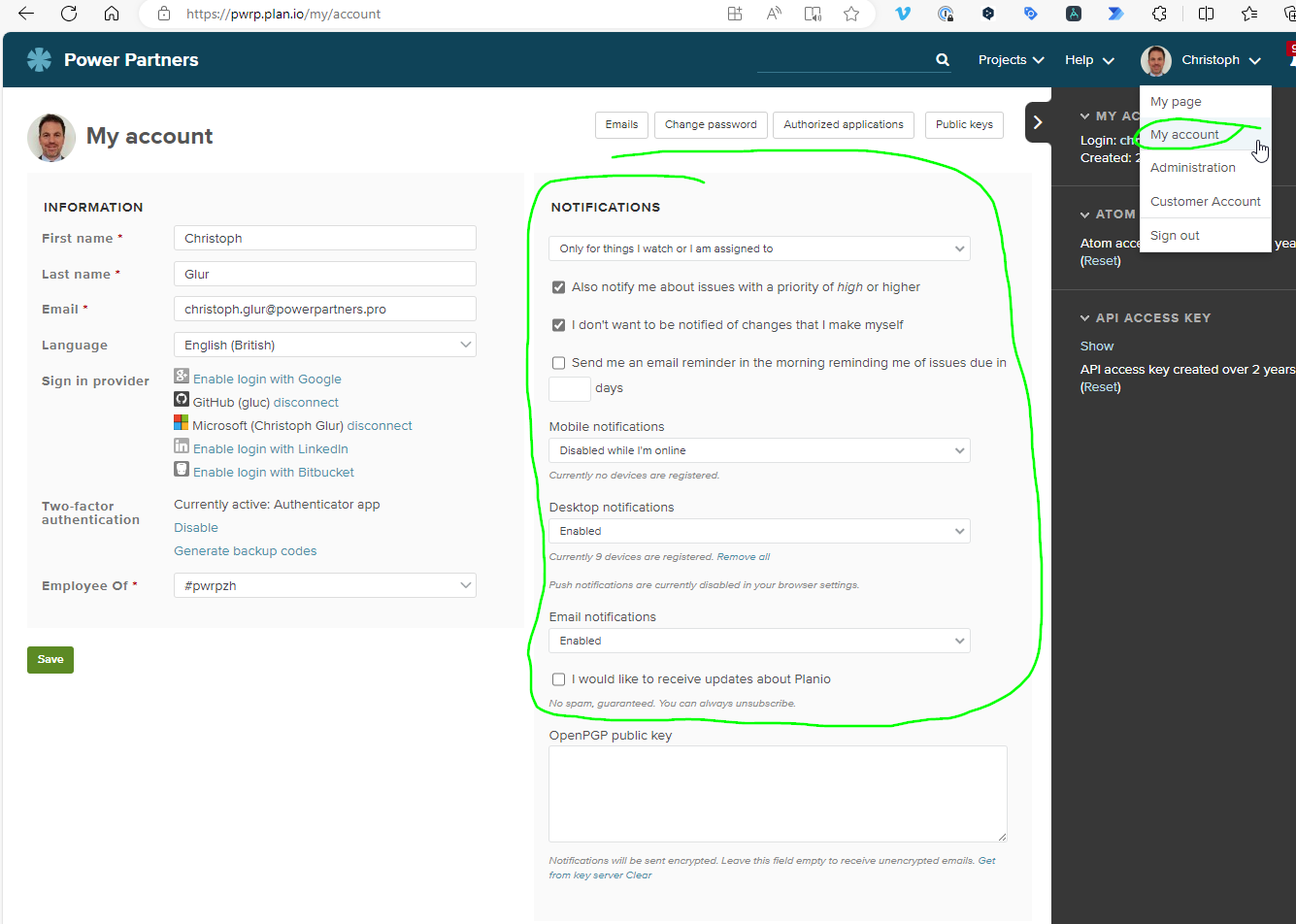
When the client replies to the mail sent by planio, a new note will be attached. The assignee and the watchers will be informed by planio (email, browser notification, or both, depending on settings)
Meeting
-
Create meeting in planio
-
Use the Checkbox template
-
Add contacts
-
Add watchers
-
Create an external note containing the Agenda -> an email with the agenda will be sent out to contacts and watchers
-
During the meeting, add minutes directly as a new external note. Finish after the meeting and save. -> an email with the minutes will be sent to the contacts and watchers.
Sonical Ticket
Background
For sonical, we need to use our sonical email address. So, communication via planio is not allowed. Instead, we need to communicate via Outlook, even though we don't want to.
-
Create a ticket in planio
-
Do not add contacts to the ticket
-
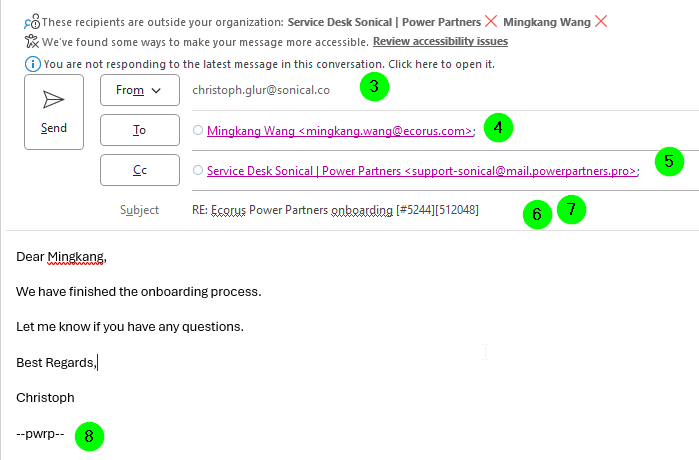
Instead, write a mail from Outlook, using your sonical email address
-
Put the addressee into the TO:
-
Put the planio helpdesk email into the CC: (support-sonical@powerpartners.pro)
-
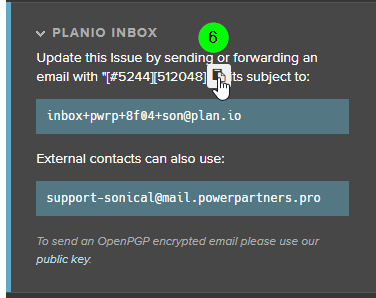
Copy the code directly from planio
-
Put the code at the end of the subject.
-
Put a delimiter at the end of your message (
--pwrp--)
-
If the contact clicks on
Reply All, a note will be automatically created in planio. You might have to delete your original message, as the external contacts don't usually know how to use delimiters :-) -
If the contact replies to you privately, you can forward the email to the support mail (support-sonical@powerpartners.pro).
-
Keep the header, so it will be clear who was the sender of the message
-
Add a delimiter after the message
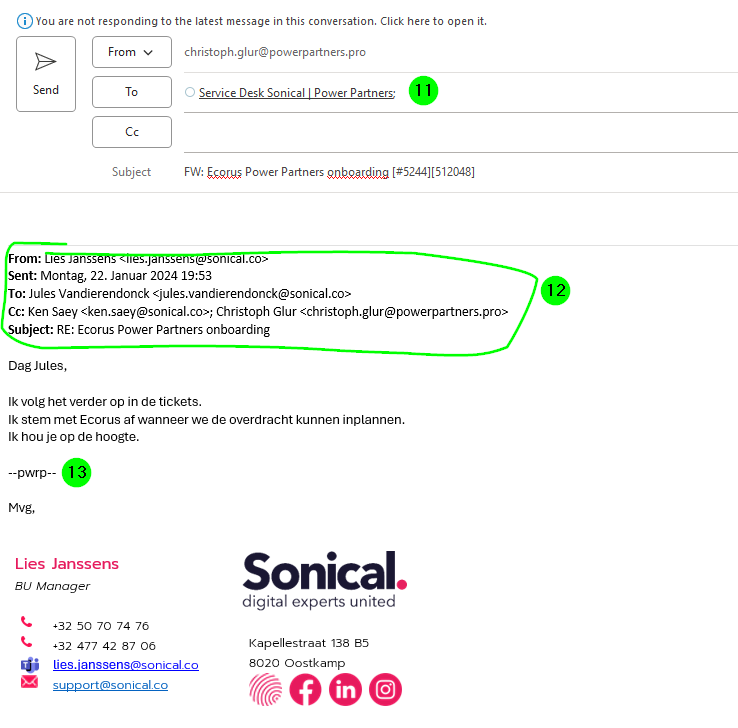
-
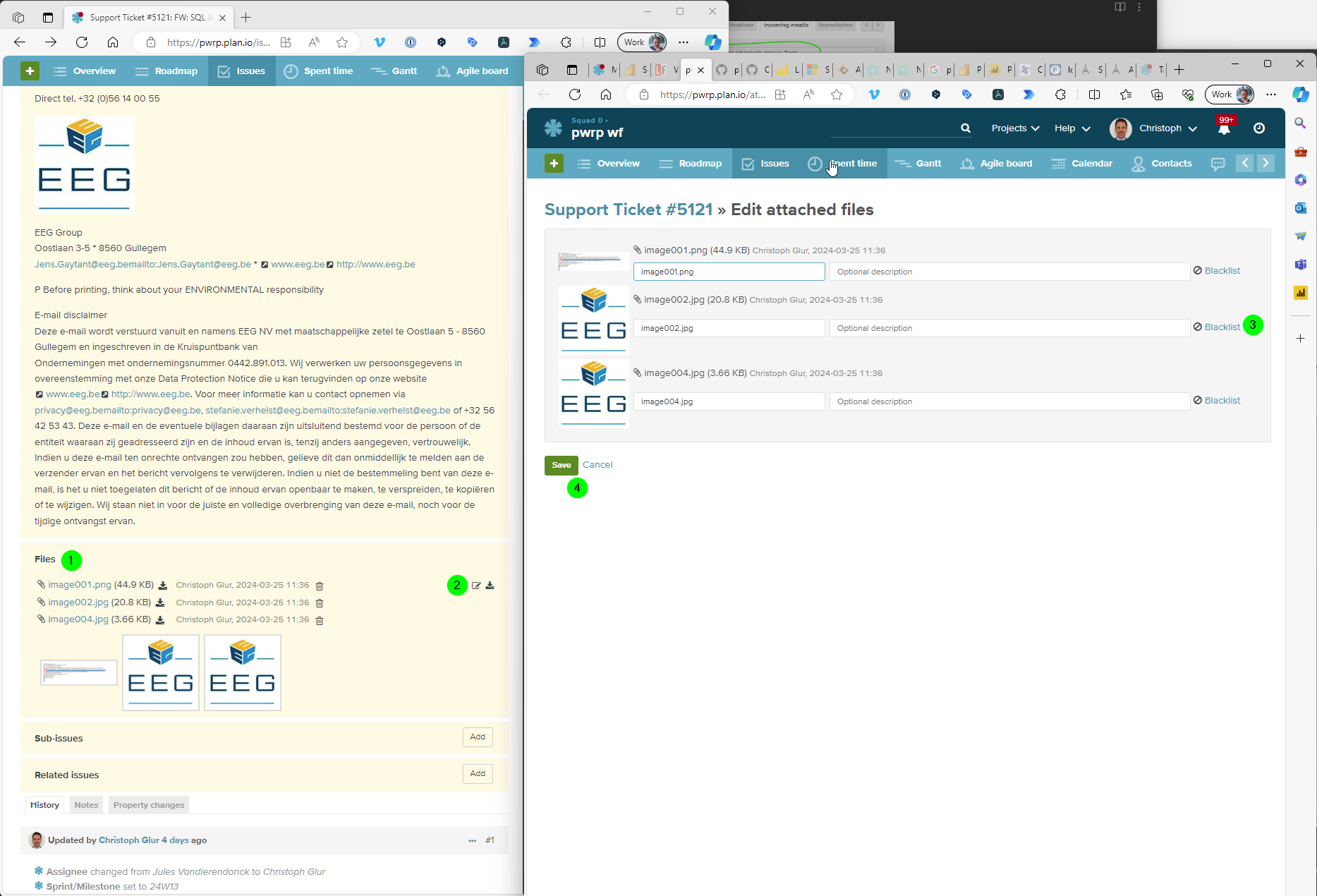
Add the social attachments to the blacklist in planio
Helpdesk Overview
Mailboxes
-
There is one mailbox by channel named support-channel@powerpartners.pro (though small channels may use the generic mailbox support@powerpartners.pro)
-
The mailboxes are set up on our Microsoft tenant, but the mails are forwarded to planio.
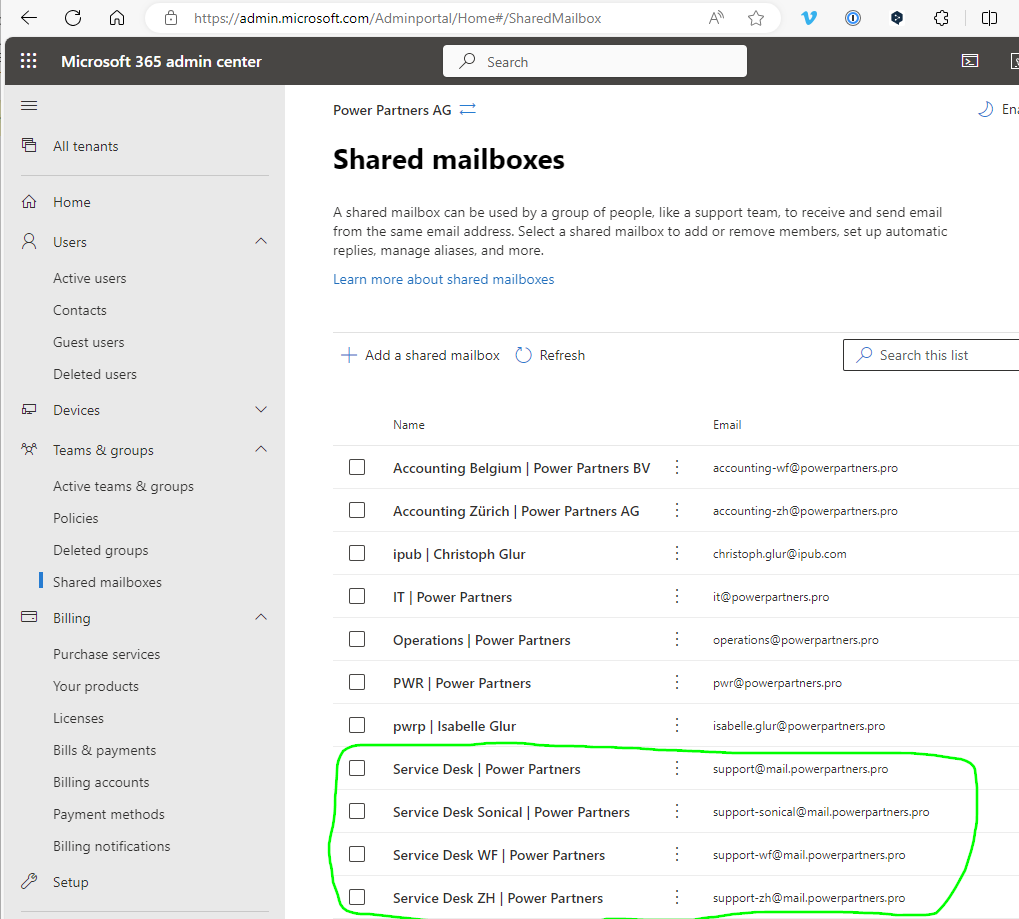
-
planio is configured such that emails are sent from a dedicated helpdesk email address:
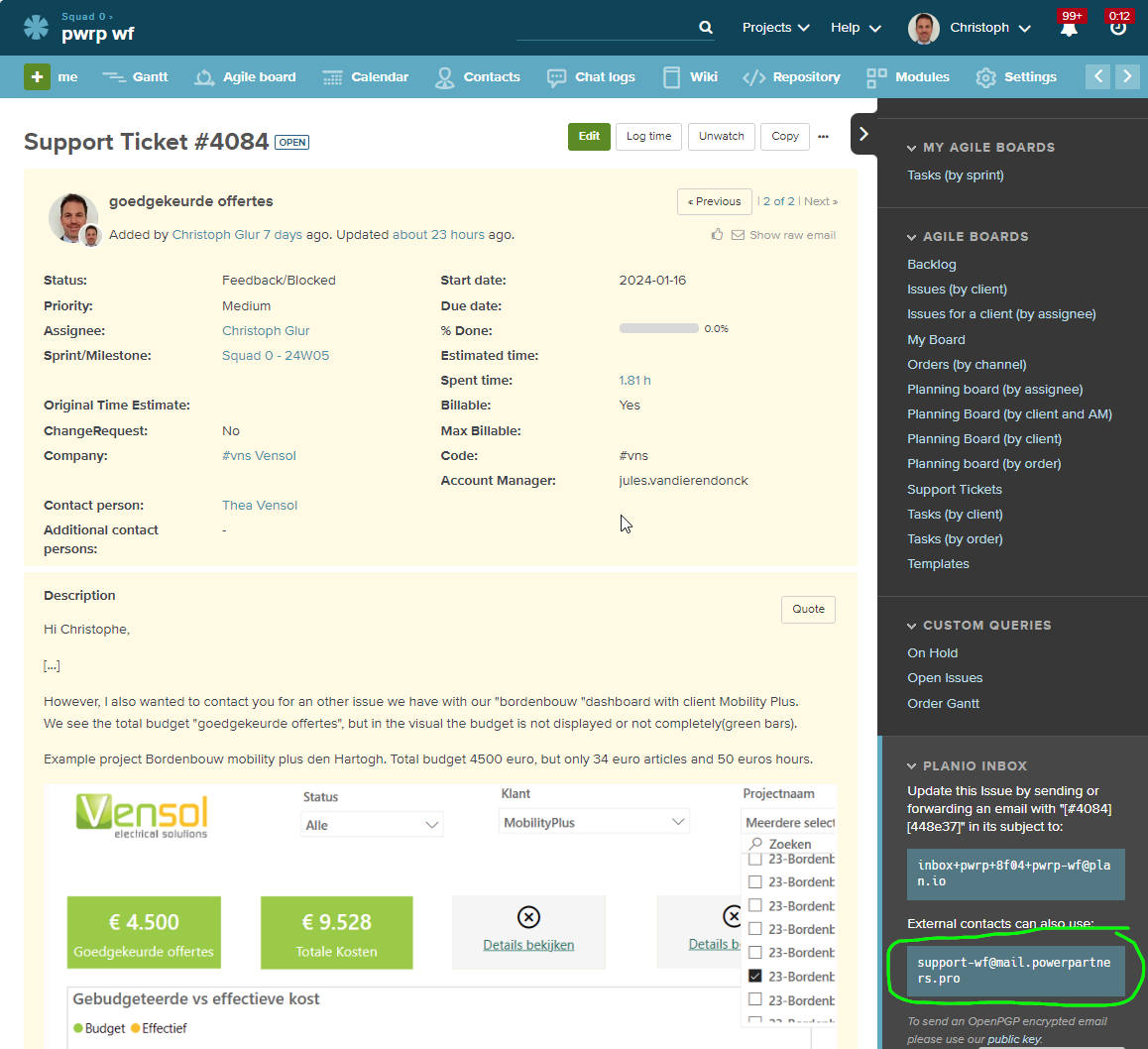
-
Each channel has its own mailbox.
Outgoing Emails
- If you write a note to a task, you can set it to External. In that case, the contact(s) receive(s) an Email with the note content:
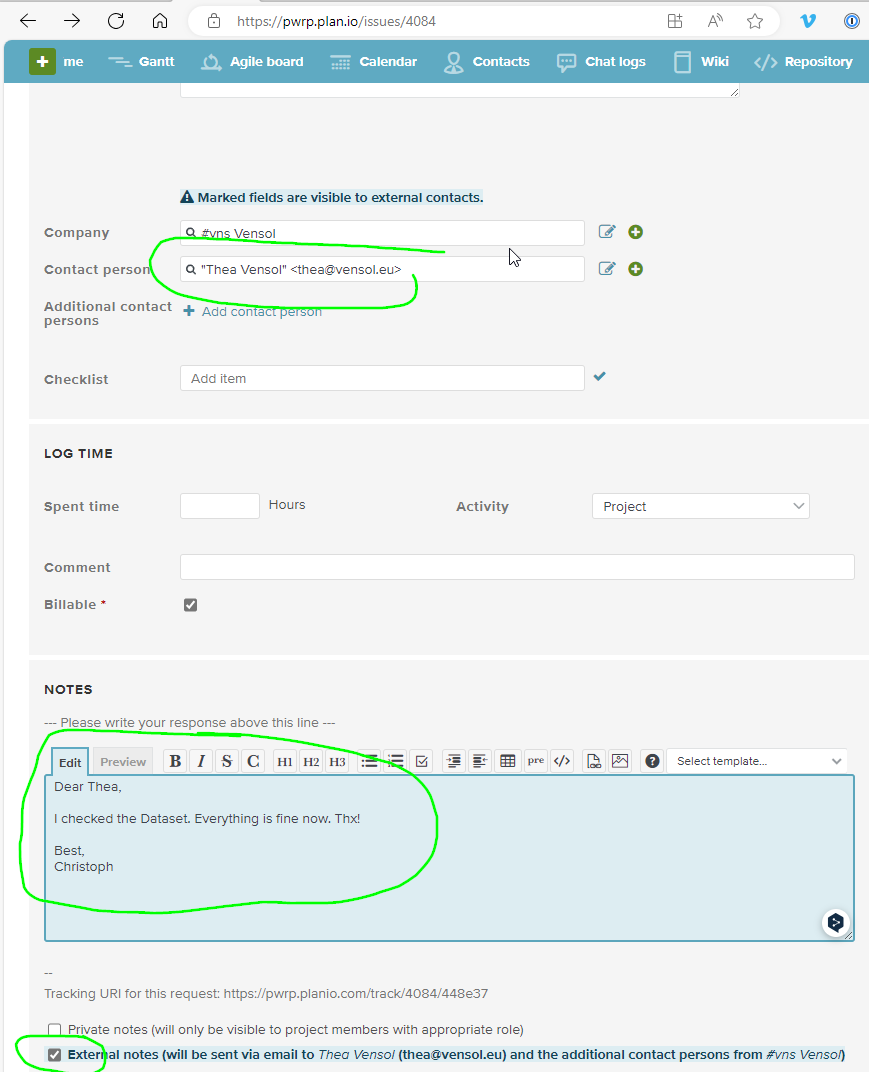
Incoming Emails
-
if a client sends a new mail to the helpdesk inbox, a new issue of type
Support Requestis created -
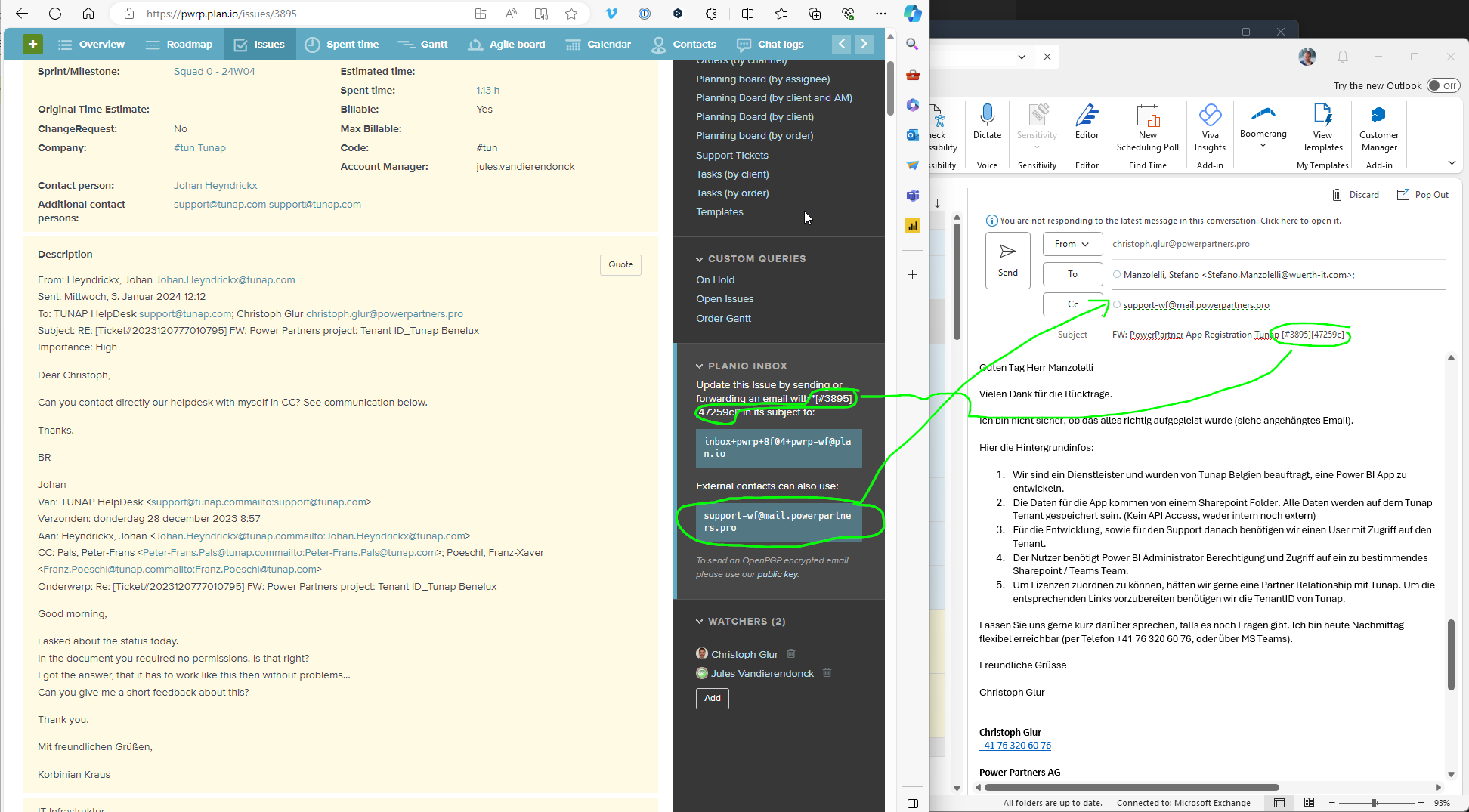
if you CC the suport desk mailbox, you can add a code to the end of the subject. If you do that, the mail will be added to a task as a note in planio
-
Also, we use the helpdesk mailboxes when setting up Power BI semantic model refreshes, or ADF runs. That way, planio support cases are created automatically. However, they are not assigned to the right client automatically
Delimiter
-
If the client replies to the Helpdesk-Email, a note will be appended to the Issue in planio. If you use the right delimiters, only the actual message is attached, cutting off the mail trail.
- everything above the delimiter will be added to the note
- everything below the delimiter will be cut off
- if you reply to a mail from a client in Outlook and cc planio helpdesk, then you need to add a delimiter at the end of your reply message, so that the mail trail is not added to the note.
-
The standard delimiter/the easiest delimiter you can use is
--pwrp-- -
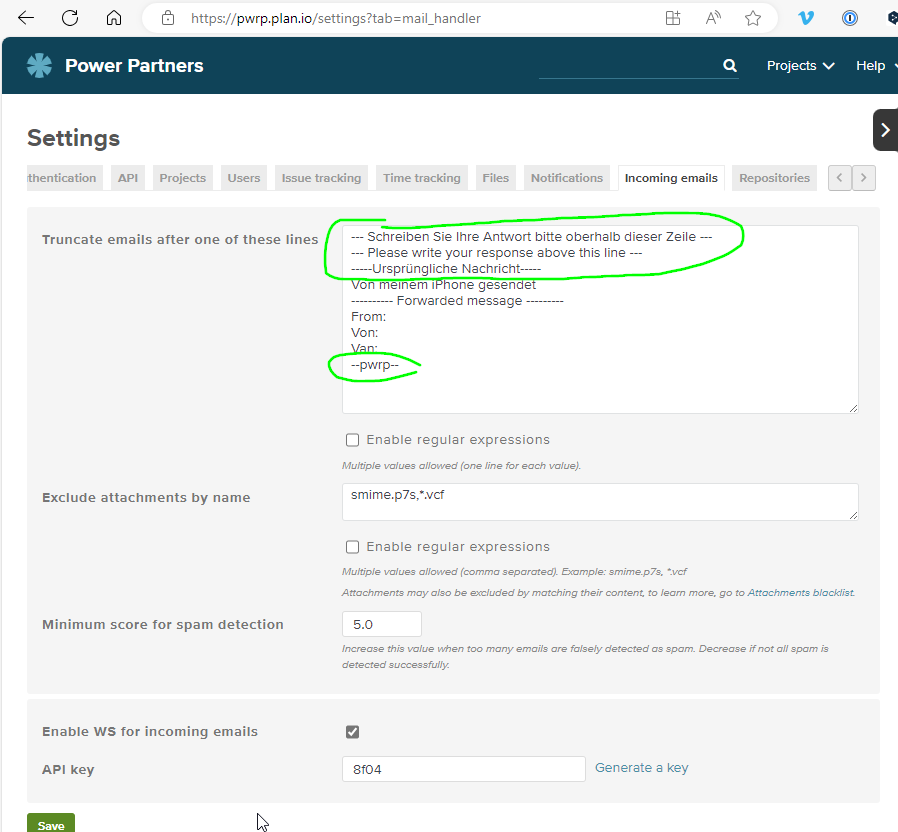
The accepted limiters are:
--- Schreiben Sie Ihre Antwort bitte oberhalb dieser Zeile ------ Please write your response above this line --------Ursprüngliche Nachricht-----Von meinem iPhone gesendet---------- Forwarded message -----------pwrp---- pwrp --==pwrp==== pwrp ==
-
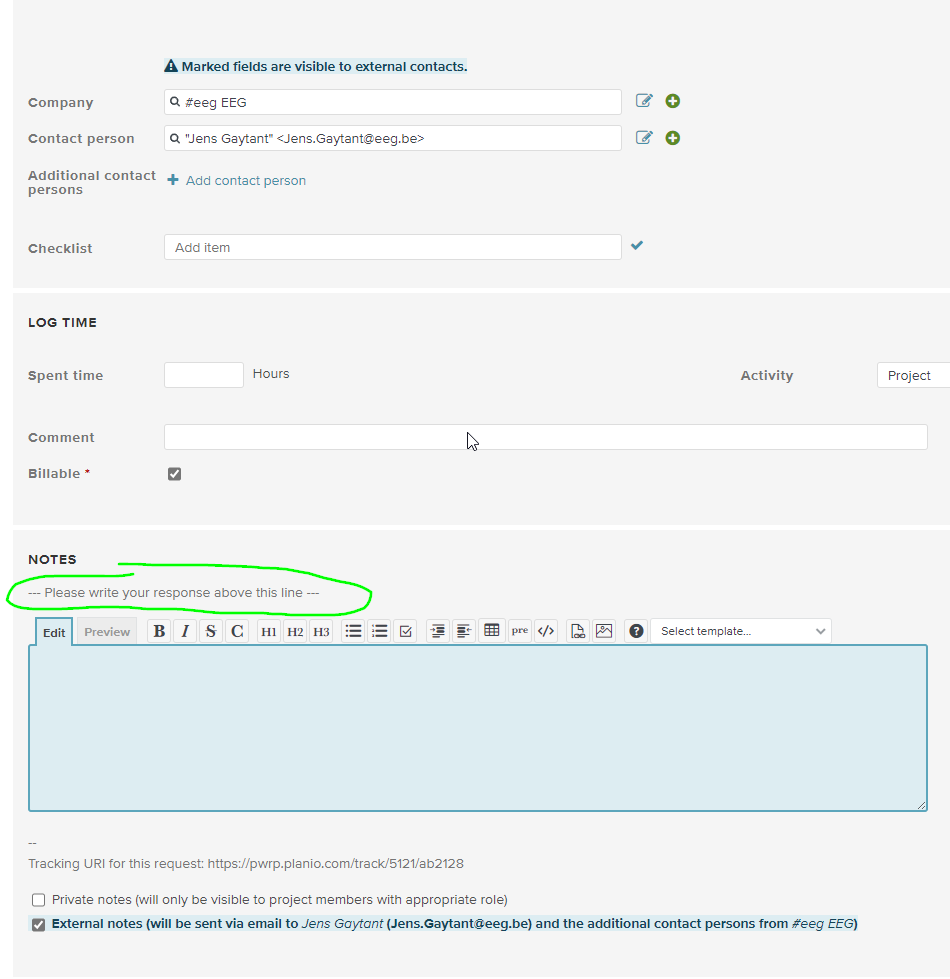
If you send a mail indirectly from planio, by creating an external note in planio, planio will add the correct limiter to the outgoing email:
Contact Management
-
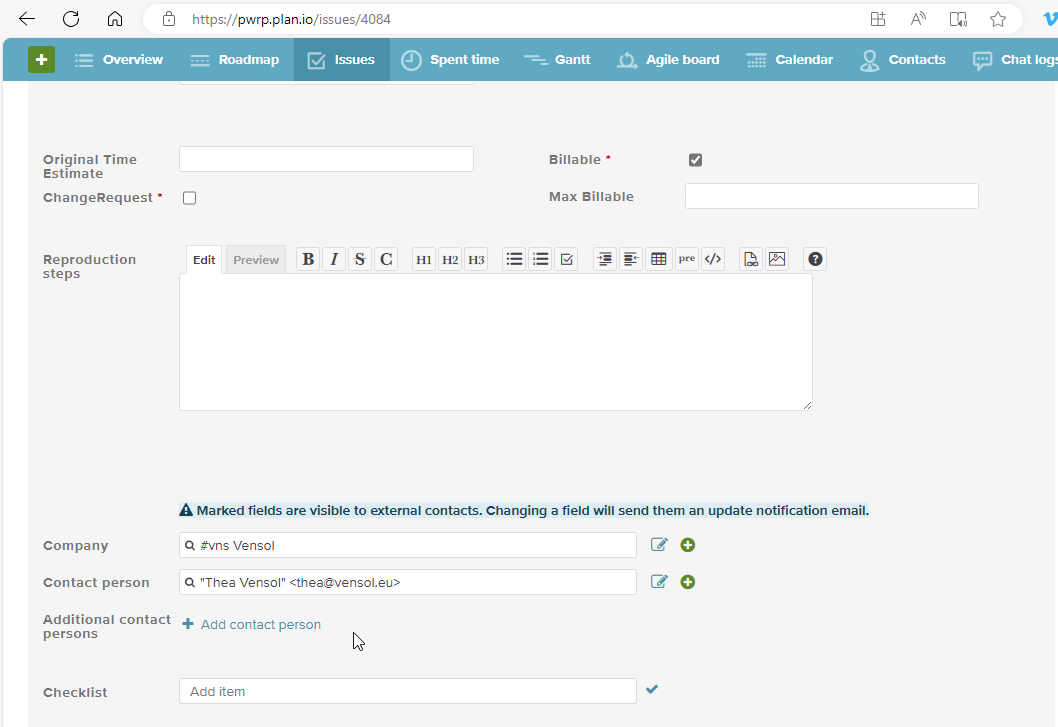
if you add a contact to an issue, that contact will receive an email for each external note. The contact will get access to the so-called tracking page, which allows him to see the most important fields of an issue. The fields an external contact can see on the tracking page are marked blud. The contact will not be informed about status changes, in order to avoid spamming him.
-
the contacts are maintained in the Contacts module:
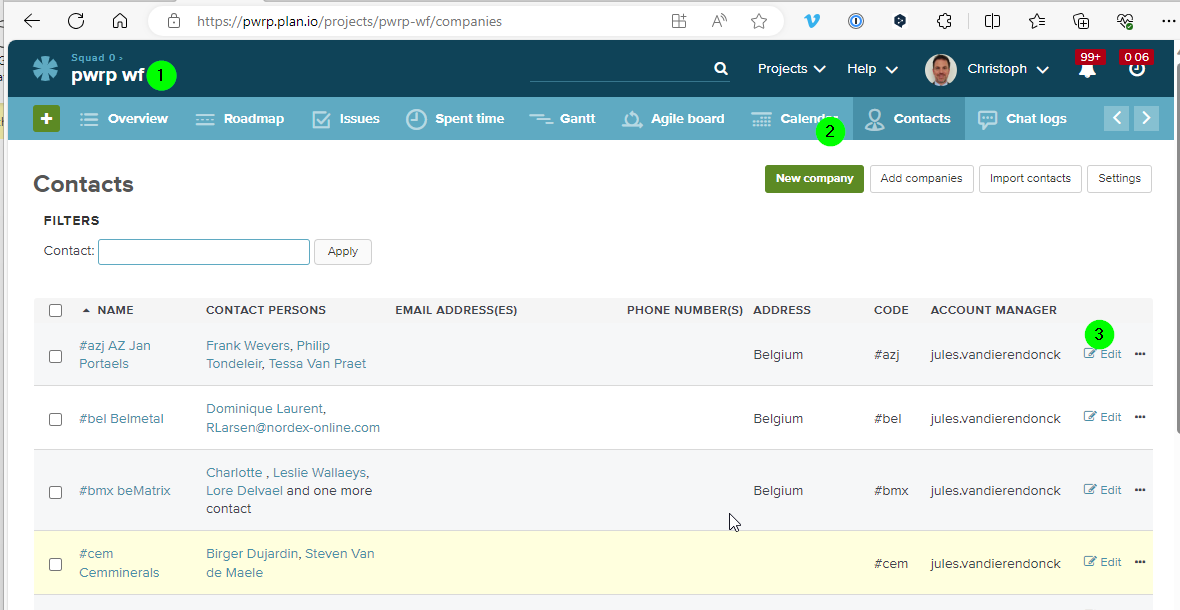
-
Mark the main-contact with an (MC) after the surname. Like this, support knows whom to contact in case of a support ticket.
Tracking Page
-
there is a
tracking pagethat is accessible from the link at the bottom. This is the client view. It is not password-protected, but lightly protected with a code. Either way, do not store any confidential information in the Subject of a task.
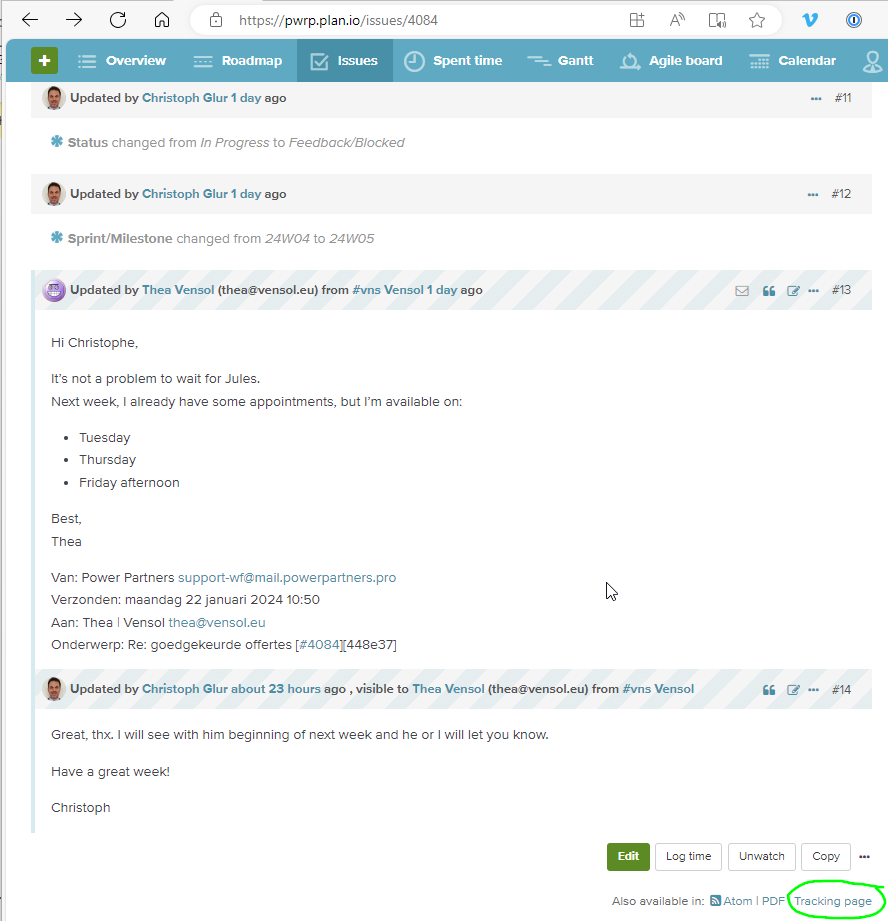
-
the client does not see all the details. Especially, the client does not see the Description of an issue.
-
the visible fields are defined in the Help Desk settings:
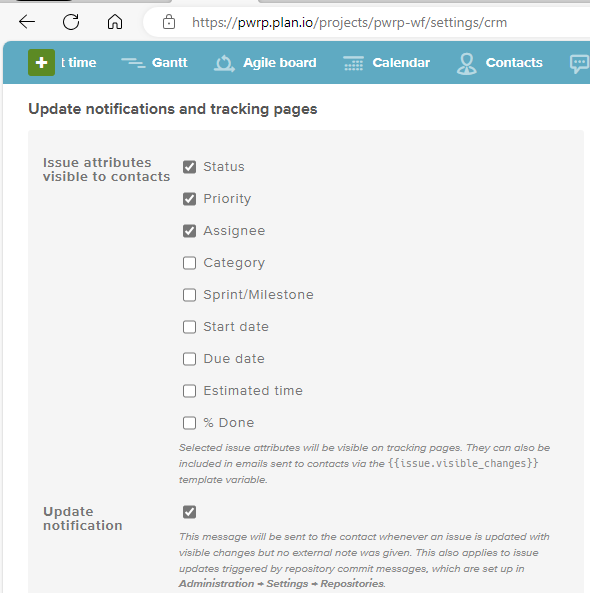
Attachment Blacklist
-
Sometimes, the received emails contain unimportant images, e.g. from email signatures.
-
You can add these to the attachment blacklist.
-
Once an image is in the blacklist, future images with the same binary content are not imported any more.
-
planio compares these images by binary code (and not by name)
-
the blacklist is global for our planio account. So we recommend to use the blacklist functionality extensively, to make sure planio works better and better and will clog our issues less and less.
To add an image to the blacklist, proceed as follows:
-
Navigate to the Files section of an issue
-
Click on
Edit attached files -
Blacklist the desired attachments
-
Save
The image will then be added to the global blacklist. If the client sends a mail with the same attachment, it will be ignored and not imported.
Note that sometimes, it may appear that a file is imported despite the fact that it has been added to the blacklist. The reason may be that the has a slightly different binary representation, even while having e.g. the same size. Just add all versions of the same image to the blacklist. The more we use this functionality, the better our system gets.