Accounts Payables
Background Info
This document contains details for multiple companies:
Process Details
- Owner: bookkeeper
- Participants: potentially any team member
- Frequency: daily
- Trigger: purchase invoice
This process takes about 5 min per day.
Prerequisites
-
bookkeeper has access to relevant mailbox
-
all counterparties have been informed that invoices need to be sent to accounting mailbox
Process
Enter Purchase Invoice in bexio
-
Counterparty sends email to mailbox ( invoices-zh@powerpartners.pro or invoices-wf@powerpartners.pro )
-
bookkeeper classifies email (receipt, invoice, other)
-
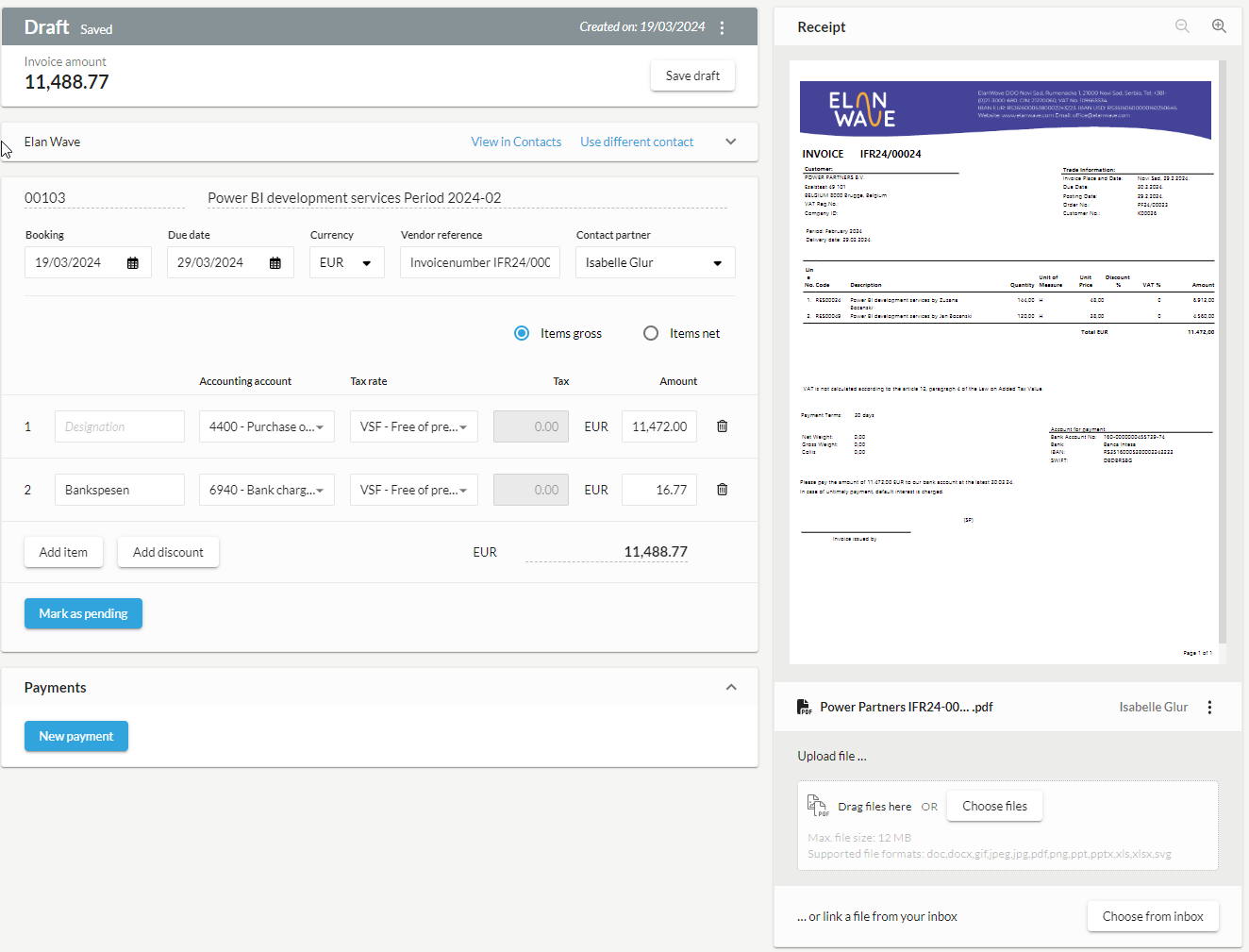
For each incoming invoice, a Purchase Invoice is entered into Bexio (Lieferantenrechnung:
Purchases > Bills)- Counterparty is created or updated if necessary
- Booking text: typically invoice title of bill
- Booking date: date of bill
- Due date: when it has to be paid
- Currency
- Vendor reference: from bill
- Contact partner: typically as set on counterparty, if in doubt: bookkeeper
- Account: e.g. 4400 (BV - Purchase of Services)
- Tax rate: needs to be set correctly
- Receipt is attached (
Choose files)
Checklist
- Purchase Invoice is entered into Bexio
- Purchase Invoice has status
Draft(grey)
Enter Payment in Banking
WF
Note
We do not have a direct connection from bexio to fintro. Therefore, the payments need to be entered manually into the e-banking fro Fintro / BV payments.
-
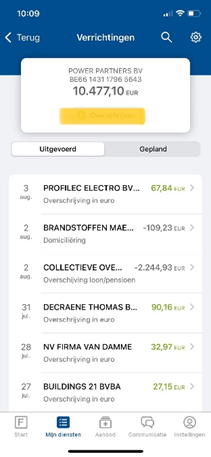
Log into Fintro
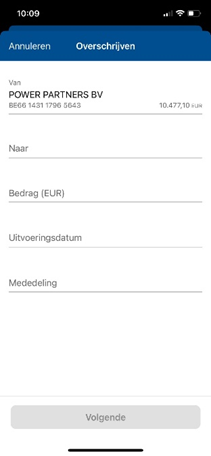
- Enter payment
- Set date to
Due Dateof bill in bexio - Set amount
- Set currency
-
In bexio, set Purchase Invoice from
DrafttoPendingby clickingMark as pending
Checklist
- Purchase Invoice is entered into bexio
- Purchase Invoice is entered in the bank, with the right Due Date
- Purchase Invoice has status
Pending(blue) in bexio
Important
- For payments to Serbia (Elan Wave), we cannot set the due date in Fintro. For this reason, the Elan Wave invoices should only be entered at the
Due Date, and not before. - For payments to Switzerland, Fintro automatically switches to CHF. We do NOT want to make payments in CHF, so you need to switch manually to EUR and send the money to the EUR account.
ZH
Notes
In bexio, there is a direct interface to ZKB. For this reason, the payment can be entered directly in bexio and then sent out to the bank.
However, there is no direct interface to Revolut. For payments via Revolut, use the same procedure as defined for BV.
-
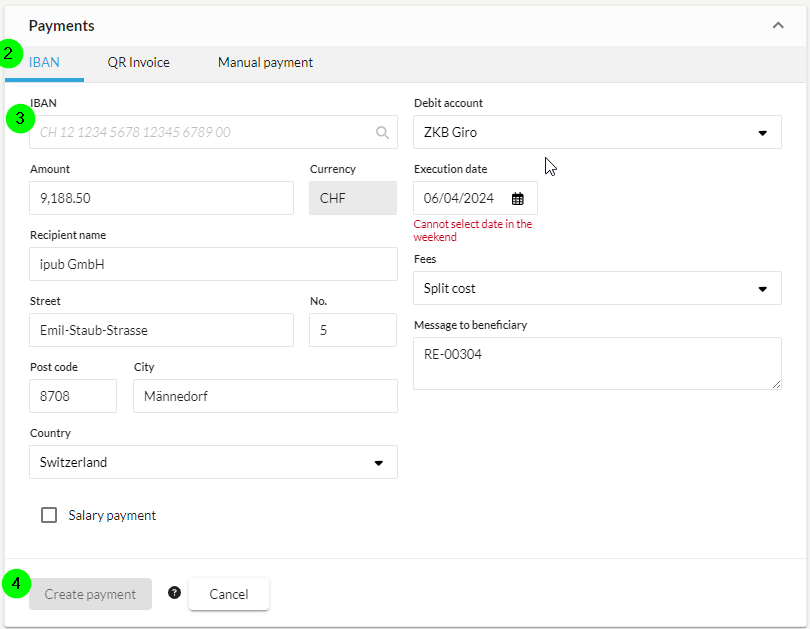
In the Purchase Invoice (Bill) in bexio, click "New Payment"
-
Select the right payment type among "IBAN" and "QR Invoice".
- If you have a QR invoice, select QR Invoice
- Else, select IBAN
-
Fill in the details:
- Account: see note about Revolut above
- Currency: make sure the currency and the account match
- Typically, we have split costs
- For QR invoice, you need to enter the reference number (we currently do not have a QR scanner)
-
Click on "Create payment"
-
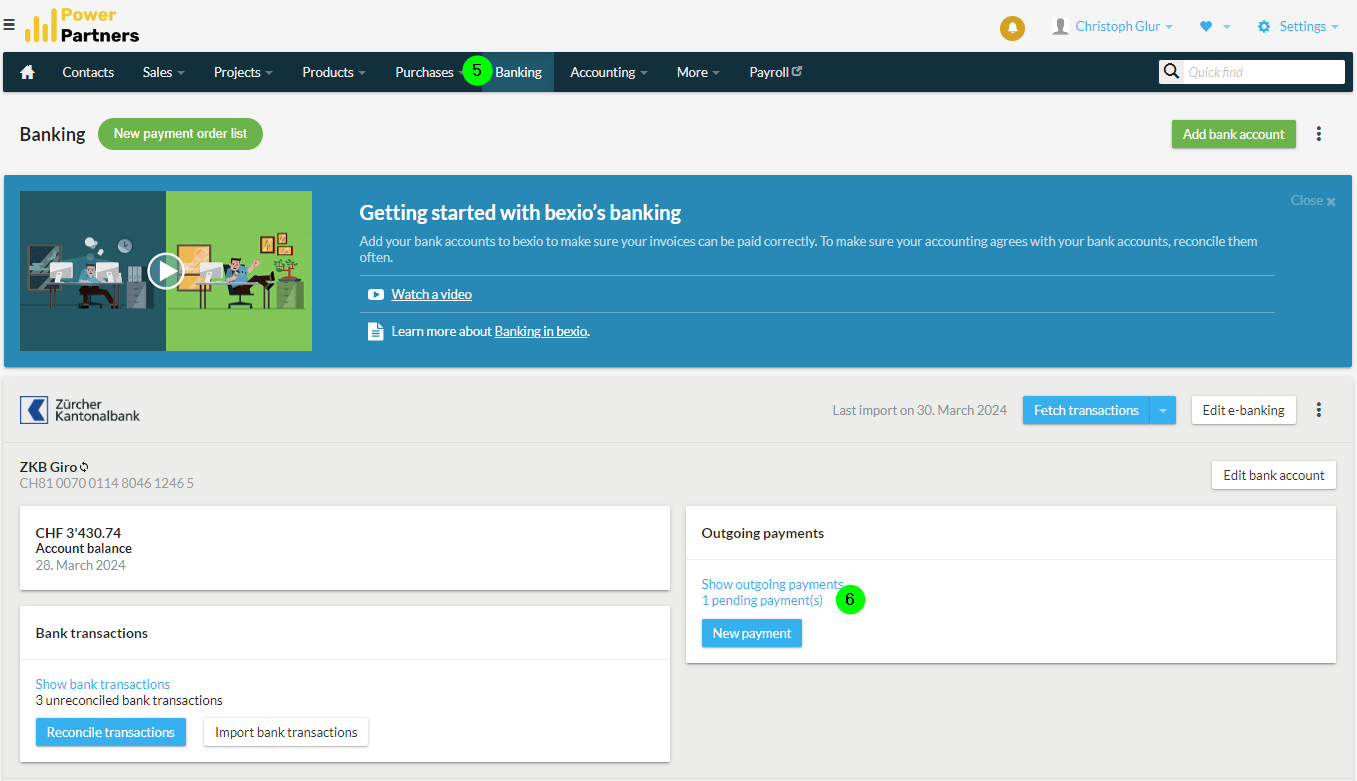
Go to
Banking -
Select "Outgoing payments" for the account at hand
-
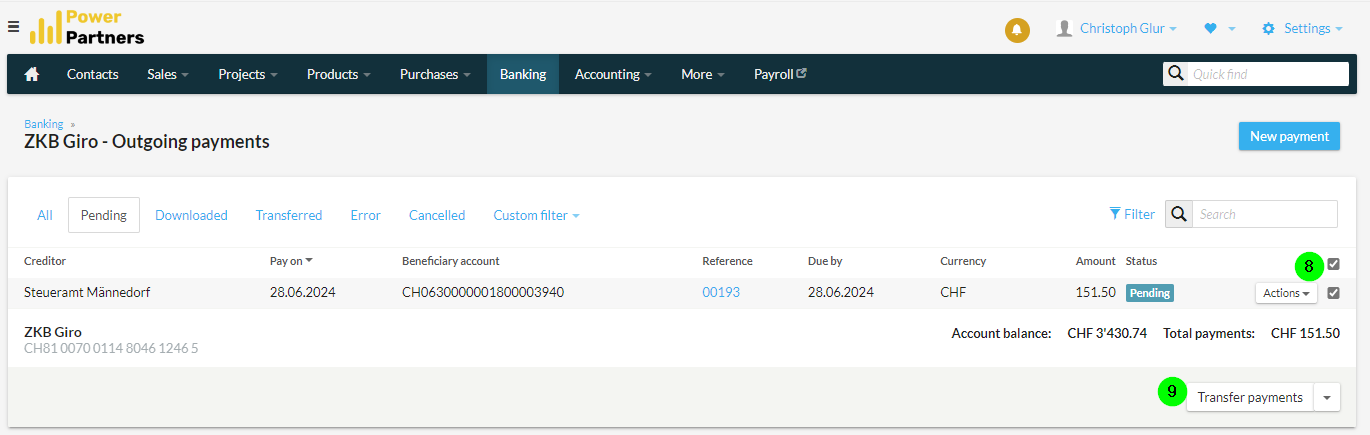
Select payment checkbox for all payments you would like to transfer to the bank
-
Click on "Transfer payments"
-
Enter login details and transfer
-
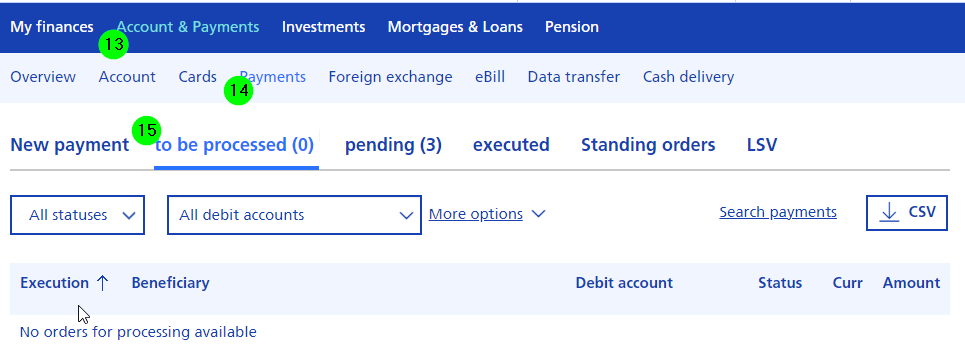
Log into ZKB online banking
-
Go to Account & Payments
-
Payments -
to be processed
-
Approve the payments
Important
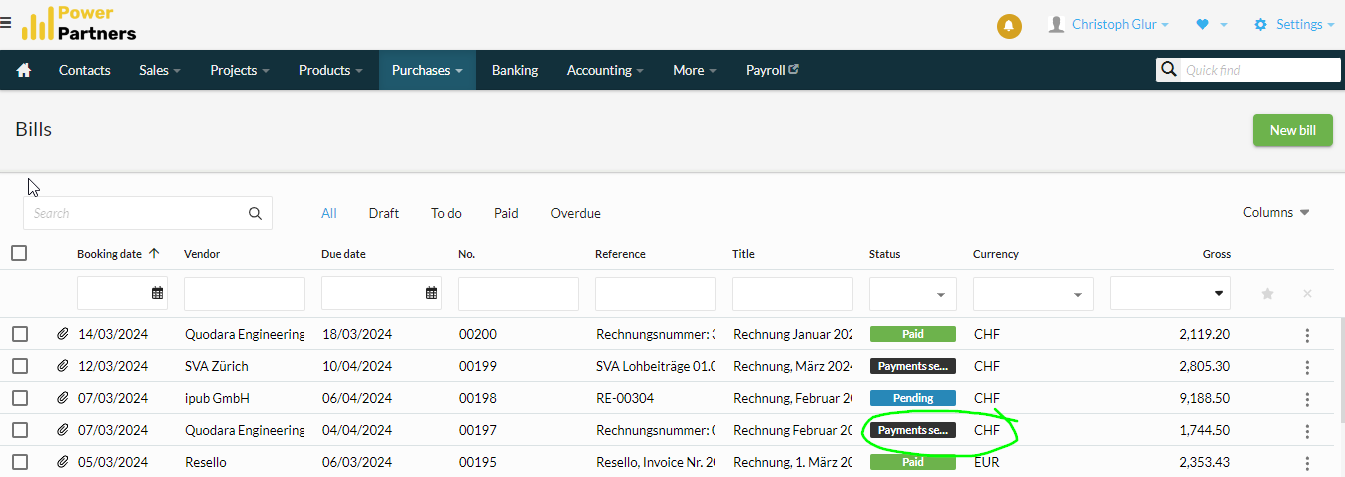
You need to approve the payments in ZKB, as described in setps 12-16 above. Else, they will not be executed.
Checklist
- Purchase Invoice is entered into bexio
- Purchase Invoice is synced to the bank
- Payment is approved in bank (ZKB)
- Purchase Invoice has status
Payment sent(black) in bexio