Intermedia Monthly Reporting
Overview
The Intermedia Monthly Reporting feature allows you to generate timelogs of services that have not yet been invoice.
This allows the admin staff of Intermedia to professionally and efficiently invoice their services on a monthly basis.
Components
The Intermedia Monthly Reporting feature is made up of the following components:
-
a paginated report called
int_time_report.rdl. This report can be executed for a single date/client, or in batch for all clients having unbilled services. -
an azure function called
monthly_reporting_http. When triggered, this function will generate the report for all clients having unbilled services. This function uses the Power Partners Automation server to generate the reports.
Installation and Prerequisites
Access Rights
The batch functionality stores the pdf reports in the Azure Blob Storage. You need to have the necessary access rights to download the generated reports.
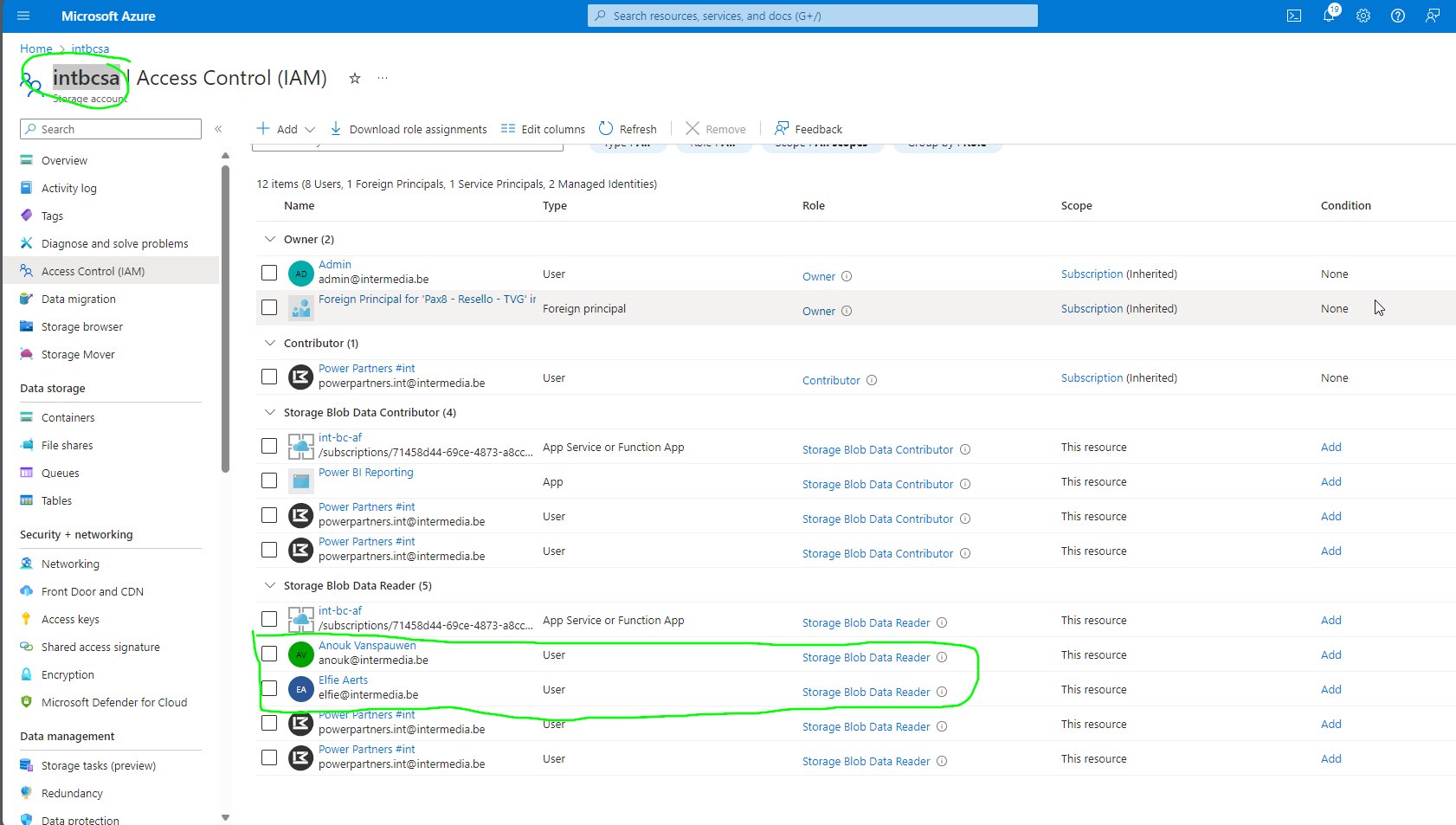
If you need access, ask your Power Partners contact to configure the required access, by providing them the following information:
-
The name of the storage account is
intbcsa. -
The required role is:
Storage Blob Data Reader.
Storage Explorer
In order to use the batch reporting feature, you need to install the "Microsoft Azure Storage Explorer" application. This application is used to download the reports generated by the Automation Server.
Download and Installation
You can download the Azure Storage Explorer for free, for Windows and Mac:
https://azure.microsoft.com/en-us/products/storage/storage-explorer
Log-In
To log into your Intermedia account, proceed as follows:
-
Open the Microsoft Azure Storage Explorer
-
Click on the Connect Icon
-
Select
Subscription -
Select
Azure -
Sign in with your Microsoft account (e.g. elfie@intermedia.be)
You do not need to log in each time you use the Storage Explorer.
Running the Timelogs in Batch mode
Refresh Data
You can refresh the data from the ADF.
Question
Is this something that Anouk and Elfie already do? Do we need to document it for them? Would they maybe need a web app to easily trigger all this at the click of a button?
Trigger Run
The Power Partners Automation Server is a component that runs the timelogs in batch mode, for all clients having unbilled hours at a given date.
To trigger the Automation Server batch mode generation, proceed as follows:
-
open a browser (Edge, Chrome, Safari, etc.)
-
enter the following link in your browser link area and click enter:
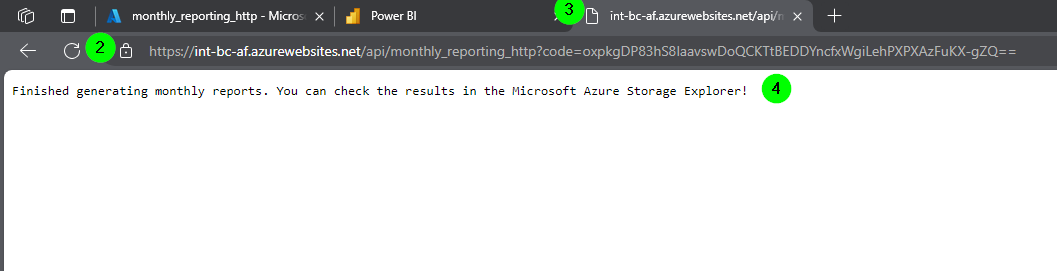
https://int-bc-af.azurewebsites.net/api/monthly_reporting_http?code=oxpkgDP83hS8IaavswDoQCKTtBEDDYncfxWgiLehPXPXAzFuKX-gZQ== -
the browser tab will indicate that the service is running in the background by showing a spinning wheel
-
the browser window will show when the batch report generation has finished. This will take about a minute, depending on the number of reports to be generated.
-
open the storage explorer to view the files
Parameters
date
Per default, the above link will run the reports for the current date. But you may also run it for any other date, by adding a date parameter.
You can add a date parameter to the URL. This will generate the reports for the specified date. Make sure you specify the date in ISO format (YYYY-MM-DD).
For example:
https://int-bc-af.azurewebsites.net/api/monthly_reporting_http?code=oxpkgDP83hS8IaavswDoQCKTtBEDDYncfxWgiLehPXPXAzFuKX-gZQ==&date=2024-03-27
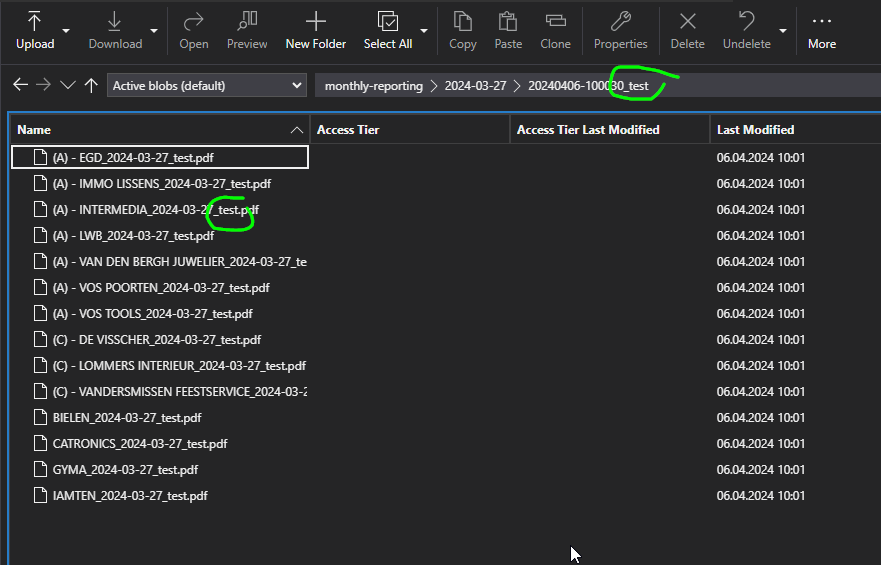
The reports will be stored in a folder having the name of the iso date:
report_type
You can also add a report type to the URL. This will then suffix the report type to the folder and the pdfs.
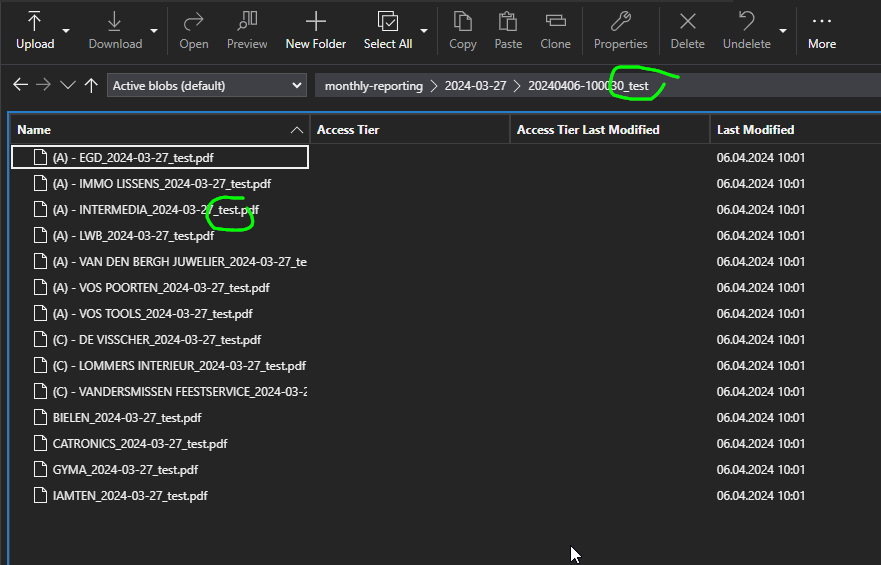
Like this, you can support your invoicing process.
For example, you could give run names such as run_1, run_2, etc.
Or, you could call your runs provisional and final.
You achieve this by specifying the report_type parameter.
For example:
https://int-bc-af.azurewebsites.net/api/monthly_reporting_http?code=oxpkgDP83hS8IaavswDoQCKTtBEDDYncfxWgiLehPXPXAzFuKX-gZQ==&report_type=run-1
Make sure you don't use spaces. Use _ or - instead.
The default report_type is provisional.
Combining Parameters
You can also combine the two parameters using an &. For example:
https://int-bc-af.azurewebsites.net/api/monthly_reporting_http?code=oxpkgDP83hS8IaavswDoQCKTtBEDDYncfxWgiLehPXPXAzFuKX-gZQ==&date=2024-03-27&report_type=test
Storage Explorer Usage
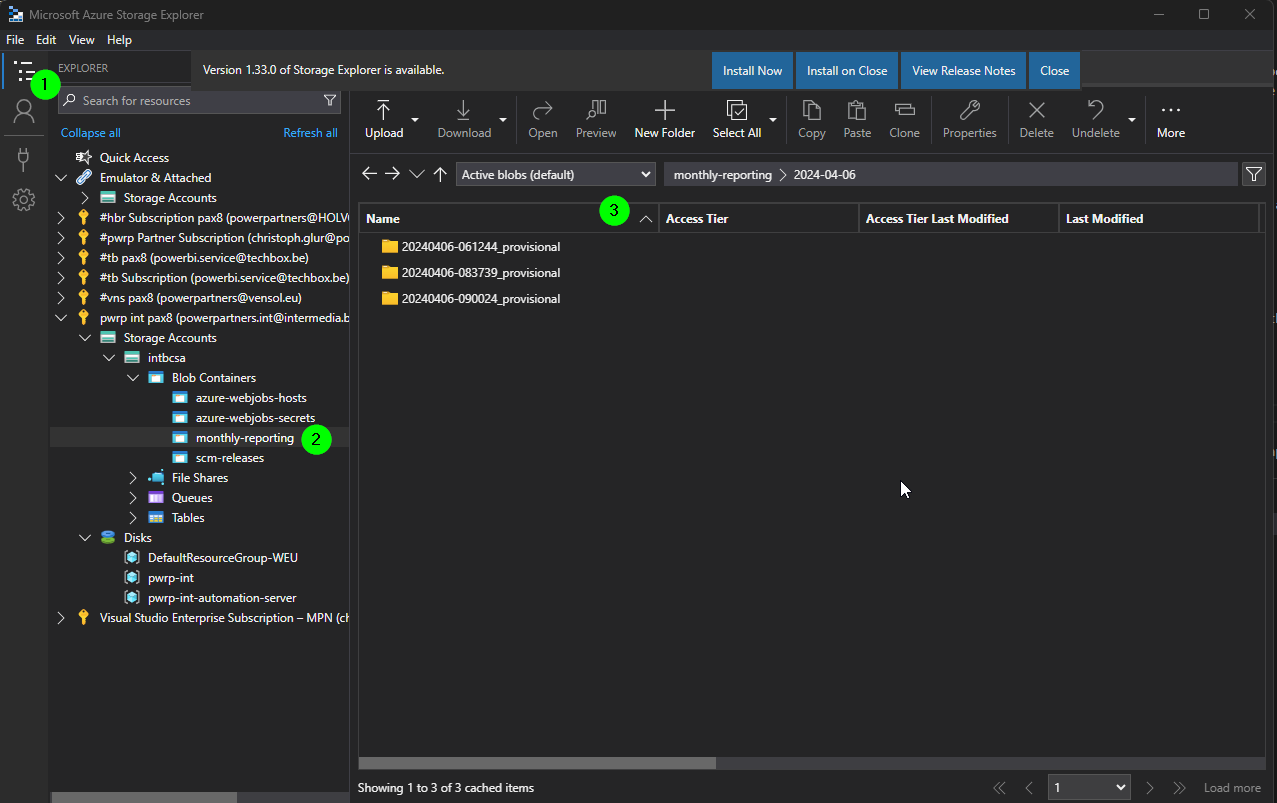
Once you have installed and logged in, you can access the folders in the Explorer section of the storage explorer:
-
click on the explorer icon
-
navigate to
pwrp int pax8 > Storage Accounts > intbcsa > Blob Containers > monthly-reporting -
navigate to folder of your chosing
-
if you are inside a folder and want to refres, go to
More > Refresh
Review PDFs
You can then double-click a PDF. It will open automatically in your default PDF software on your computer.
Download entire Folder
You can also download the entire folder by proceeding as follows:
-
select the folder
-
open the
Downloadbutton -
select
Download All...
Typical Workflow
Typically, you will use the functionality like so:
-
ask all project managers to finish or fix their numbers in JIRA
-
refresh the data by triggering the ADF pipeline (see question above)
-
open a browser and enter the following link in the address bar without clicking enter:
https://int-bc-af.azurewebsites.net/api/monthly_reporting_http?code=oxpkgDP83hS8IaavswDoQCKTtBEDDYncfxWgiLehPXPXAzFuKX-gZQ==&date=2024-03-27&report_type=1 -
replace the date with the desired date
-
replace the report_type with the desired string (or leave it)
-
hit enter
-
wait until the browser window shows that the PDFs have been generated
-
open the Storage Explorer and inspect the files
-
if you need additional adjustments, go back to step 1 and repeat
-
once you are happy, download the folder from Storage Explorer
-
enter the invoices, attaching the pdf timelogs