Exact Authentication
This documentation describes the Exact authentication.
Exact documentation: https://start.exactonline.be/api
Exact uses full OAuth2. The flow is:
-
Once per client: Get access to Exact Online
-
Twice per client:
3. create an App in the Exact App Center. This will give you:
4.client_id
5.client_secret
6.redirect_uri
7. get the authorization code
8.code
9. get AccessToken and RefreshToken from code
10.access_token
11.refresh_token
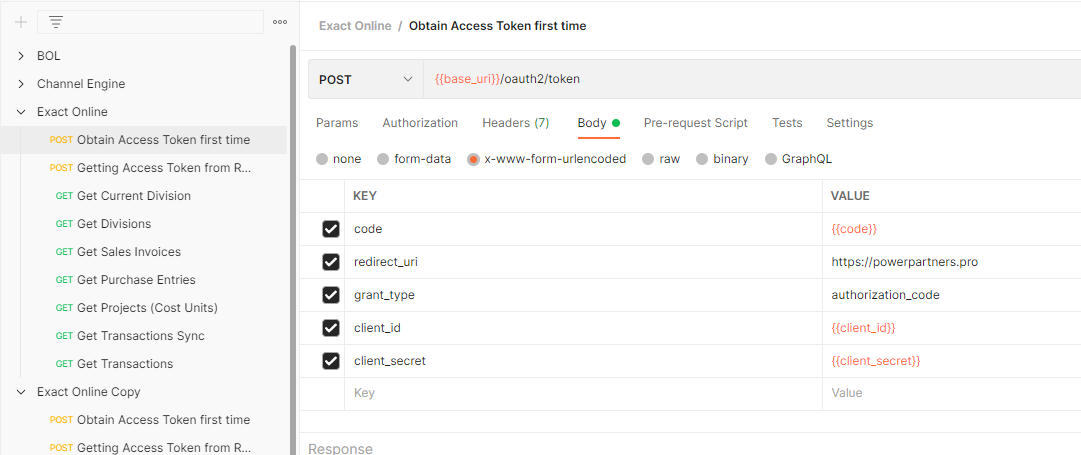
The reason why you want to have two apps is the following: You will want two chains of tokens: one for Postman and one for the ExactConnector. This way, you can use Postman to debug the API and the ExactConnector to run the API.
However, you can only have a single chain of tokens per user per app. Therefore, you need to create two apps.
1. Get access to Exact Online
Exact Online Account
You will need a unique user account for the client at hand.
For example, you can take the tech user for that client.
However, you will need to be able to confirm your email address.
Exact Online Rights
Request the rights we will need for the API
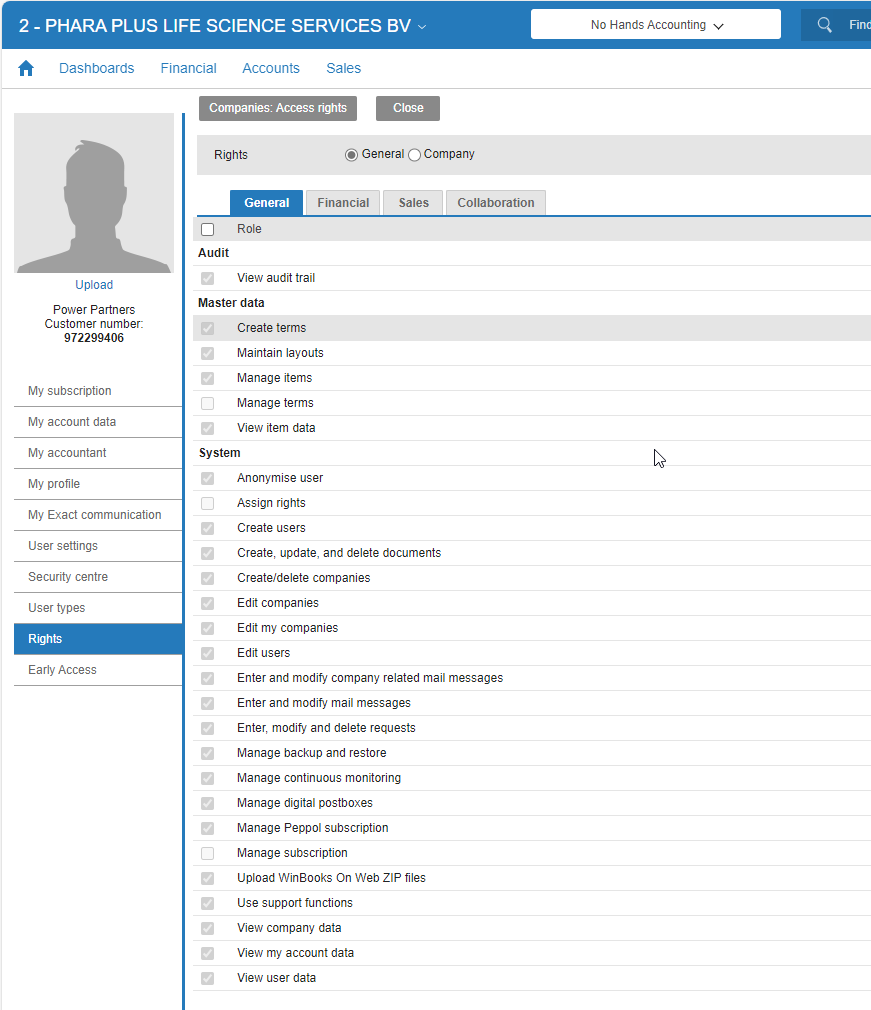
To be able to use the API, you need:
-
Right "Manage subscription". You can check this via [users > my exact online > rights > general tab > "manage subscription"]
-
Right/Access to the main administration within the license if set. You can check this via [user name > my exact online > my relationship data > main administration]. If no main administration is set, you can ignore this.
2. Create an app in the Exact App Center
New instructions 2026-06
- Since last month you find these apps no longer in the App Store but you find them this way:
-> Administratienaam> Import Export> Other> App Registraties
- For this you need the role "Apps beheren" see previous
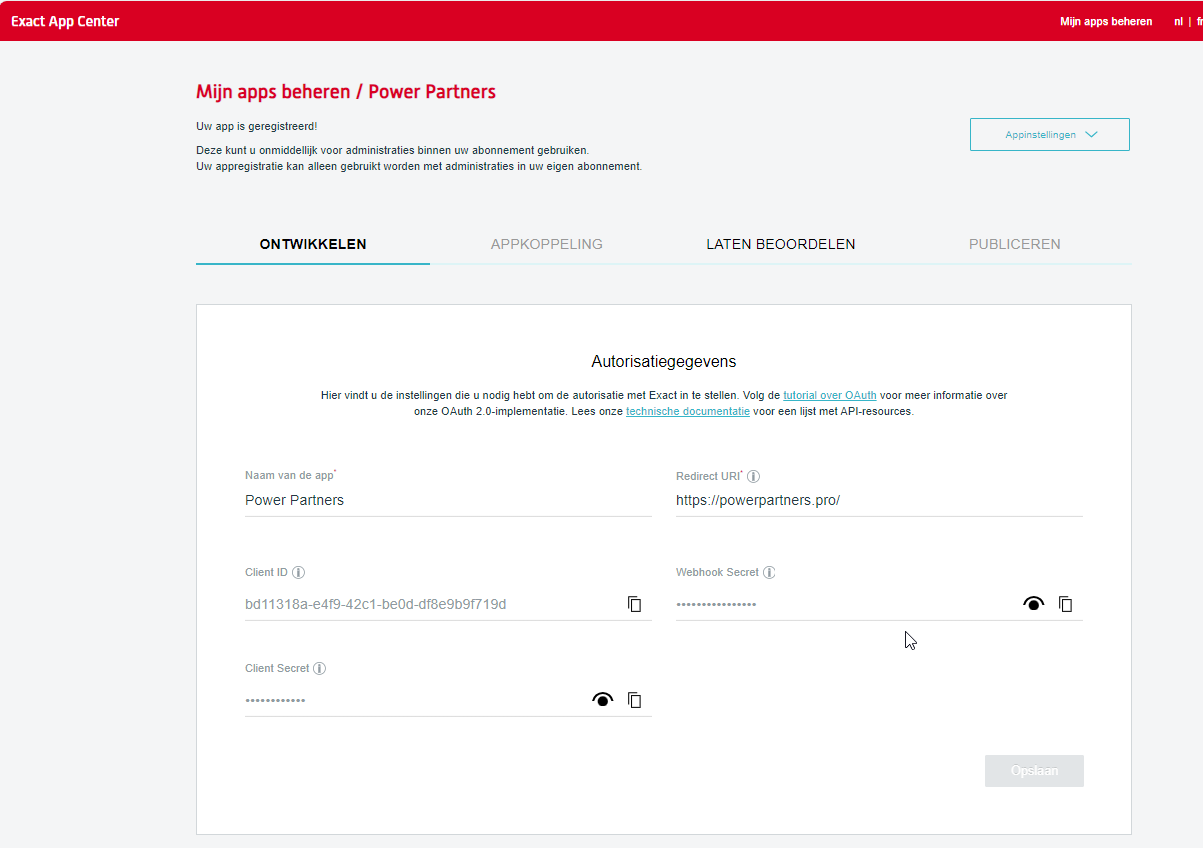
Create App
Create a new app of type Customer App. This is the app that is created without review. It is only available to the current license under which it is registered.
You do not need to do the review. You also don't need to specify which scopes you need. And you will not have to give access to specific companies. All these things are needed for a Production app only.
Background
You have 3 types of apps that you can register in Exact Online. A Production app, a Test app and a Customer app.
The different apps have the following functions.
Production app:
This is an app that can be created within a developer license. This is an app that you can use in your own developer license and to >which you can also connect external customers. For this you need to do a data & security review. Once that is done, you can link >external divisions.
After you have done the review, you can start a process to publish the app in the app store. For this you have to go through another >"review". This is completely optional.
Read more about this via:
https://support.exactonline.com/community/s/knowledge-base#All-All-DNO-Content-dev-getpblshd
(If you cannot open the link, it may be that you are not logged in to a developer license. Then I would recommend opening this link in >an incognito browser.)
Test app:
This is an app that you can only test in your own developer license. No external divisions and you cannot put it in the app store. You >can already do the data & security review to check whether the chosen scopes work properly. Then when the app is ready, you can make >it a "Production" app.
Please note! After you transfer the app to a Production app, you must do the data & security review again. I would recommend taking >that into account.
Customer app:
You can only create this app from a customer license. You only have access to this app.
A customer app only has access to the current license under which it is registered. You cannot link this app to external divisions and >you do not have to do a Data & Security review. This is intended for customization that will only occur with 1 license.
Since you are logged into a customer license the only available app is the customer app. You do not need to do the review. You can >make it and use it immediately. If you are trying to make an app that can be linked with multiple customers that have their own Exact >Online license then you need to register the app on a developers license.
If that is the case, then you can get a developers license right here:
At the end, you will have a
-
client_id
-
client_secret
-
redirect_uri
3. Getting Authorization Code
From the previous step, you need:
-
client_id
-
redirect_uri
-
Log in with the credentials you use for Exact Online
-
call the following link in your browser, replacing the client_id and possibly the redirect_uri with the one from the previous step:
```https
```
NOTE: as you are in a customer app, you do not need to give consent to specific scopes or companies.
NOTE: in some previous versions, we had an additional parameter force_login=0
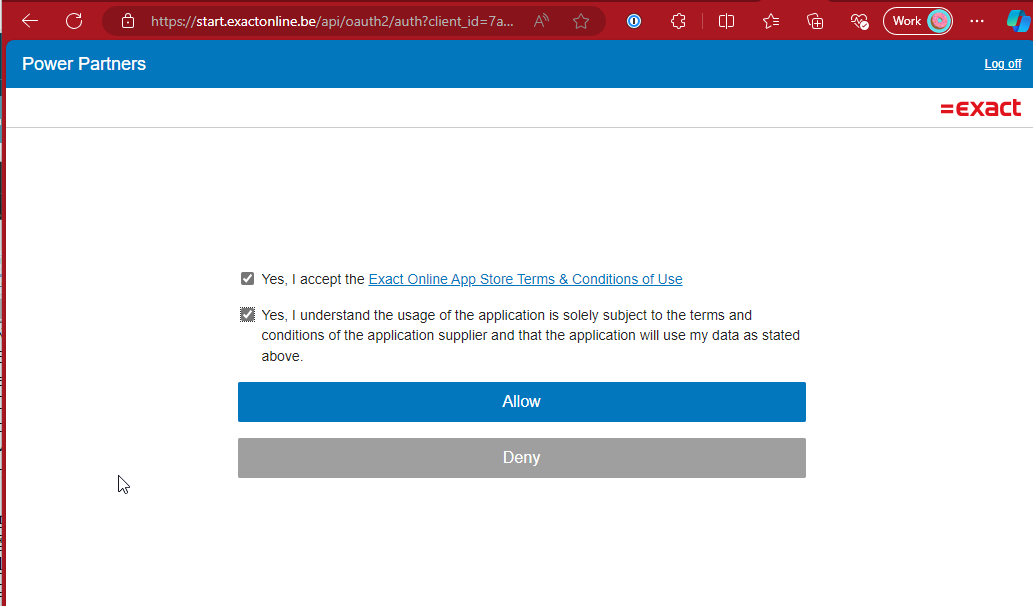
- If asked, approve
-
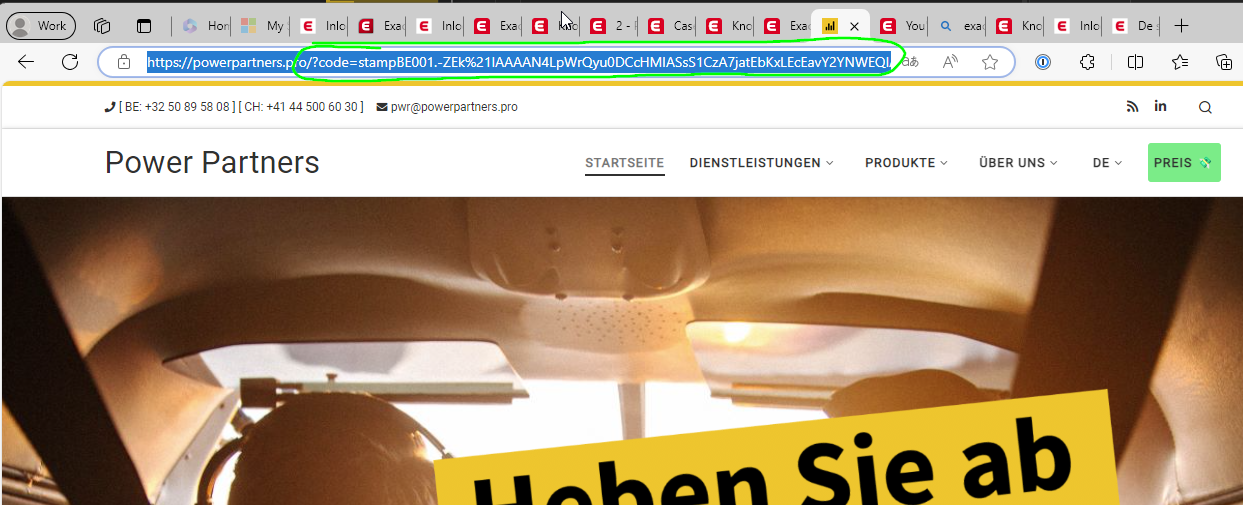
You will be redirected to the redirect_uri with a code in the URL.
-
Copy the URL and paste to Notepad++
-
IMPORTANT: Replace %21 with !. There is always a %21 relatively at the beginning of the code.

-
Copy the code

NOTE: You need to proceed quickly with the next step (Getting Access Token the first time), as the code is valid only for a short time.
If everything works, you will see the registration in Exact Online. Note that the app may say Requires Attention. This is normal for a Customer App and can be ignored.
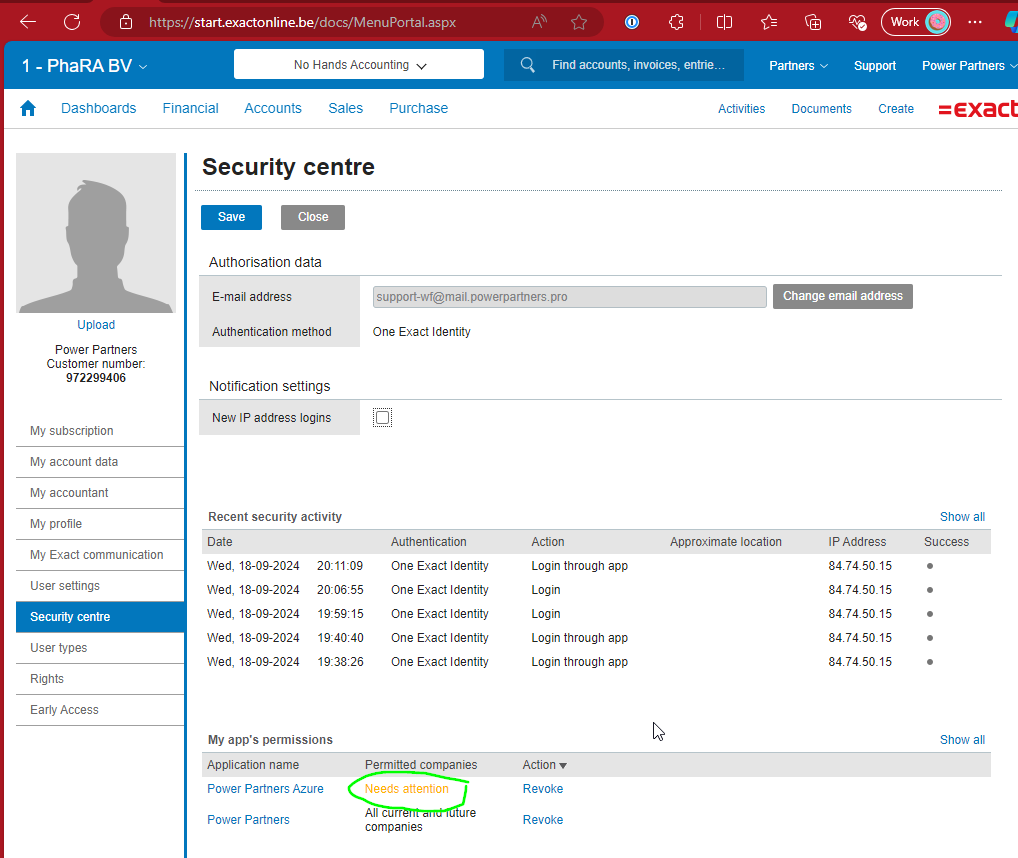
If you need to redo this step, you can revoke the app permissions in Exact Online and start over.
4. Getting Access Token the first time (from the auth code)
With the code (from the previous step), the client secret and the client id (from the app registration), you can get an access token:
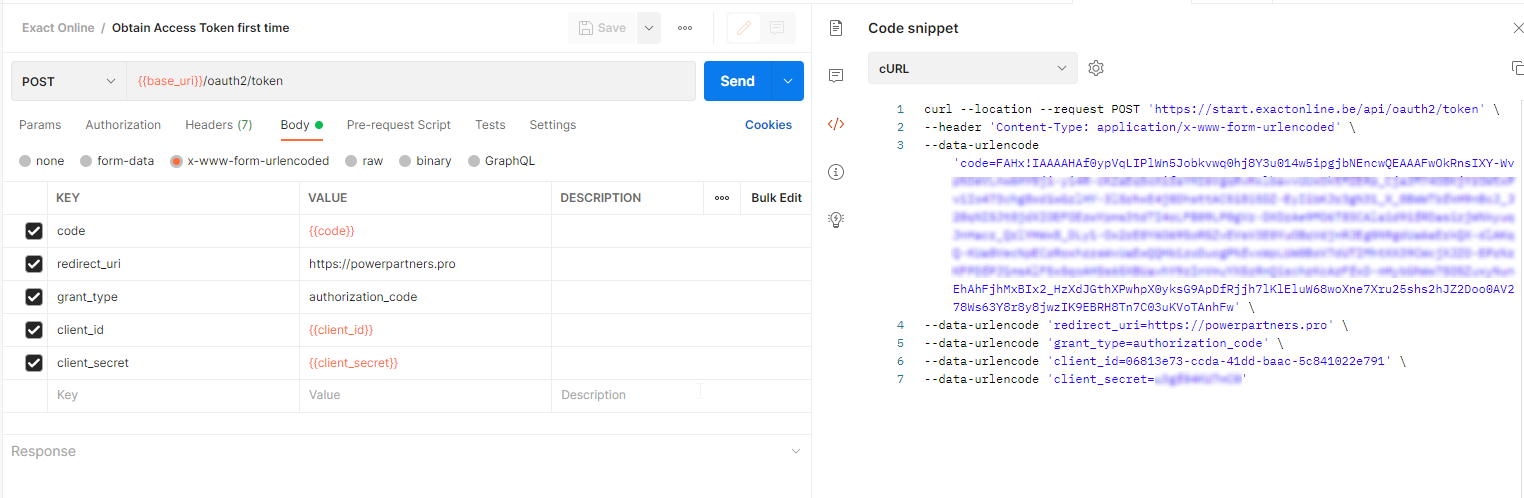
When you emit a post request, you will get an Access Token and a Refresh Token.
- base_uri: https://start.exactonline.be/api
5. Getting Access Token from Refresh Token
If you have already received an Access Token and a Refresh Token before (see previous section), then you can use the refresh token to get another set of access token and refresh token.
Going forward, you will:
-
use the Refresh Token to get a new Access Token and a new Refresh Token
-
use the Access Token to make requests
-
once the Access Token is invalidated (after 10 minutes), then - again - use the Refresh token received in 1. To get a new Access Token / Refresh Token pair
Note that the access token is valid only for 10 minutes. And it can be renewed only after 9.5 minutes.
For this reason, the pwrp ExactConnector contains functionality to automatically execute steps 2 and 3.
Debugging in Postman
An access token and refresh token form an inseparable sequence, a single chain. Therefore, we cannot use Postman and ExactConnector in parallel, at least not if we only have a single token.
To overcome this, you need to repeat steps 3-5.