Docdoc
Getting Started
Read this Documentation
If you are reading this, you've already mastered most hurdles. Else, here's the background:
-
the documentation is hosted at https://doc.pwrp.pro
-
use the Search to navigate quickly to various locations
-
the documentation is protected. Ask the security-officer if you need but don't have access. Access is typically provided as part of the new-employee-onboarding.
-
the documentation is meant for Power Partners team members. But specific parts can be shared with clients, prospects and partners. Ask your line-manager if you are not sure.
Where to start
- go to tags and browse for clients or other tags
- search for
BC DWH
Contribute to this Documentation
Basic Skills Needed
To effectively contribute to this documentation, you should be familiar with:
- Markdown: Basic formatting syntax for writing documentation. While we don't have a dedicated markdown guide yet, you can find excellent tutorials online or use the examples throughout our documentation as reference.
- Mermaid: A diagramming tool that uses text-based syntax to create flowcharts, ERDs, sequence diagrams, and more. See the Features section below for how to use it with our setup.
Tools
We use the following tools for documentation:
- Obsidian: Our primary editor for writing and organizing documentation. It provides a user-friendly interface with live preview, wikilinks, and image pasting. Learn more about obsidian.
- Visual Studio Code: For more raw editing and advanced features. VSC is particularly useful for:
- Bulk operations across multiple files
- Copilot integration for AI-assisted writing
- Git operations and diff viewing
- Find and replace across the entire repository
- MermaidChart.com: Online diagram editor for creating Mermaid diagrams with a visual interface. Log in with the credentials provided in 1Password. You can design diagrams visually and then copy the generated Mermaid code into your markdown files.
- GitHub Desktop: For committing and pushing your changes. Learn more about github.
Background and Setup
- Storage: All markdown files are stored in the GitHub repository at
https://github.com/pwrp/doc/ - Build Process: When changes are pushed to GitHub, GitHub Actions automatically builds the documentation
- Publishing: The built documentation is published to https://doc.pwrp.pro using MkDocs
- Configuration: The MkDocs build process is configured in
mkdocs.ymlin the repository root
Basic Workflow
To contribute to this documentation, proceed as follows:
-
download and install Obsidian. Learn here more about obsidian.
-
download and install GitHub Desktop. Learn here more about github
-
clone
https://github.com/pwrp/doc/ -
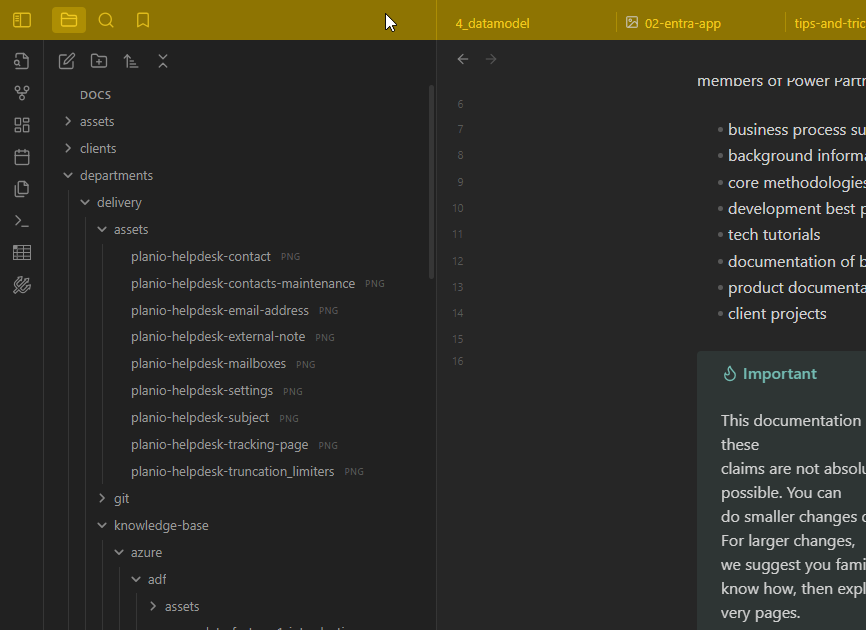
open Obsidian, and point to the vault defined in the
docssub-folder of the git repository, e.g./git/doc/docs. If everything worked, your window frame will be yellow
-
create new notes or update existing notes
-
in GitHub Desktop, commit your changes and push to github
-
a few minutes later, you will see your changes on https://doc.pwrp.pro
Features
Here's a list of some stuff you can do in Obsidian and with our documentation setup.
- Paste screenshots directly into a document in Obsidian.
- IMPORTANT: Avoid spaces and capital letters in filenames. Use lowercase with hyphens, e.g.
pb-playbook-screenshot.jpginstead ofPB Playbook Screenshot.jpg - All media files will automatically go into a
mediasubfolder
- IMPORTANT: Avoid spaces and capital letters in filenames. Use lowercase with hyphens, e.g.
- Link directly to other files using wikilinks. For example, start by typing
[[work. Obsidian will automatically present a list of articles with that name. You can then complete, e.g. to have work-time-tracking. - The same works for images. The difference is that images start with
!. Type e.g.![[dashboardto be presented a list of images starting with dashboard. - In obsidian, you can rename a markdown document or image. All links will be automatically updated.
- Use callouts to create boxes. In obsidian
Rightclick > Insert > Callout - Use code blocks, specifically
- inline: quoting one or multiple words in single backtick `. E.g.
parameter - block: start a code block with three backticks ```. End it, again, with three backticks. You can give a hint for the language in the opening block, e.g. ```SQL.
- inline: quoting one or multiple words in single backtick `. E.g.
- Use Mermaid for diagrams. Specifically, you can use our subscription to design diagrams. Go to https://www.mermaidchart.com/ and log in with the login provided in 1pw. Start with a mermaid codeblock: ```mermaid
- Use links to planio tickets, like in planio. for example, type #14064. This will create a link to planio directly.
- Use links to clients by using the client code. For example, type #alki.
- Add tags to your documentation:
- +meta.md: Create a file named
+meta.mdin a folder to define tags that apply to all files in that folder - YAML frontmatter: Add tags at the top of individual markdown files using YAML syntax:
- +meta.md: Create a file named
- Customize navigation with
+nav.md:- By default, mkdocs puts
- folders first, then files
- sorts alphabetically
- applies some capitalisation
- removes dashes
- This file uses YAML syntax for the awesome_pages plugin
- Use it to rename folders in the navigation
- Define the order of pages within a folder
- Example:
yaml
    nav:
        - Introduction: intro.md
        - getting-started.md
        - Advanced Topics: advanced-topics
        - summary
        - ...
Here, you may define a name, as in "Introcution" or "Advanced Topics". The ... mean "any other file or folder, alphabetically"
- By default, mkdocs puts