VSC Project
Prerequisites
- a python installation on your computer
- an up-to-date local git repository of the following projects
- pwrp/product-dwh-bc
- pwrp/py-bc
- pwrp/py-azure
- pwrp/py-db
- a .venv for the following projects
- pwrp/product-dwh-bc/af
- pwrp/py-bc
- pwrp/py-azure
- pwrp/py-db
- access to BC, specifically to the Dev Endpoint
Overview
-
get code range
-
identify and copy a recent project to the local git repository
-
adjust the configuration in app.json
-
adjust the configuration in vscode/launch.json
-
adjust the queries in the al files
Get Code Range
Ask your client contact what code range you can use.
Background
BC has a concept of Objects (Pages, Queries, Reports, Codeunits, Table Extensions, and more).
Each object - both base objects as well as objects defined in extensions - has a code. For example, the Sales Invoice Header table has Object ID 112. Object IDs are unique within the object type and per environment (so e.g. there can be a Page and a Query with object id 50000). The most common
Copy Project
-
identify a recent project
-
copy the following folders:
- code/af
- code/sql
- code/al
-
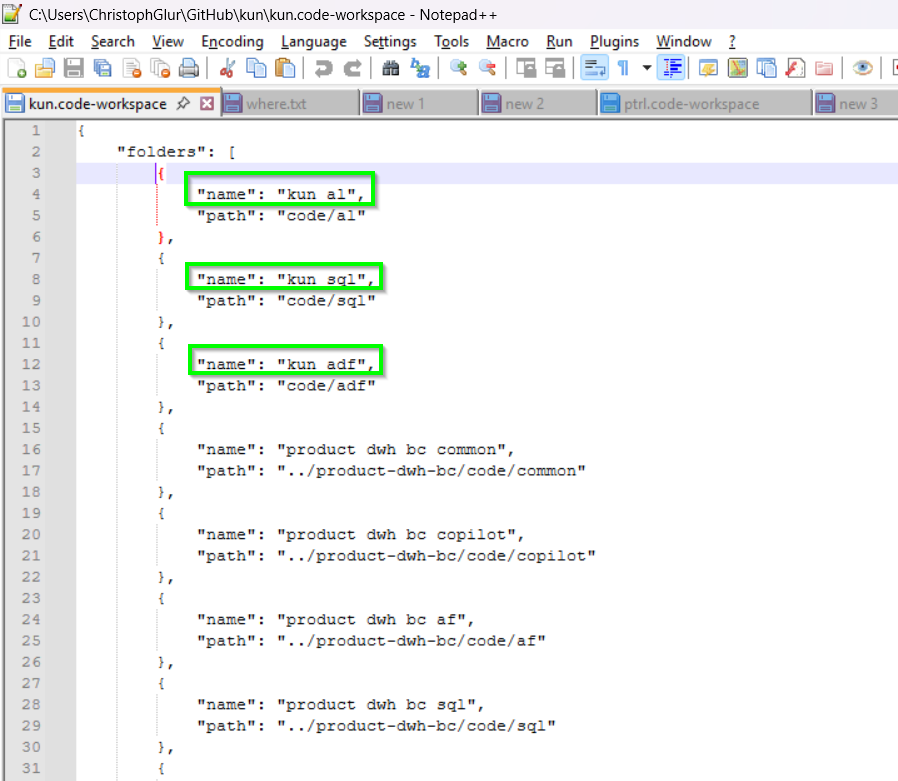
rename the workspace file (e.g. from kun.code-workspace to huy.code-workspace)
-
rename the client-specific project names in the workspace file (af, sql, al)
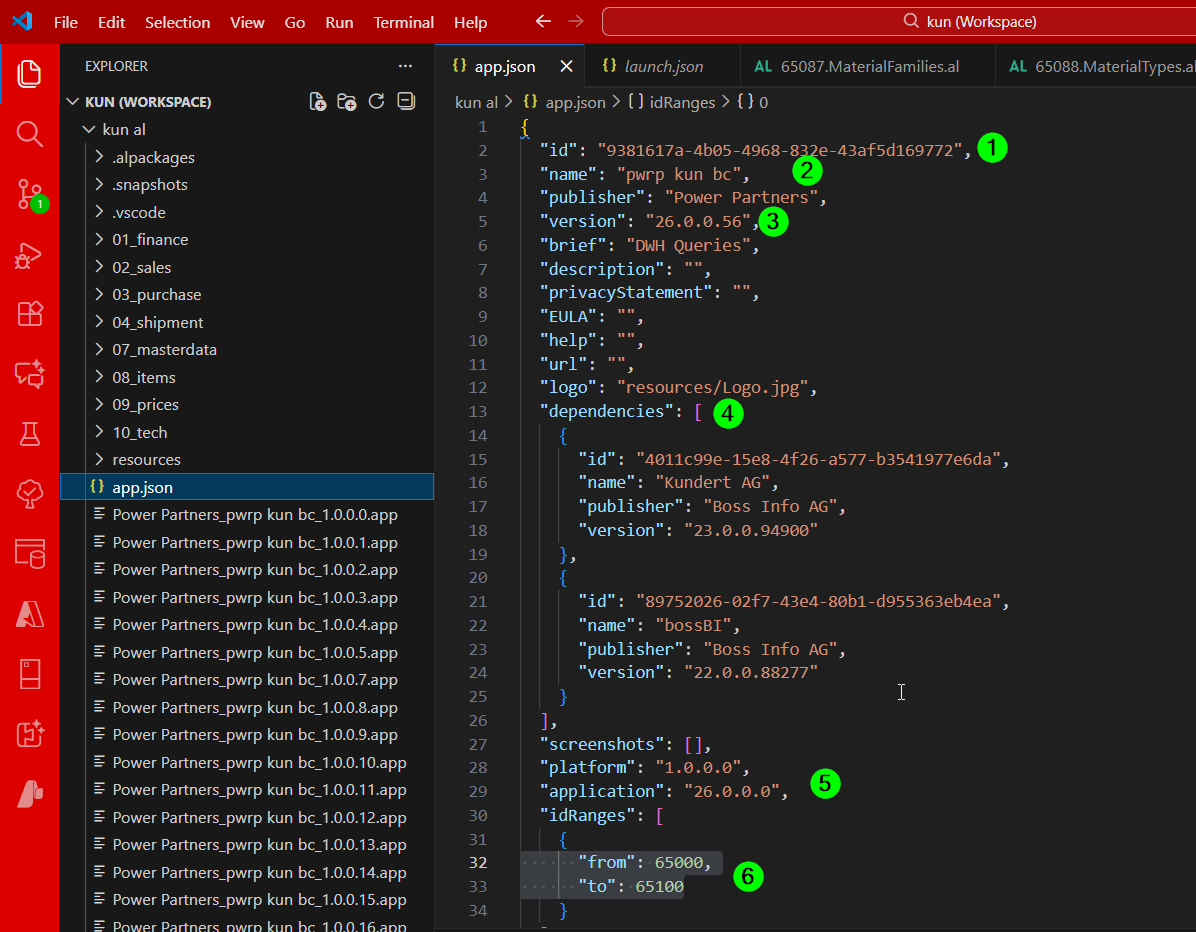
Adjust the configuration in app.json
-
id: assign a random id (use e.g. a guid generator from the web)
-
name: adjust to the client
-
version:
- first number: bc version
- last number: counting up from 1
-
dependencies: add dependencies if you know them, else leave empty for now
-
application: adjust to last major BC version (e.g. 26 below)
-
if the client provided id ranges, use them. Else try. For on prem, you will probably need an assigned range. Ask the client!
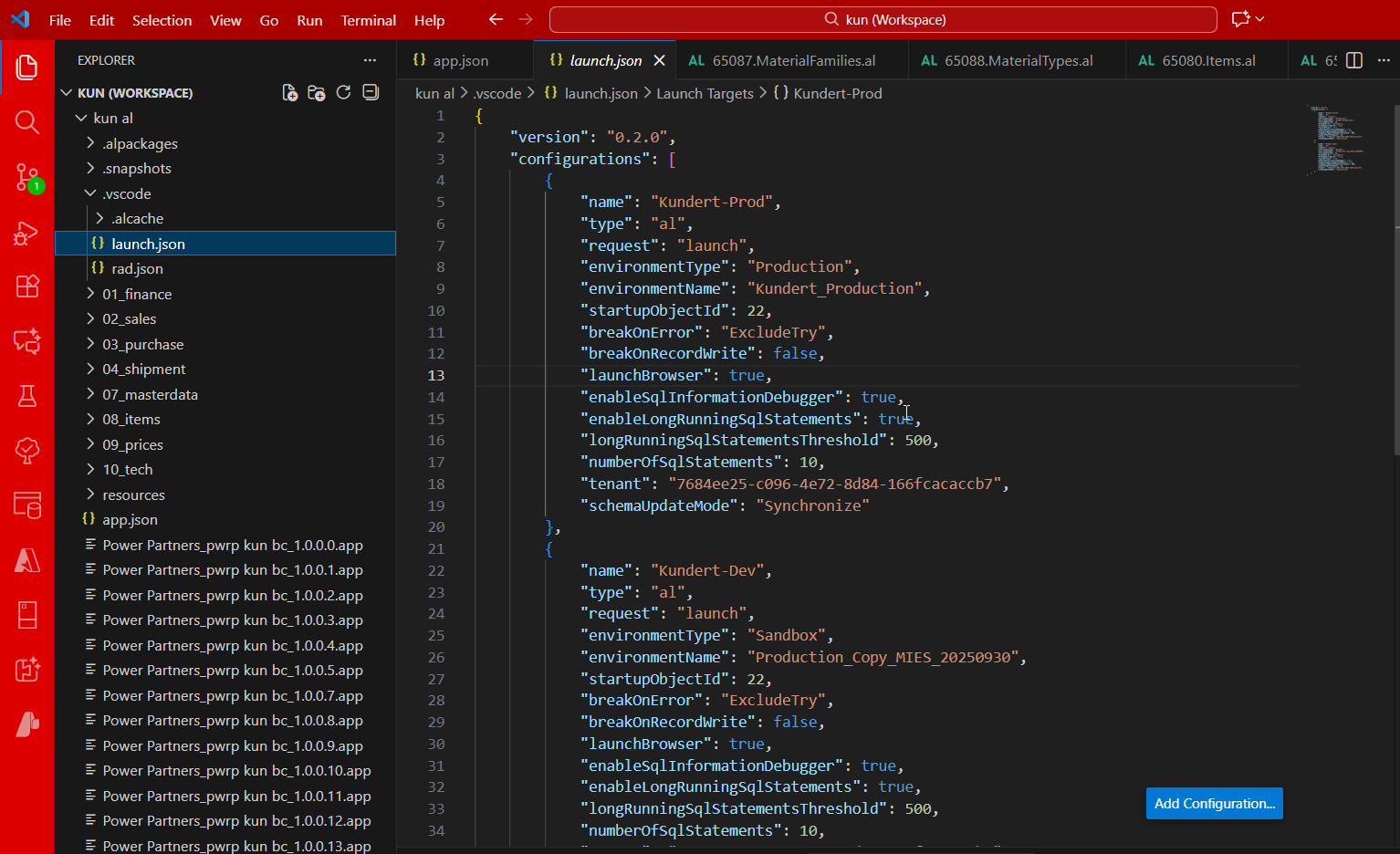
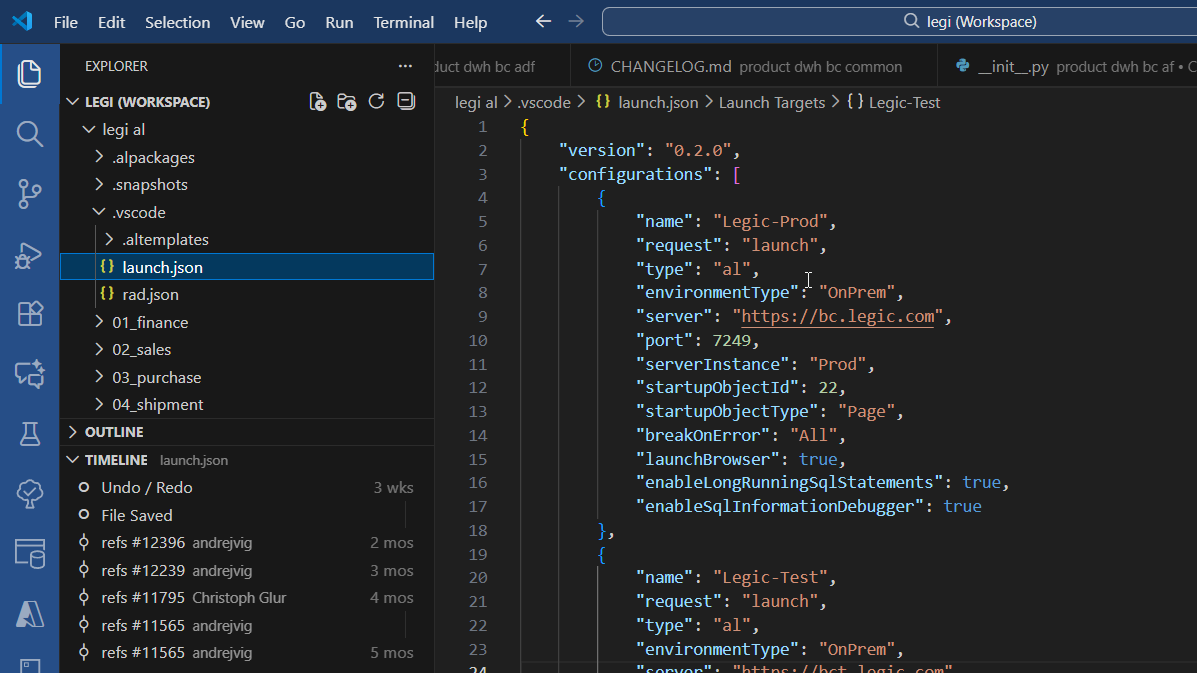
Adjust the configuration in vscode/launch.json
Cloud / SaaS
On Prem
Test
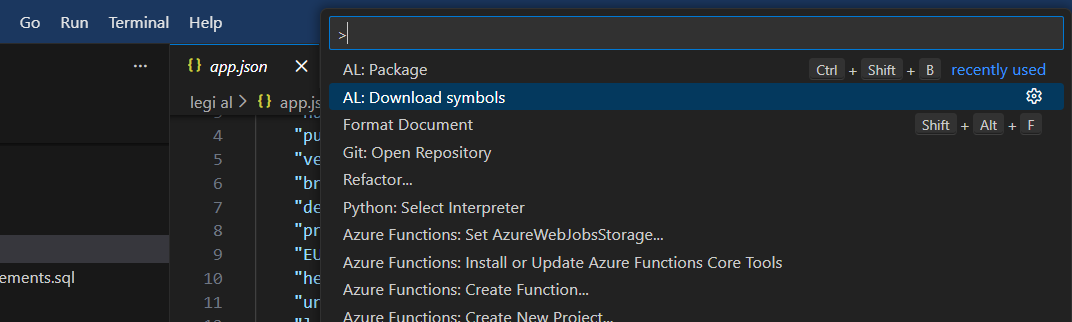
Test if you can download the dependencies by running:
-
Ctrl+Shift+P
-
AL: Download Symbols
-
select environment (for cloud: needs to be a sandbox)
-
authenticate
Adjust the Queries
Each *.al File corresponds to one query.
See bc-extension for ID ranges and naming conventions.
Commit
-
commit to git
-
push to github
Checklist
If everything works, you have the following:
- A VSC workspace for the client
- A client-specific al project
- the ID Range is agreed with the client
- the AL files follow our conventions (naming, code range, folders, etc.)