Key Vault Installation
Tldr
- Naming Convention:
xxx-pwrp-kv - SKU (Pricing tier): Standard
- Soft Delete: True
- Permission model: Vault access
Create Key Vault
The Key Vault is needed to store secrets that we do not want to store in code or in configurations. You can use an existing key vault or create a new one.
- In Azure portal, create a key vault.
- Name: Our naming convention for Key Vaults is
xxx-pwrp-kv, where xxx is a short code of the client. - Standard pricing tier is good enough.
-
Soft-delete is fine.
-
In the Access configuration set Permission model to Vault access policy.
- Create an access policy.
- The minimum access policy to read secrets is Secret Get, List
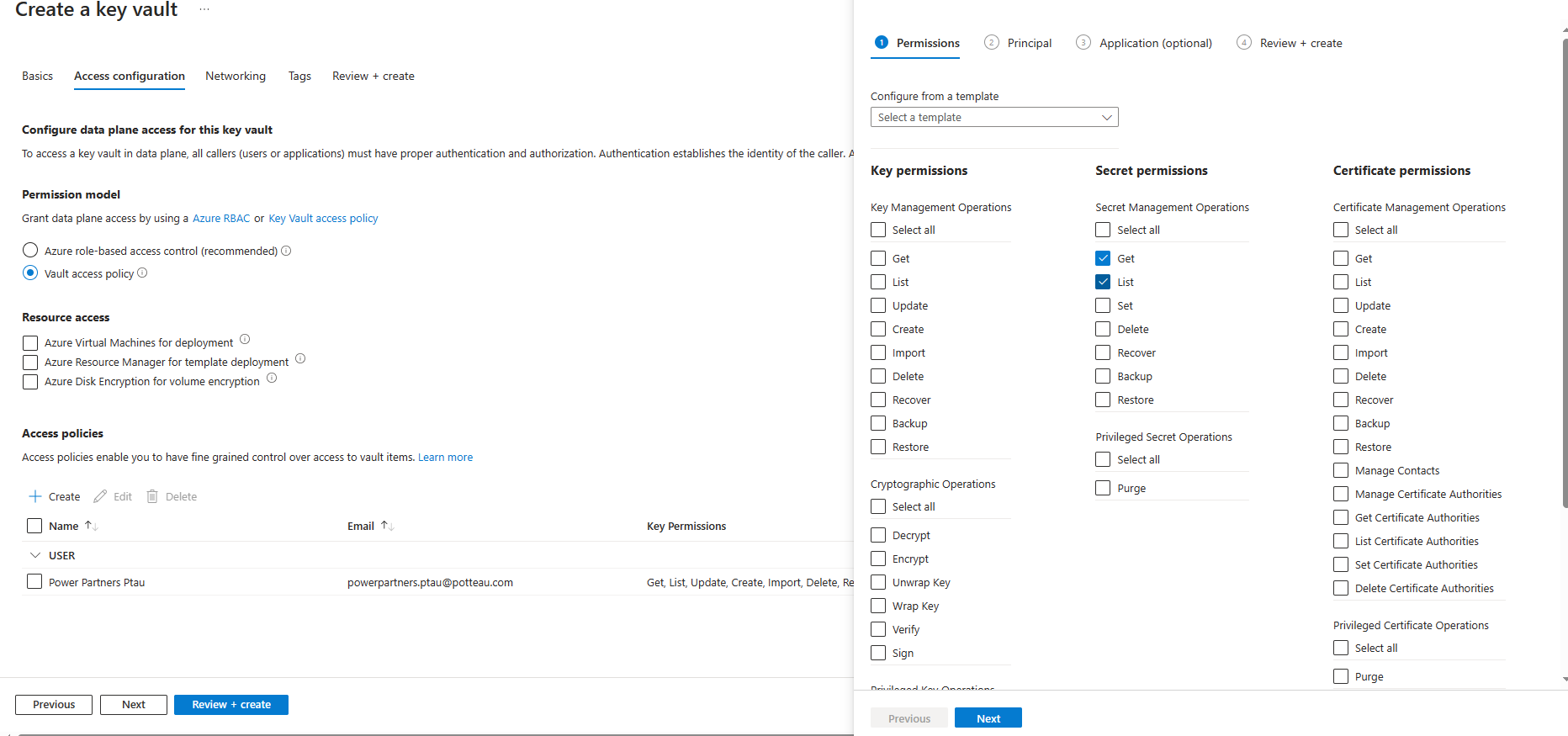
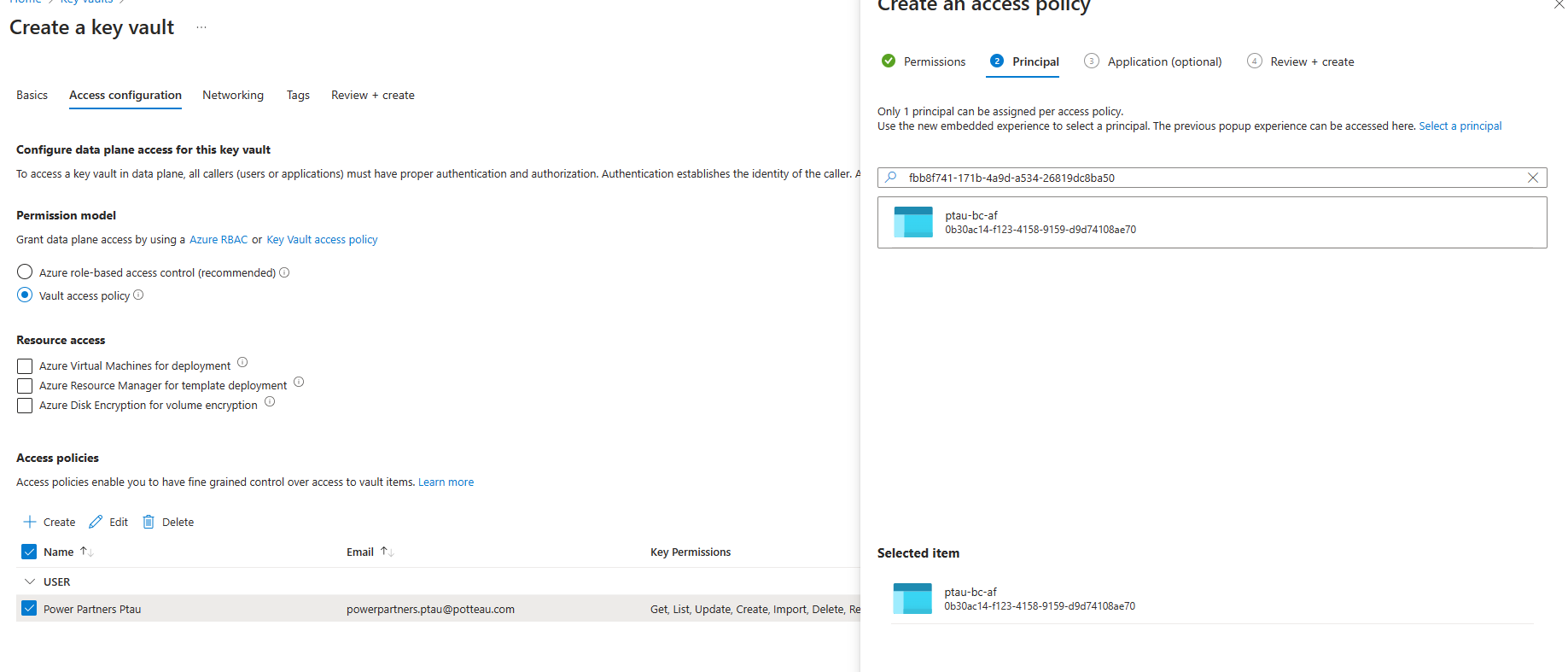
- Click Next and select the Principal. The principal is the user or identity that needs access. For example, if an Azure Function needs access to the secret, you need to turn the Identity Management of the Azure Function on, and provide it access here:
- search for the Principal ID of the App Identity that was created from us (go back to Azure Function > Identity if you can't find it and copy the ID)
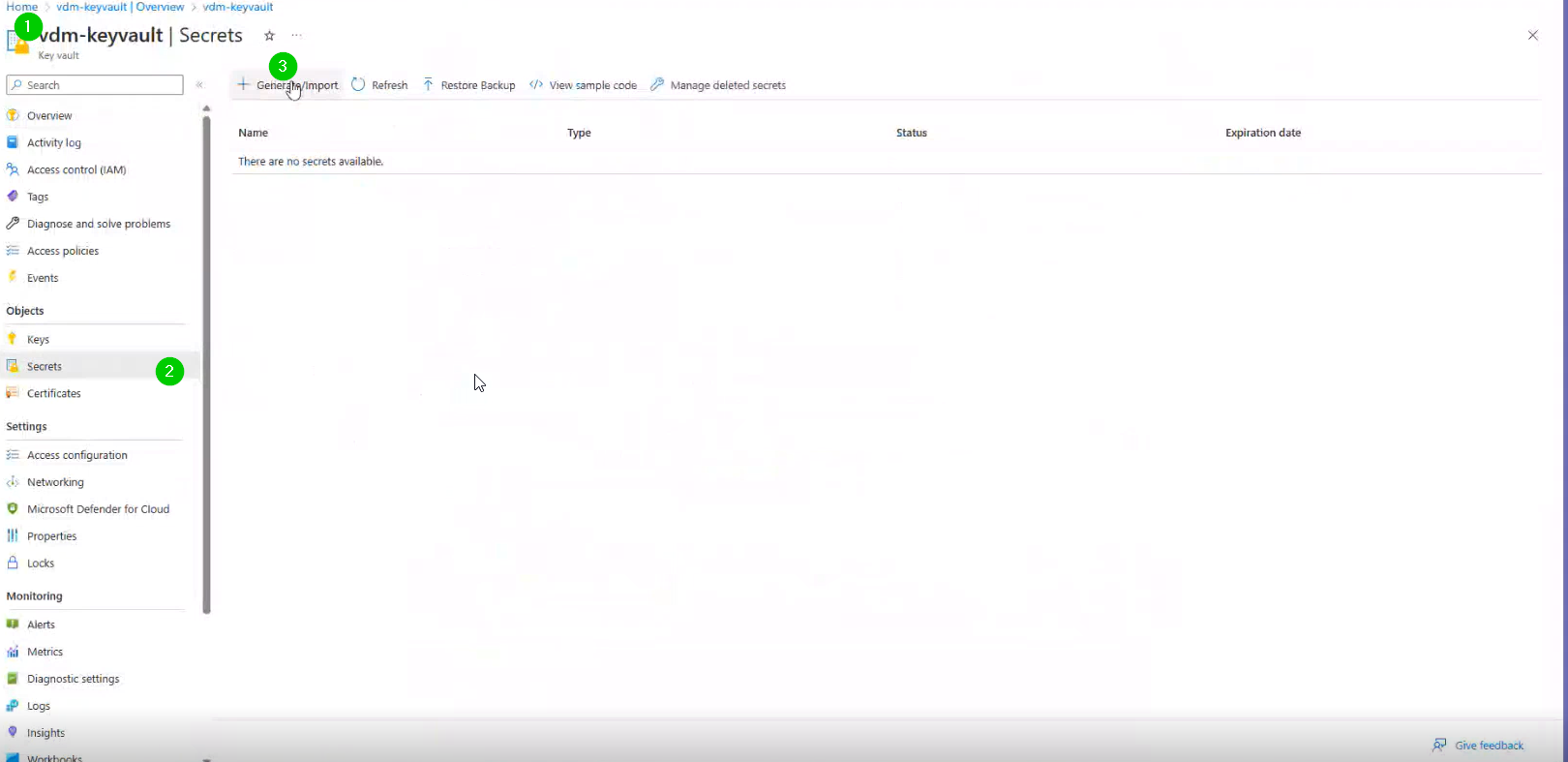
- Create a Secret in the Key vault
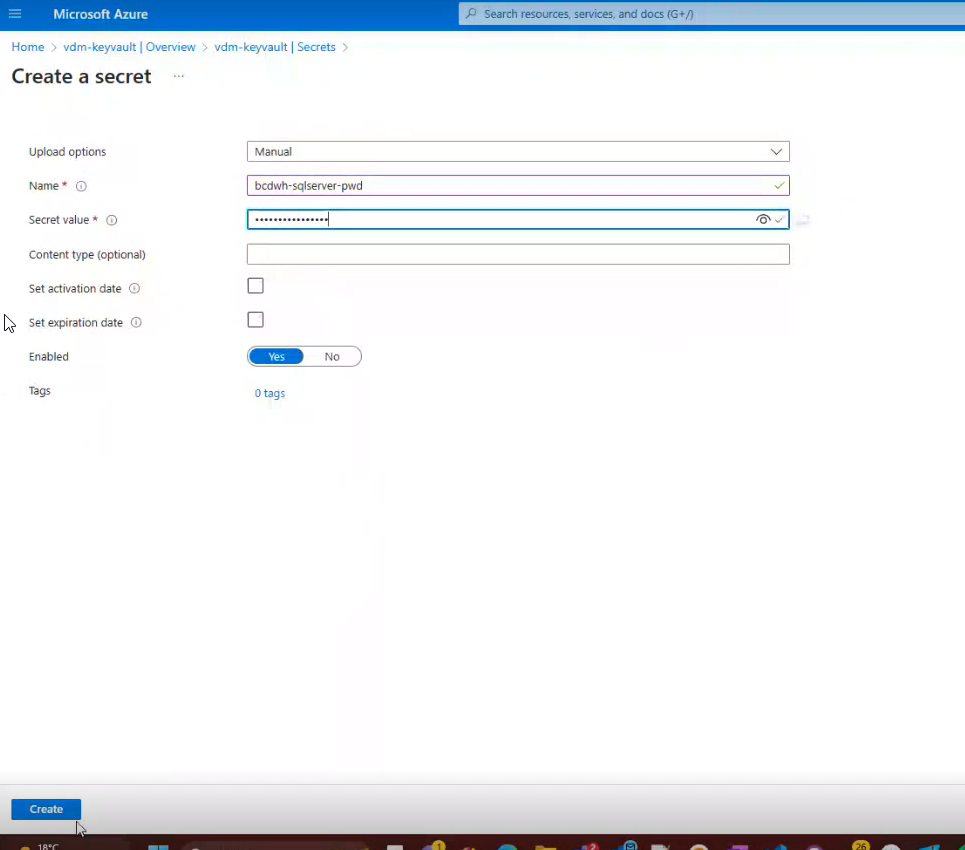
Name: e.g.bcdwh-sqlserver-pwd
Value: The sqlserver password (define one in case you haven't created an SQL Server yet)
- search for the Principal ID of the App Identity that was created from us (go back to Azure Function > Identity if you can't find it and copy the ID)