Azure Function
1. Create Azure Function
First, you need to create an azure function from the Azure portal.
See here for details: af-installation
If any way possible, opt for a B1 subscription, and not Y1.
2. Configure Azure Function
For the Azure Function BC we can set the log level by setting an environment variable LOG_LEVEL = DEBUG
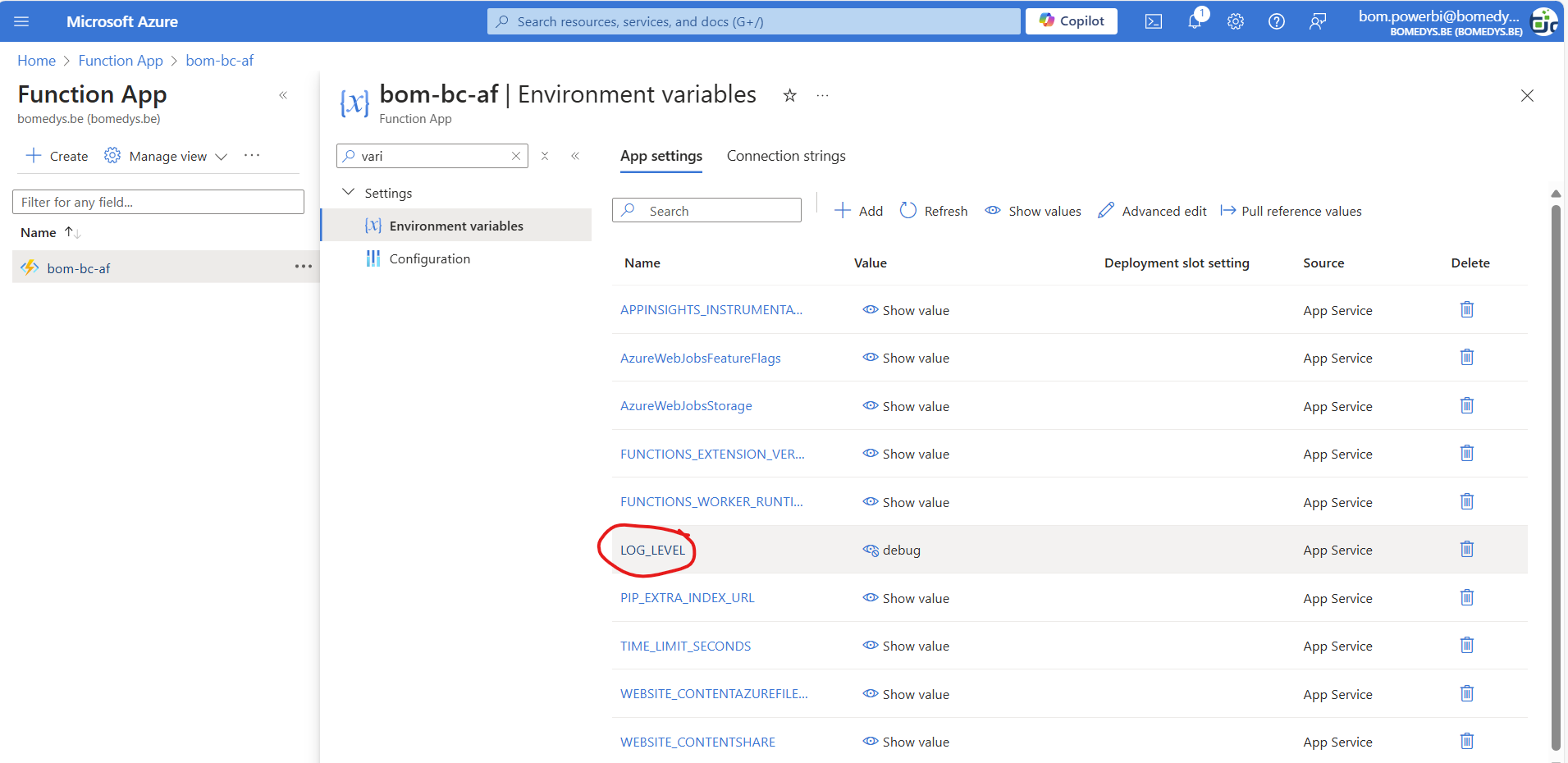
Variables
-
AzureFunctionsJobHost__functionTimeout = 01:00:00 (for B1) or 00:10:00 (for Y)
-
TIME_LIMIT_SECONDS = 3500 for B, 200 for Y
-
DB_PERFORMANCE_LEVEL_HIBERNATE = S0
-
DB_PERFORMANCE_LEVEL_RUN = S1
-
ENABLE_ORYX_BUILD = true for B1, false for Y
-
FEATURE_CHANGE_LOG_DELETIONS_HOUSEKEEPING = true
-
LOG_LEVEL = INFO (or DEBUG initially)
-
PBI_REFRESH_CLIENT_ID = client app id
-
PBI_REFRESH_MAX_RETRIES = 20 (or the number of minutes you expect the dataset to refresh)
-
PBI_REFRESH_REDIRECT_URI = https://localhost:44300/
-
PIP_EXTRA_INDEX_URL = https://pypi_feed:lk6h3ohpjlefsovvix6vt5rd3ymyhy2lvwa77yefkejov7j67zma@pkgs.dev.azure.com/pwrp/_packaging/pypi_feed/pypi/simple/
-
REDIRECT_URI_POWERBI = https://localhost:44300/
3. Create an Identity
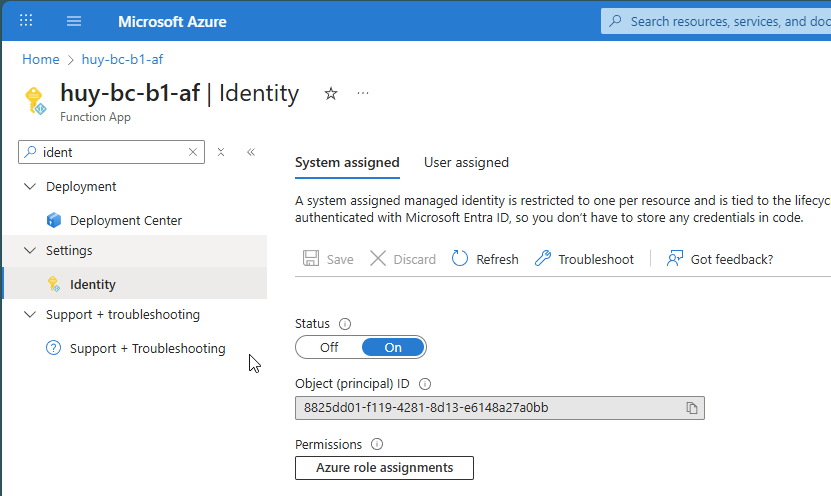
In order to allow the AF to change the DTUs of the Server, we need to create an Identity:
-
in the Azure Function, search for Identity
-
make sure Status is turned
On -
Copy the Object (principal) ID for later use (when you configure the Azure SQL Server)